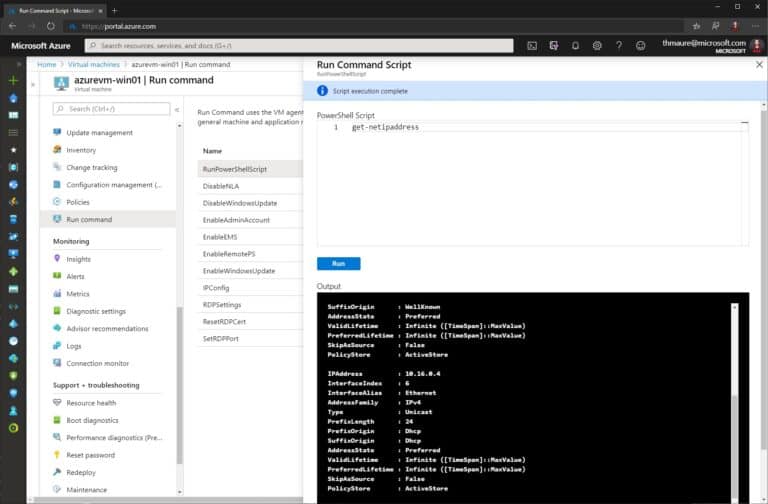
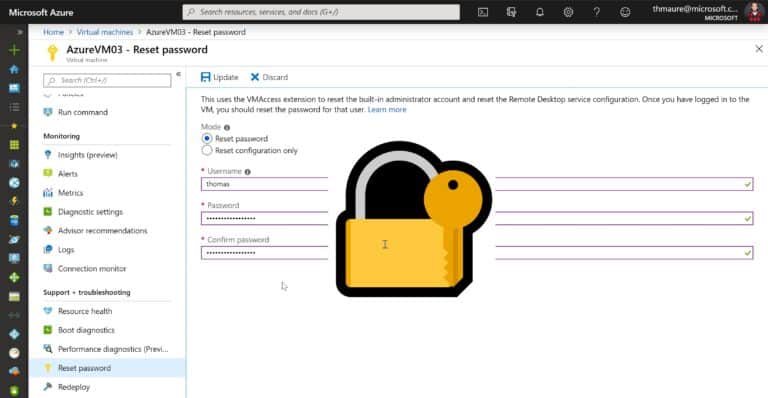
Azure Bastion is a new service which enables you to have private and fully managed RDP and SSH access to your Azure virtual machines. If you wanted to access your Azure virtual machines using RDP or SSH today, and you were not using a VPN connection, you had to assign a public IP address to the virtual machine. You were able to secure the connection using Azure Just in Time VM access in Azure Security Center. However, this had still some drawbacks. With Azure Bastion you get a private and fully managed service, which you deploy to your Virtual Network, which then allows you to access your VMs directly from the Azure portal using your browser over SSL.
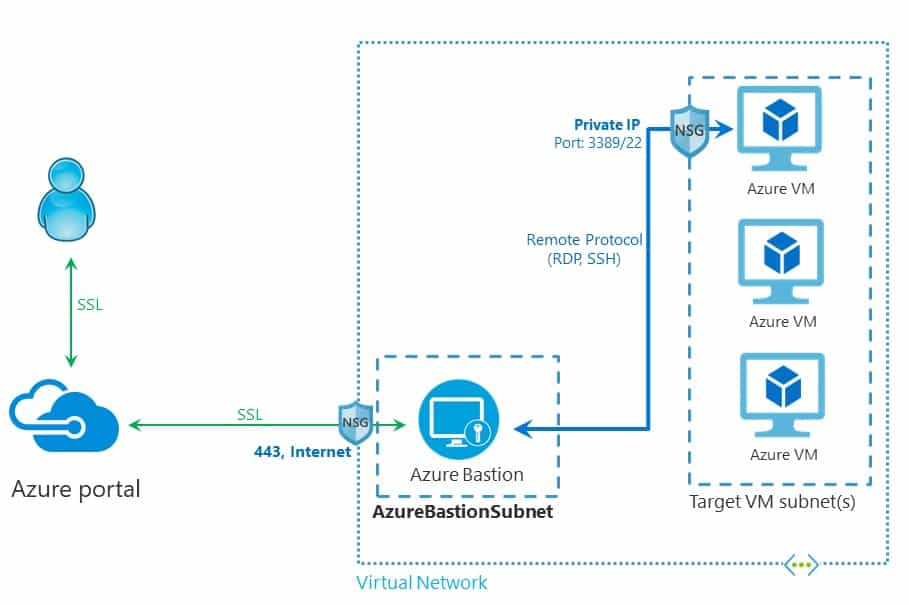
Azure Bastion brings a couple of advantages
- Removes requirement for a Remote Desktop (RDP) client on your local machine
- Removes element for a local SSH client
- No need for local RDP or SSH ports (handy when your company blocks it)
- Uses secure SSL/TLS encryption
- No need to assign public IP addresses to your Azure Virtual Machine
- Works in basically any modern browser on any device (Windows, macOS, Linux, etc.)
- Better hardening and more straightforward Network Security Group (NSG) management
- Can remove the need for a Jumpbox
If you want to know more directly here is the link to the Azure Bastion announcement blog and the Microsoft Docs.
Public Preview
Azure Bastion is currently in public preview. The public preview is limited to the following Azure public regions:
- West US
- East US
- West Europe
- South Central US
- Australia East
- Japan East
To participate in this preview, you need to register. Use these steps to register for the preview:
Register-AzureRmProviderFeature -FeatureName AllowBastionHost -ProviderNamespace Microsoft.Network

Register-AzureRmResourceProvider -ProviderNamespace Microsoft.Network

Get-AzureRmProviderFeature -ProviderNamespace Microsoft.Network
To use the Azure Bastion service, you will also need to use the Azure Portal – Preview.
How to set up an Azure Bastion host for a private RDP and SSH access to Azure VMs
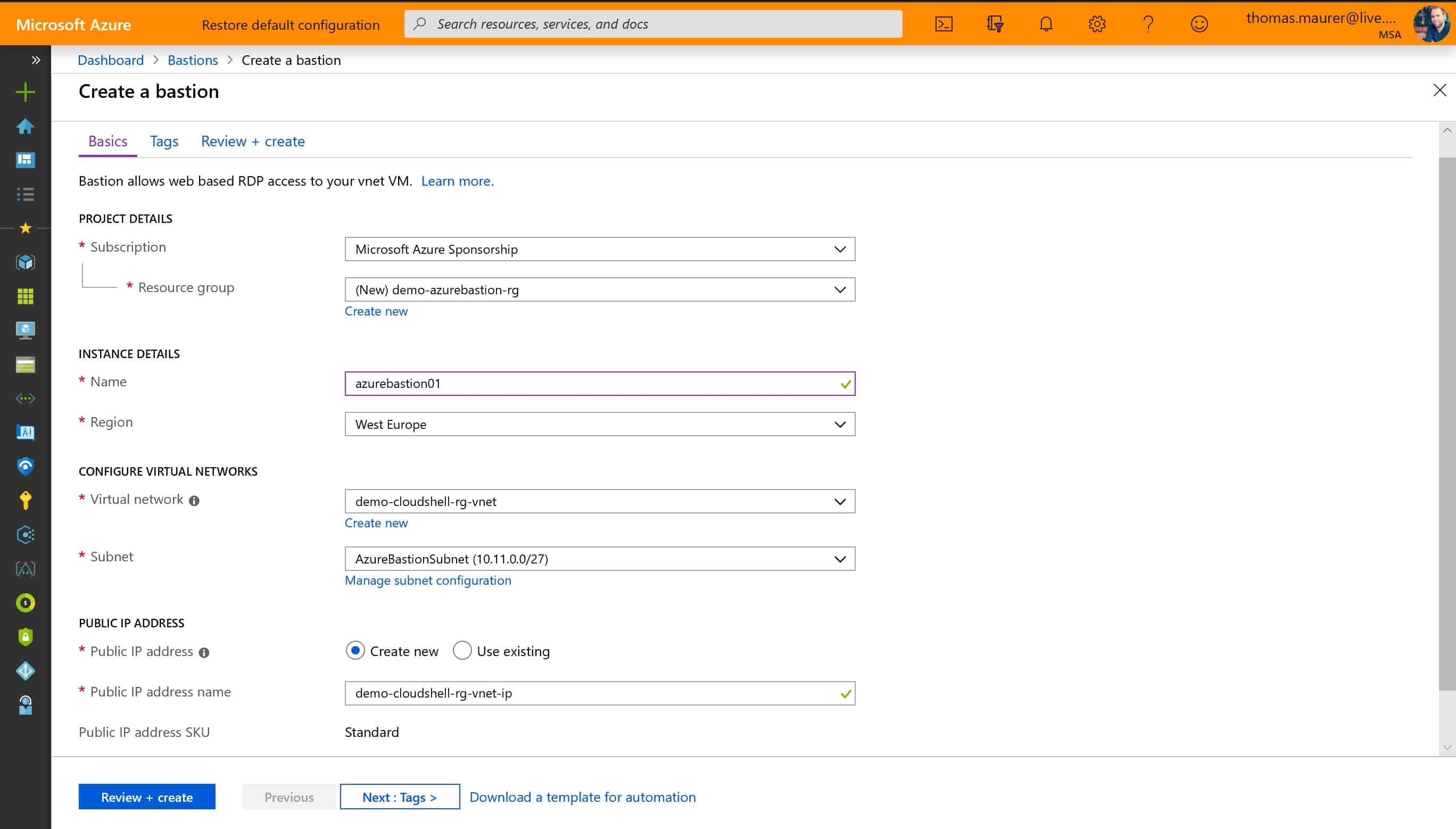
First, you will need to deploy Bastion Host in your virtual network (VNet). The Azure Bastion Host will need at least a /27 subnet.
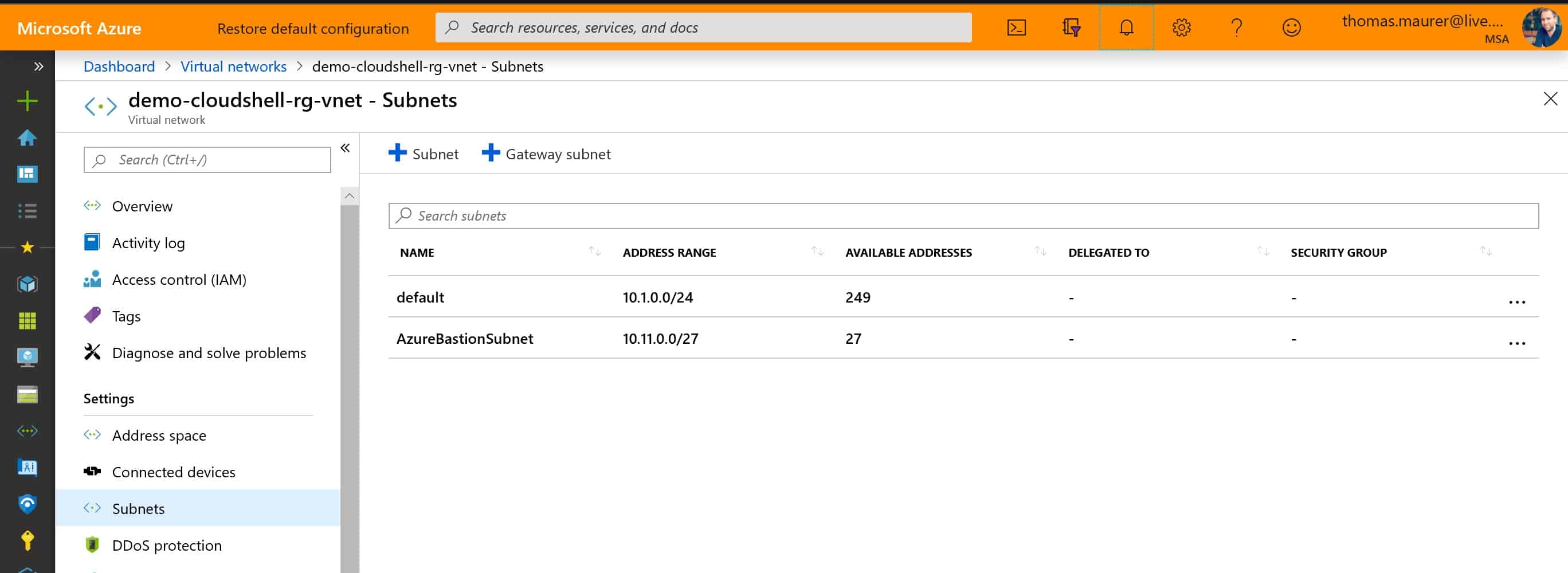
Access Azure virtual machines using Azure Bastion
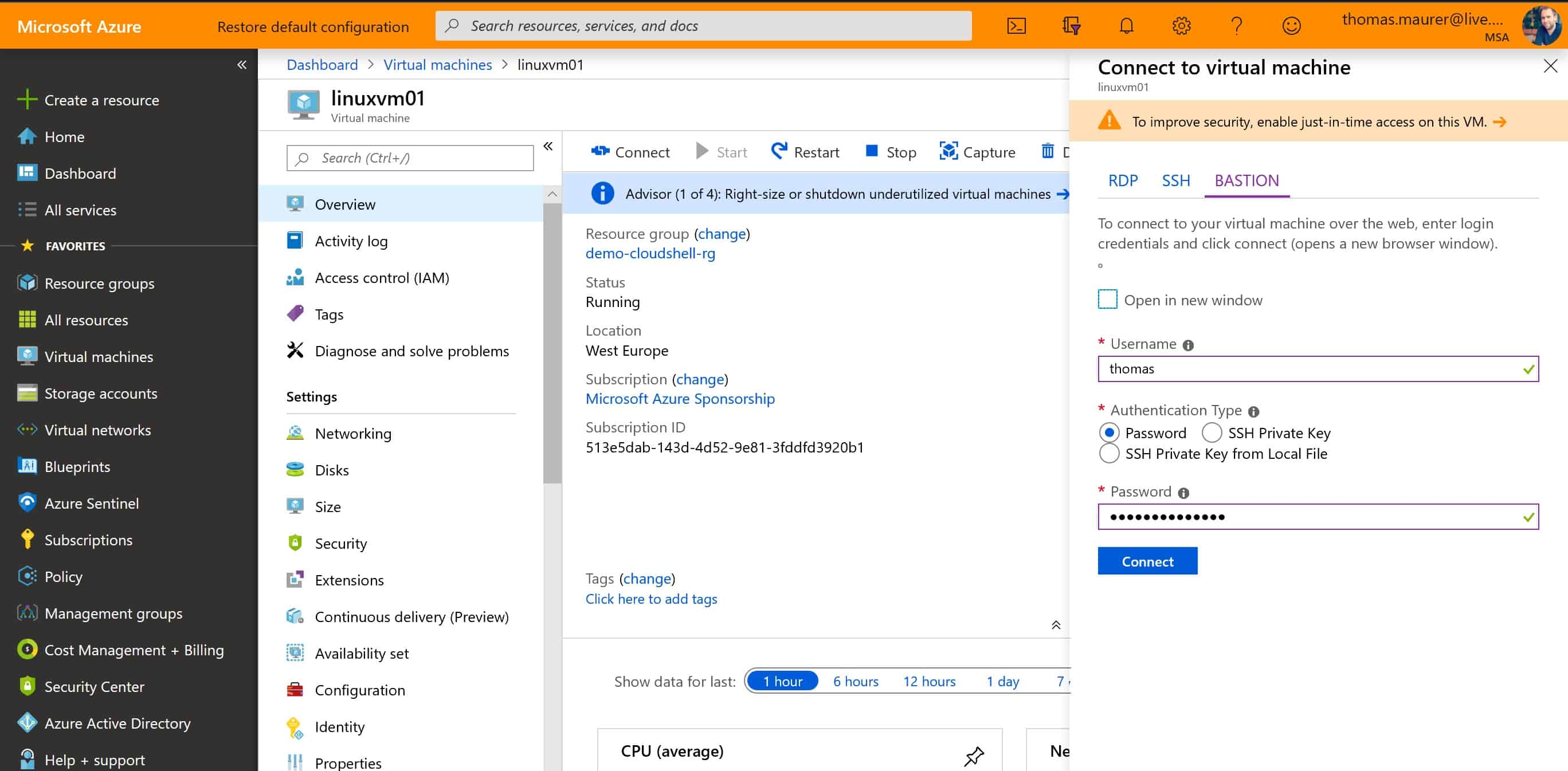
Azure Bastion integrates natively in the Azure portal. The platform will automatically be detected if Bastion is deployed to the virtual network your virtual machine is in. To connect to a virtual machine, click on the connect button for the virtual machine. Now you can enter your username and password for the virtual machine.
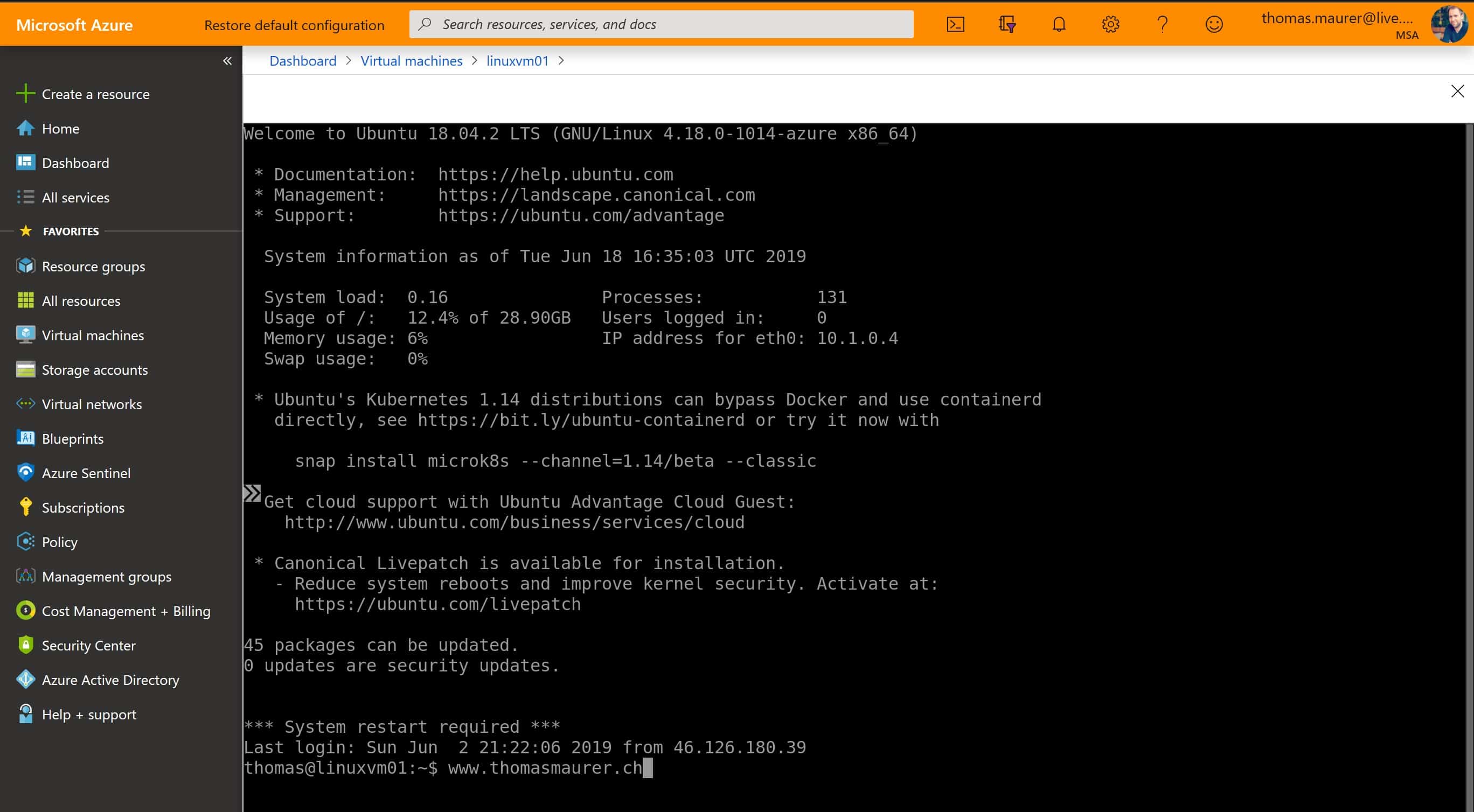
This will now open up a web-based SSL RDP session in the Azure portal to the virtual machine. Again, there is no need to have a public IP address assigned to your virtual machine.
Roadmap – more to come
As Yousef Khalidi (CVP Azure Networking) mentions in his preview announcement blog, the team will add more great capabilities, like Azure Active Directory and MFA support, as well as support for native RDP and SSH clients.
The Azure networking and compute team are doing more great work on creating a great Azure IaaS experience. I hope this gives you an overview of how you can get a private RDP or SSH access to your Azure VM. If you want to know more about the Azure Bastion service, check out the Microsoft Docs for more information. If you have any questions, feel free to leave a comment.