
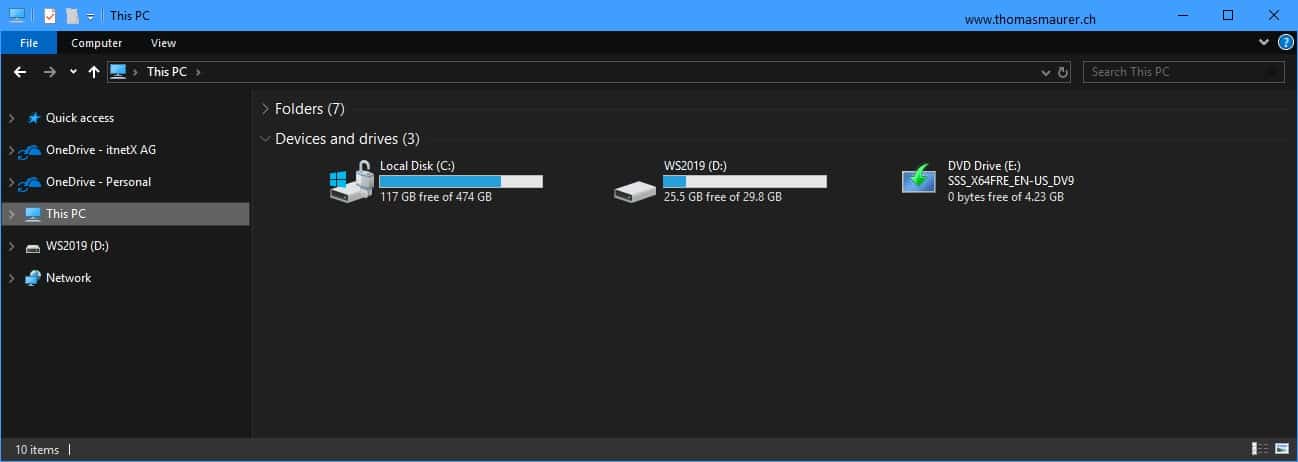
Create a USB Drive for Windows Server 2019 Installation
This blog post covers how you can create a bootable USB media drive to install Windows Server 2019...
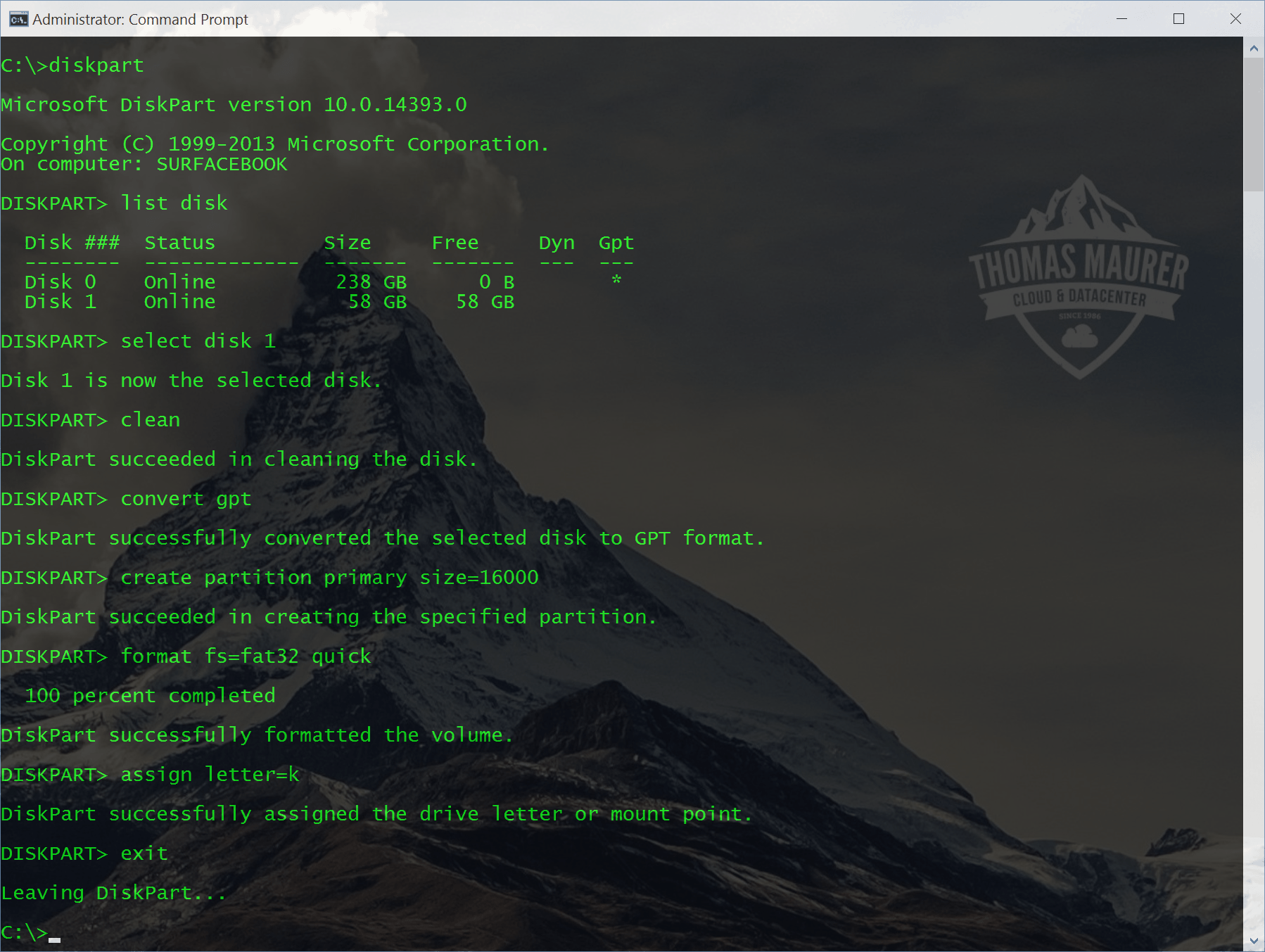
Create a USB Stick for Windows Server 2016 Installation
If you have download the latest version of Windows Server 2016 you can create a USB stick to install it on a physical server. This blog...
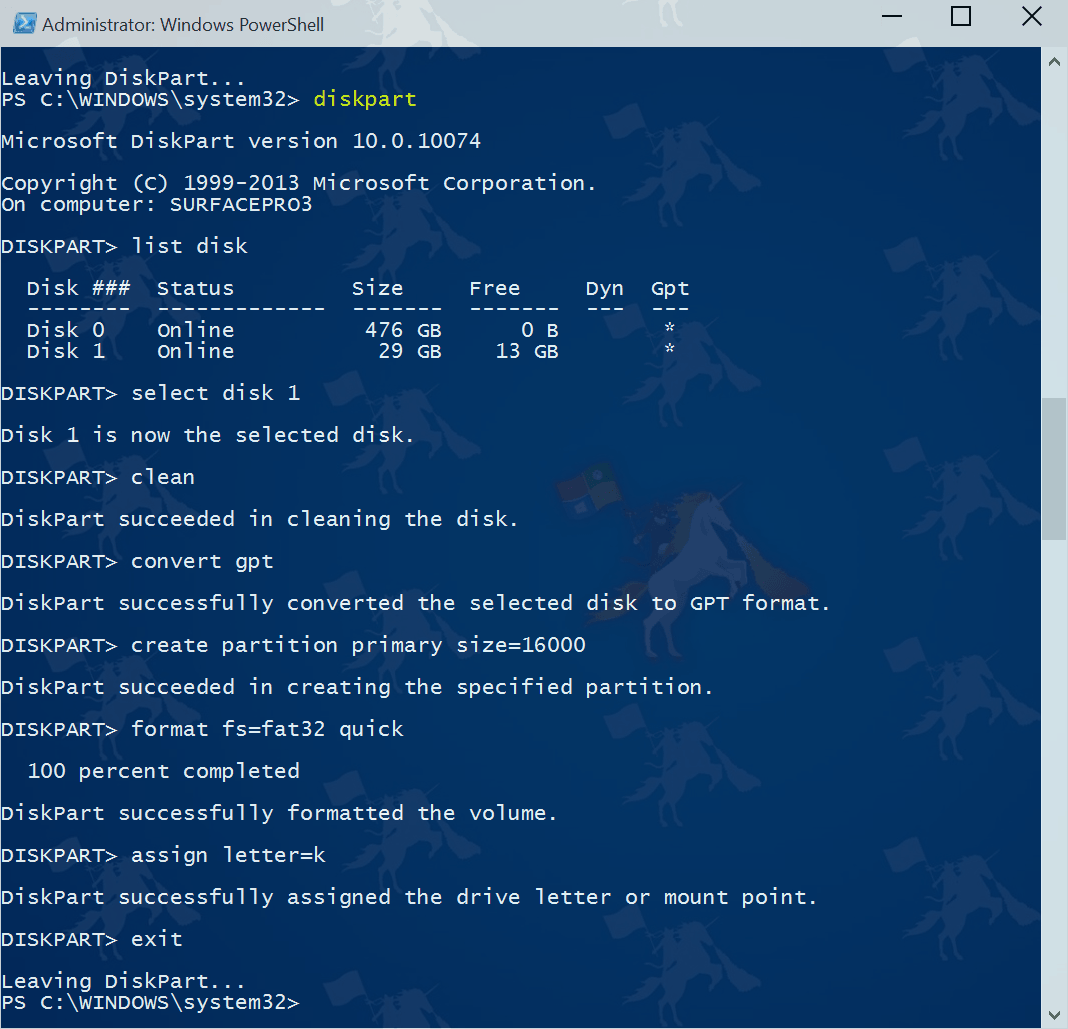
How to create Windows Server bootable USB media for deployment on UEFI based systems
When you were create a USB media for PCs, notebooks and servers which were using BIOS you could use several tools to do this. Now most of...

Microsoft Wireless Display Adapter
Some weeks ago I was in the US for a couple of days, I took advantage of that and visited the...
Windows 8: How to create a Windows To Go USB drive
Microsoft released a new feature called “Windows To Go” with Windows 8. With this feature it is possible to boot your Windows 8...
HP iPrint iOS App
Yesterday Hewlett-Packard released iPrint version 3.0. And this is a perfect App for printing and scanning documents directly from your...
How to create a Windows 7 & Windows Server 2008 R2 Install USB Stick
Its very simple to create a Windows 7 or Windows Server 2008 R2 bootable USB Stick. Microsoft...
How to create an HP Firmware Maintenance CD and SmartStart USB Stick
HP has some Maintenance CD’s for the ProLiant Server Serie, but a lot of Servers used in a datacenter don’t have a CD-ROM, so...




