

I already did a post how you can add drivers to a Windows Server 2008 R2 installation image with the command line tools dism and imagex. With Windows Server 2012 you cannot use the command line tool imagex anymore but you have a new Windows PowerShell module for dism which allows you basically the same with. In this tutorial, I will add drivers to a Windows Server 2012 ISO image or a Microsoft Hyper-V Server Image.
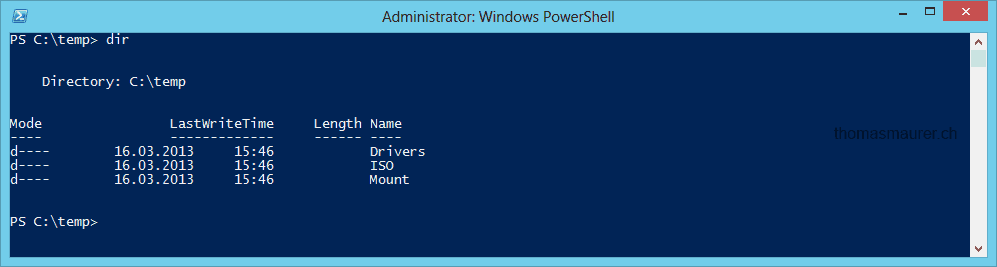
First I created three new folders:
- Drivers – which includes all the extracted drivers for Windows Server 2012 (I removed all the drivers which are not related to Windows Server 2012)
- ISO – This includes the extracted Windows Server 2012 ISO image
- Mount – This is an empty folder which will be used to mount the WIM files
First, we have to check in which Windows edition we want to add drivers. We can do this by using the Get-WindowsImage cmdlet:
Get-WindowsImage -ImagePath .\ISO\sources\install.wim
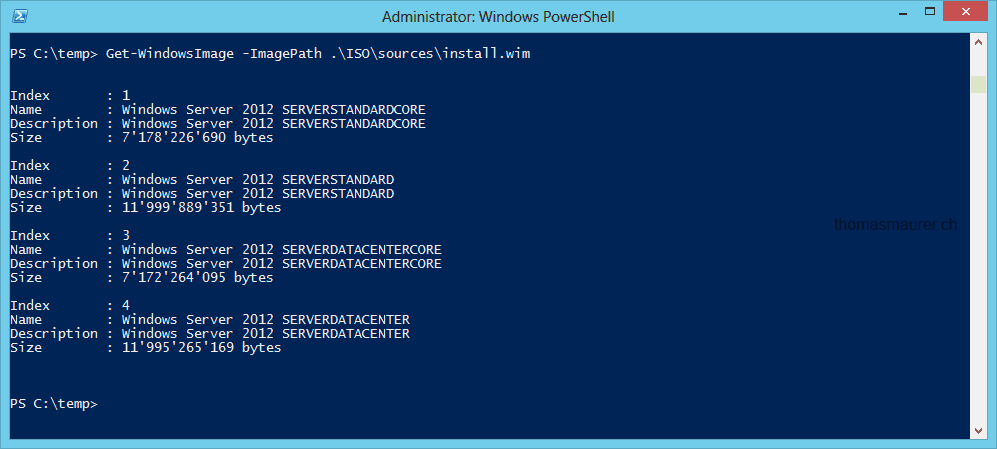
This will show you all the Images which are included in this WIM file.
After we have seen the Index numbers we can now mount the Windows Image our Mount folder. In my example I use Image Index 3 which is the Windows Server 2012 Datacenter Core Edition
Mount-WindowsImage -Path .\Mount -ImagePath .\ISO\sources\install.wim -Index 3

After the image is mounted we can now add the drivers from the Drivers folder.
Add-WindowsDriver -Path .\Mount -Driver .\Drivers -Recurse
When all drivers are added to the Image you can dismount the image and save it.
Dismount-WindowsImage -Path .\Mount -Save
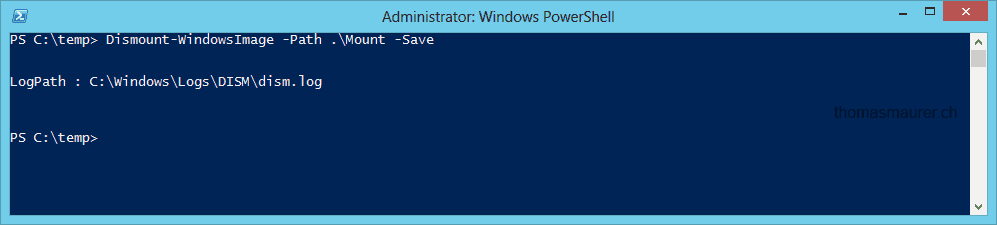
We have now added the drivers to the Install image, you should also add the drivers to your boot image. To do this just do the same steps to the .\ISO\sources\boot.wim.
After that, you can create an ISO file
oscdimg -n -m -bc:\temp\ISO\boot\etfsboot.com C:\temp\ISO C:\temp\mynew.iso
I hope this helps you to add drivers to a Windows Server ISO Image. If you have any questions, feel free to leave a comment.
Tags: DISM, drivers, Hyper-V, imagex, iso, Microsoft, Networking in Virtual Machine Manager, PowerShell, Windows Server, Windows Server 2012 Last modified: July 7, 2019








Hi Thomas
Thx a lot for the post “Add drivers to Windows Server 2012 ISO Image”. I tried it with Cisco UCS drivers. Topic was to allow the Hyper-V hosts booting from iSCSI SAN. But unfortunately I was unsuccessful.
I used the UCS drivers (ucs-bxxx-drivers.2.1.1a.iso) for UCS Version 2.1(1a) from http://software.cisco.com/download/release.html?mdfid=283853163&softwareid=283853158&release=2.0(5a)&relind=AVAILABLE&rellifecycle=&reltype=latest
I have B200 M3 blades and VIC-1240 as CNA’s. At the moment it’s very difficult or almost impossible to find information about Server 2012 booting from iSCSI SAN. Do you have experience with this?
thx a lot and regards
Reto Calonder
Hi
I tried this with boot from SAN (Fiber Channel) and Local Disk for Cisco UCS and it worked fine. I never tried Boot from iSCSI. Did you add all drivers or just some specific?
https://www.thomasmaurer.ch/2013/03/add-cisco-ucs-drivers-to-windows-server-2012-hyper-v-iso-image/
I tried to add all drivers that were available for download for my HP Envy Touch smart, and only copied the boot.wim and install.wim to a folder in which I copied the installation source. Should that work as well? As I was not successfull I am now downloading AIK for Win8 from http://www.microsoft.com/en-us/download/confirmation.aspx?id=30652, hope it will work; I try to installl Server 2012 R2 on this laptop, but after I booted from a USB drive it says it can’t find any driver. If I browse I can see a boot drive x and a c drive which looks like it contains the Windows installation but that is impossible as it is not yet installed and has a brand new SSD…
Any hints during the process?
Works perfectly. I have added driver for FCOE Boot with HP FlexFabric 20Gb 2-port 630FLB Adapter.
Greets Ralf Strauss
Hi, thanks for the instructions. Unfortunately I’m receiving the following error, every time I attempt to add the drivers:
Add-WindowsDriver : DismOpenSession failed. Error code = 0xc0000135
At line:1 char:1
+ Add-WindowsDriver -Path .\mount -Driver .\drivers\virtio-win-0.1.109\2K12R2\amd6 …
+ ~~~~~~~~~~~~~~~~~~~~~~~~~~~~~~~~~~~~~~~~~~~~~~~~~~~~~~~~~~~~~~~~~~~~~~~~~~~~~~~~
+ CategoryInfo : NotSpecified: (:) [Add-WindowsDriver], COMException
+ FullyQualifiedErrorId : Microsoft.Dism.Commands.AddWindowsDriverCommand
Any help would be most appreciated.
Cheers
I have facing problem os installation of windows server 2008r2. In duration of installation i did not get hard disk. I am using SCU port and i have SCU driver for intel 2400bb server board. but not working can you help me. How to put driver in 2008r2 ISO.
I am running into an issue trying to preinstall drivers in Windows server 2012r2 ISO. I get to the step where I run “Add-WindowsDriver -Path .\Mount -Driver .\Drivers -Recurse” and I get the following error:
Add-WindowsDriver : An error occurred. The driver package could not be installed.
For more information, check for log files in the \inf folder of the target image.
At line:1 char:1
+ Add-WindowsDriver -Path .\Mount -Driver .\Drivers
+ ~~~~~~~~~~~~~~~~~~~~~~~~~~~~~~~~~~~~~~~~~~~~~~~~~
+ CategoryInfo : NotSpecified: (:) [Add-WindowsDriver], COMException
+ FullyQualifiedErrorId : Microsoft.Dism.Commands.AddWindowsDriverCommand
Here is a snippet of the error from the log file:
inf: {Query Configurability: C:\ISOTESt\Drivers\ansmw60e.inf} 13:57:24.413
! inf: Found legacy AddReg operation defining co-installers (CoInstallers32).
! inf: Driver package ‘ansmw60e.inf’ is NOT configurable.
inf: {Query Configurability: exit(0x00000000)} 13:57:24.413
flq: Copying ‘C:\ISOTESt\Drivers\ansmw60e.inf’ to ‘C:\ISOTESt\Mount\Windows\System32\DriverStore\FileRepository\ansmw60e.inf_amd64_6139e0245d41075c\ansmw60e.inf’.
!!! flq: Error installing file (0x00000002)
!!! flq: Error 2: The system cannot find the file specified.
! flq: SourceFile – ‘C:\ISOTESt\Drivers\iansmsg.dll’
! flq: TargetFile – ‘C:\ISOTESt\Mount\Windows\System32\DriverStore\FileRepository\ansmw60e.inf_amd64_6139e0245d41075c\iansmsg.dll’
!!! cpy: Failed to copy file ‘C:\ISOTESt\Drivers\iansmsg.dll’ to ‘C:\ISOTESt\Mount\Windows\System32\DriverStore\FileRepository\ansmw60e.inf_amd64_6139e0245d41075c\iansmsg.dll’. Error = 0x00000002
!!! flq: SPFQNOTIFY_COPYERROR: returned SPFQOPERATION_ABORT.
!!! flq: Error 995: The I/O operation has been aborted because of either a thread exit or an application request.
!!! flq: FileQueueCommit aborting!
!!! flq: Error 995: The I/O operation has been aborted because of either a thread exit or an application request.
!!! sto: Failed to copy driver package to ‘C:\ISOTESt\Mount\Windows\System32\DriverStore\FileRepository\ansmw60e.inf_amd64_6139e0245d41075c’. Error = 0x00000002
!!! sto: Failed to import driver package into Driver Store. Error = 0x00000002
<<< Section end 2015/12/16 13:57:24.428
<<< [Exit status: FAILURE(0x00000002)]
HI, I have injected 322 patches on Windows 2012 ISO and created ISO with oscdimg tool, the ISO size is 8.30GB. but I am not able to boot the server from this ISO.
I thing it’s important to notify that we must have WAIK installed on the computer to not have an error at the last command…
OSCDIMG is not present by default in all the windows…and we get an very beautiful error…
Excuse me for my english…
Sybiou.
Hello Thomas,
Unfortunately, I am getting the following warning when trying to inject the drivers.
Add-WindowsDriver -Path .\Mount -Driver .\Drivers –Recurse
WARNING: DISM has skipped driver signature check because the version of running OS and that of target OS do not match.
After this message it runs a few items successfully.
However, I get the following error when trying to run oscdimg -n -m -bc:\temp\ISO\boot\etfsboot.com C:\temp\ISO C:\temp\mynew.iso
oscdimg : The term ‘oscdimg’ is not recognized as the name of a cmdlet, function, script file, or operable program. Check the spelling of the name, or
if a path was included, verify that the path is correct and try again.
At line:1 char:1
+ oscdimg -n -m -bc:\temp\ISO\boot\etfsboot.com C:\temp\PowerShellISOTe …
+ ~~~~~~~
+ CategoryInfo : ObjectNotFound: (oscdimg:String) [], CommandNotFoundException
+ FullyQualifiedErrorId : CommandNotFoundException
any ideas on why this is happening?
Thanks,
Roger
Hi Roger
The oscdimg tool comes with the Windows Assessment and Deployment Kit (Windows ADK), which you can get here. https://docs.microsoft.com/en-us/windows-hardware/get-started/adk-install?WT.mc_id=thomasmaurer-blog-thmaure
Hi Thomas,
Thanks for the quick reply. I did install Windows ADK but am confused at the sequence of events to run that command. I followed each of the steps for PowerShell above. Are you saying once those steps are completed that I then go to the C:\Program Files (x86)\Windows Kits\10\Assessment and Deployment Kit\Deployment Tools\amd64\Oscdimg folder to run the last command to create the revised ISO?
oscdimg -n -m -bc:\temp\ISO\boot\etfsboot.com C:\temp\ISO C:\temp\mynew.iso
Thanks.
Hi yes great guide until the end where you get totally lost. Firstly at the start, create a folder called C:\Temp, then create the 3 subfolders in there. The oscdimg tool comes with the Windows Assessment and Deployment Kit (Windows ADK), so you need to install that use. Then depending on your architecture go change directory to C:\Program Files (x86)\Windows Kits\10\Assessment and Deployment Kit\Deployment Tools\x86 and from in the run the last command line oscdimg -n -m -bc:\temp\ISO\boot\etfsboot.com C:\temp\ISO C:\temp\mynew.iso and that will work
Hello Thomas, editing boot.wim i got two ImageIndex. Recurse drivers must be done for both ImageIndex?
Thanks
TLB
PS C:\temp2> Get-WindowsImage -ImagePath .\ISO\sources\boot.wim
ImageIndex : 1
ImageName : Microsoft Windows PE (x64)
ImageDescription : Microsoft Windows PE (x64)
ImageSize : 1.187.717.208 bytes
ImageIndex : 2
ImageName : Microsoft Windows Setup (x64)
ImageDescription : Microsoft Windows Setup (x64)
ImageSize : 1.625.749.431 bytes