For a long time, people have been asking for a package manager on Windows. Today at Microsoft Build, Microsoft announced the preview of the Windows Package Manager called WinGet. A package manager can help you to save time and quickly install software and tools on to your machine. Developers and IT Pros have wanted a native package manager in Windows for a long time and with WinGet, you will get that.
You can read more about the Windows Package Manager Preview announcement here.
How to install WinGet Windows Package Manager
The Windows Package Manager is currently in preview. To install the preview of Windows Package Manager, you basically have two options. Since WinGet is open source, you can clone, build, run, and test the code from the GitHub repository (https://github.com/microsoft/winget-cli). You can also become a Windows Insider an join the Windows Package Manager Insider program by sending your Microsoft Account (MSA) to [email protected] and request to be included in the preview.
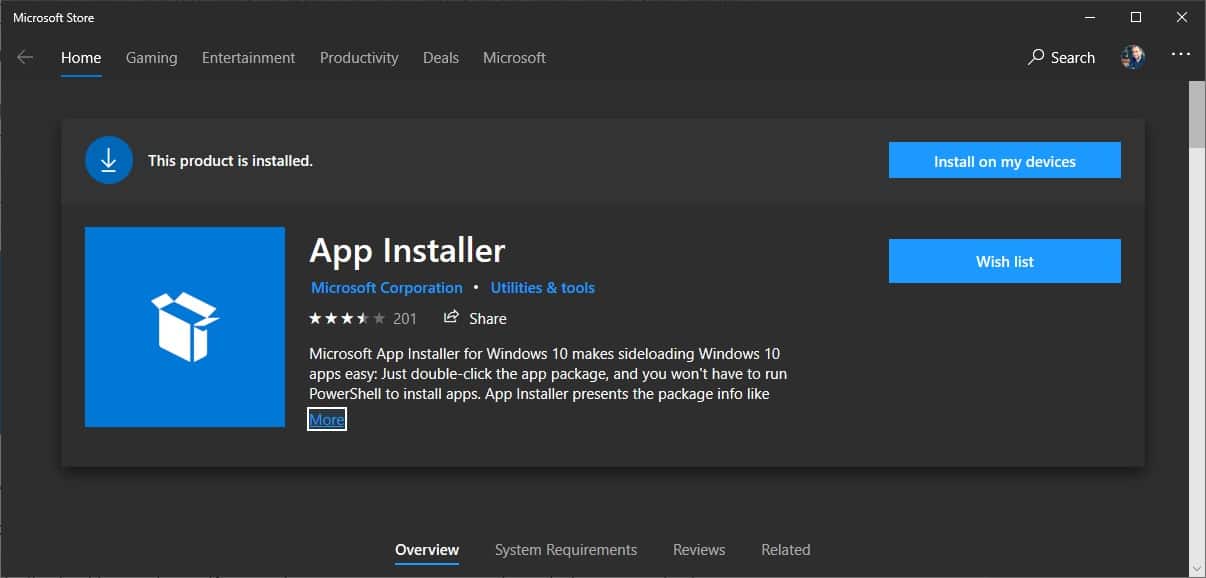
After you have joined either Insider program, head over to the Microsoft Store and get the App Installer. The Windows Package manager will be available after you get the update.
How to install software using the Windows Package Manager
Now you can start using winget in the Windows Terminal, Windows command line, or PowerShell. The command line client “winget.exe” is already pre-configured to point to the Microsoft community repository.

Search for available packages
winget search APPLICATION
Display information about the packages
winget show APPLICATION
Install packages
winget install APPLICATION
Manage sources for packages
winget source (add/list/update/remove/reset)
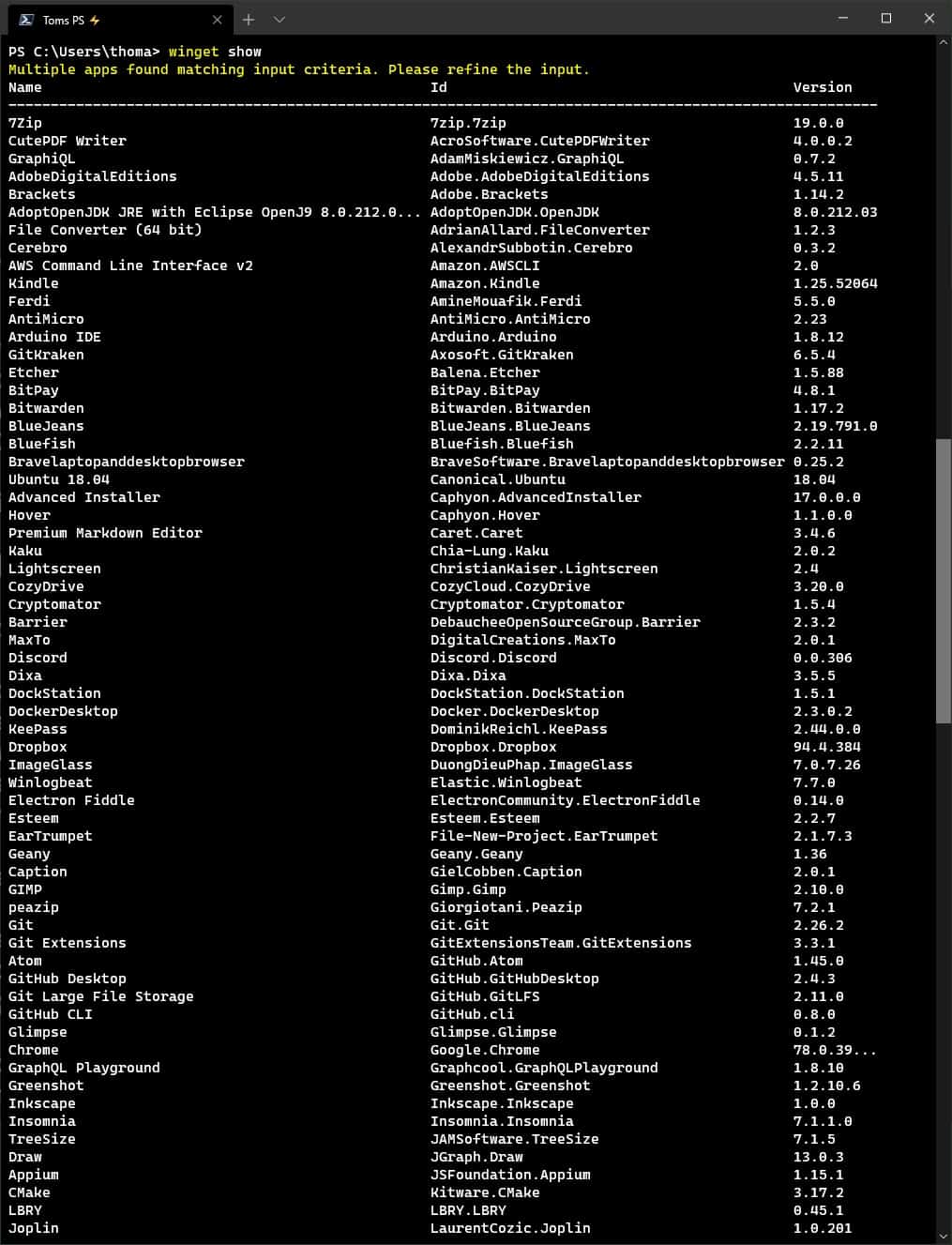
Here is a quick look at some of the packages in the Microsoft Community repository.
Contribute and Feedback
Since the Windows Package Manager is open source, you can also contribute by sharing your feedback and suggestions on GitHub.
More information
You can find more information about the WinGet Windows Package Manager check out the Microsoft Docs and the preview announcement blog post. If you have any questions, feel free to leave a comment below.