
For some courses at KTSI we need a CentOS to test some Linux spesific things like Apache and other stuff. The good thing, Windows 8 got Hyper-V and Hyper-V supports CentOS.
With Version 3.2 oft the Linux Integration Services Microsoft fixed also a bug which occurred in Windows 8.
- First download CentOS
- Download the Linux Integration Services Version 3.2 for Hyper-V
- Start Hyper-V Manager and create a new Virtual Machine
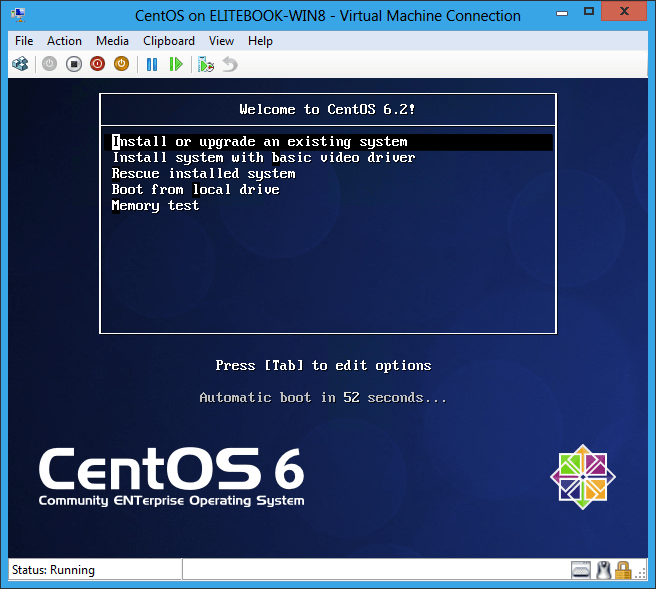
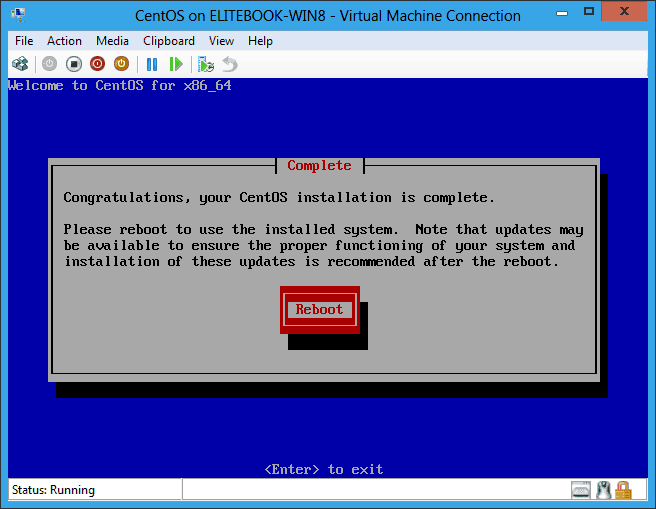
- Install CentOS 6.x

- Reboot the virtual machine
- Login as root

- Mount the Linux Integration Services ISO from step 2
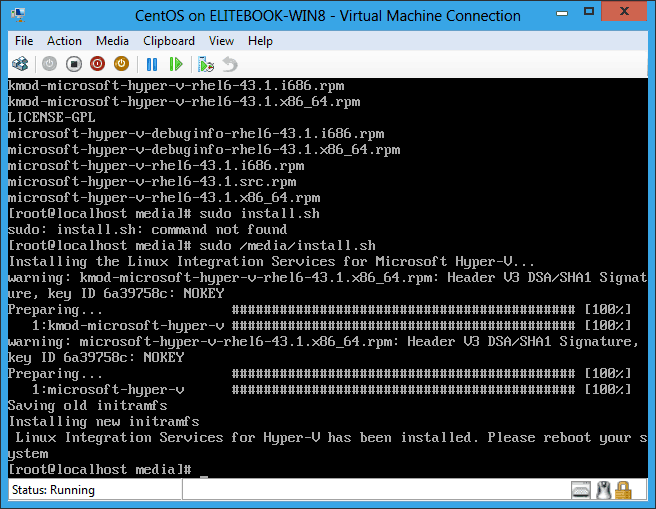
- Now run the following commands in the virtual machine
sudo mount /dev/cdrom /media
sudo /media/install.sh
- After you the Installation is completed you have to reboot the virtual machine again
- done ;-)

Tags: CentOS, CentOS 6.x, Hyper-V, Hyper-V 3, KTSI, Linux, Microsoft, Windows, Windows 8 Last modified: January 9, 2012







Compared to IC 2.1 and Suse, its very simple now to install the IC, great!
And with version 3.2 it works in Windows 8 ;-)