, , ,

PowerShell: Delete Files older than

1–2 minutes
28 comments on PowerShell: Delete Files older than
PowerShell Delete Files older than

This is a simple PowerShell script which deletes Files older than some days. You can use it to cleanup old logfiles or other things. If you run the script the first time you can add the “-WhatIf” parameter after Remove-Item command. This example will use PowerShell to delete files older than 30 days.

# Delete all Files in C:\temp older than 30 day(s)
$Path = "C:\temp"
$Daysback = "-30"

$CurrentDate = Get-Date
$DatetoDelete = $CurrentDate.AddDays($Daysback)
Get-ChildItem $Path | Where-Object { $_.LastWriteTime -lt $DatetoDelete } | Remove-Item

If you need to delete files in subfolders too, you can use this script. This is the same script with the Get-Childitem parameter “-Recurse”.

# Delete all Files in C:\temp older than 30 day(s)
$Path = "C:\temp"
$Daysback = "-30"

$CurrentDate = Get-Date
$DatetoDelete = $CurrentDate.AddDays($Daysback)
Get-ChildItem $Path -Recurse ( | Where-Object { $_.LastWriteTime -lt $DatetoDelete } | Remove-Item

I hope this helps you and gives you a quick PowerShell code snipped to remove files older than a specific date using PowerShell. Also check out my PowerShell snipped to copy logfiles with date and content.

28 responses

  1. @xcud Avatar

    I took your script and made it a function. You can call it like this:
    dir -Recurse | Older-Than 30 | del


    function Older-Than()
    {
    PARAM(
    [Parameter(ValueFromPipeline=$true)][Object[]]$Files,
    [Parameter(ValueFromPipeline=$false, Position=0)][Int]$Days
    )
    Process
    {
    $Files | ?{ ( (Get-Date) - $_.LastWriteTime).Days -gt $Days }
    }
    }

  2. Bader Cheema Avatar
    Bader Cheema

    Thanks for your script. It ran like a dog :)

    One comment……..you had a typo with -reuse parameter…correct parameter is -reurse (missing r in ur script)

  3. Brian Avatar

    Bader was wrong, there is a typo in -Recuse, should be -Recurse.

    However, i still get an error when its Recurse:

    Confirm
    The item at Microsoft.PowerShell.Core\FileSystem:: has children and the Recurse parameter was not specified. If you continue, all children will be removed with the item. Are you sure you want to continue?

    The recurse parameter was specified?

  4. Alain Avatar

    run it like this, it will work , just change your path

    $Path = “D:\Backups\SQL”
    $Daysback = “-5”
    $CurrentDate = Get-Date
    $DatetoDelete = $CurrentDate.AddDays($Daysback)
    Get-ChildItem $Path -Recurse | Where-Object { $_.LastWriteTime -lt $DatetoDelete } | Remove-Item

  5. Robbie Avatar

    Just what I needed. I’d like to also write each deleted filename to a logfile, but I’m not sure how I can incorporate 2 commands after a pipe. Any ideas?
    Thanks

  6. John Hall Avatar
    John Hall

    Is there a way to delete files older than another file (a “reference” file if you will)? Having trouble finding anything in the Windows world that will allow me to do this easily – there are numerous references in the Unix world for this.

  7. tom Avatar

    How to adopt this to this script ?
    Function Get-Profiles {
    [CmdletBinding()]
    Param(
    [Parameter(Mandatory=$True,Position=1)] [string]$computerName
    )

    $Path = “LocalPath”
    $Daysback = “-5”
    $CurrentDate = Get-Date
    $DatetoDelete = $CurrentDate.AddDays($Daysback)

    PROCESS {
    foreach ($computer in $computerName) {
    Write-host -ForegroundColor Yellow “Housekeeping on $computer”
    Write-host -ForegroundColor Yellow “Mapping drive \\$computer\c$”
    $drive = New-PSDrive -Name $computer.replace(“.”,”-“) -PSProvider FileSystem -Root \\$computer\C$
    Write-host -ForegroundColor Yellow “Checking windows version”
    #Cheking windows version
    $version = (Get-WmiObject -ComputerName $computer -Class Win32_OperatingSystem).version
    Write-host -ForegroundColor Yellow “Windows version $version”

    #Profile Deleting area.
    if ($version -ge 6) {
    Write-host -ForegroundColor Yellow “Getting profiles from WMI (Win 2008 and above)…”
    $profiles = Get-WmiObject -ComputerName $computer Win32_UserProfile -filter “LocalPath Like ‘C:\\Users\\%’” | Where-object localpath -Match ‘B.{5}R$’
    if ($profiles -ne $null) {
    $profiles | foreach {
    Write-host -ForegroundColor Red (“Deleting profile: ” + $_.LocalPath)
    #$_.Delete()
    }
    }
    }
    }
    }
    }

  8. Kumaresan G Avatar
    Kumaresan G

    Hi,

    I want delete only the files only in specif folder not in the subfolder, please provide me the script for that

  9. Trond B Avatar
    Trond B

    For those of you getting a message saying “Recurse parameter was not specified”:
    -Recurse is specified for Get-ChildItem, but not for Remove-Item. Add -Recurse after Remove-Item, and you will not get the prompt.

  10. Trond B Avatar
    Trond B

    On second thought, that’s a really bad idea..
    Say you have a folder C:\temp\keep_this_folder that was created 31 days ago. If keep_this_folder contains files that are both older and newer than $DateToDelete, they will all be deleted if you specify the -Recurse parameter for Remove-Item, since you’re calling Remove-Item -Recurse on keep_this_folder.

  11. […] this command to delete the folder and it’s contents if it was older than 14 days (credit to https://www.thomasmaurer.ch/2010/12/powershell-delete-files-older-than/ for this […]

  12. Sean Avatar

    The script words fine on local system, but fails while trying to delete files from a shared location.. like from \\computerName\FolderName\ with the below error:

    Invalid Path: ‘\\computerName\FolderName\’.

    Please suggest if shared paths be taken care as well.

  13. Josh Washburn Avatar

    Hey Thomas, thank you so much for sharing this! It was so helpful. I borrowed some of it to help me write a one-liner to delete old Azure Snapshots using Azure Automation.

    Get-AzureRmSnapshot | Where-Object TimeCreated -lt $dateToDelete | ?{$_.Name -like ‘*generic*’} | Remove-AzureRmSnapshot -force

  14. Martin Avatar

    Hi guys,

    is it possible to manage diffrent path in the same script. Lets say I have nine diffrent path (directories) but the same delete routine?
    Thanks mate

    1. Thomas Maurer Avatar

      Hi Martin

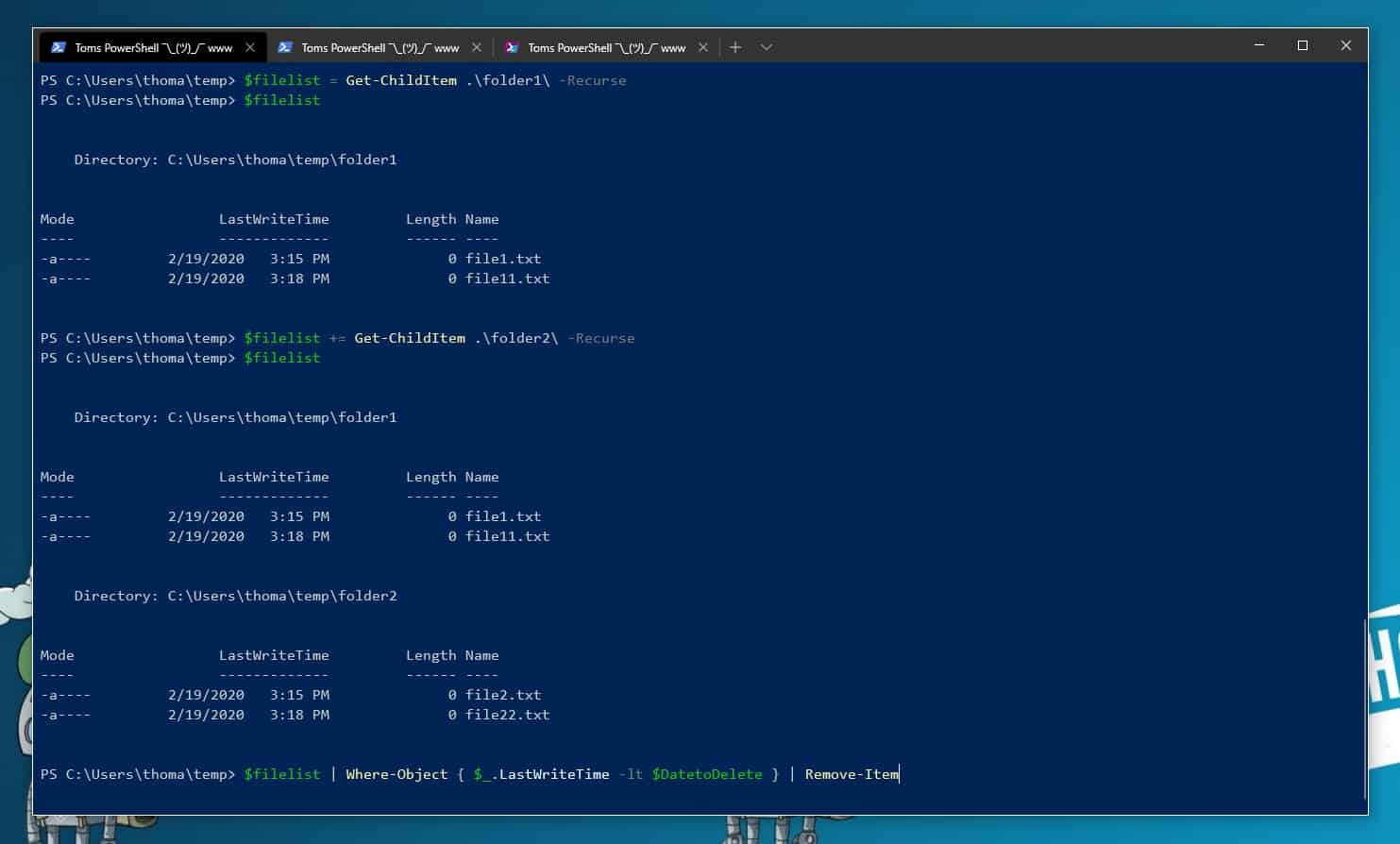
      Yes, you can do that, here is an example:

      PowerShell Image

      you can use the += operator to add more to an existing variable. (see screenshot)

  15. Martin Avatar

    Hallo Thomas,

    thank you very much for the support. Solved it that way…

    # Delete all Files in three directories older than 90 day(s)
    $Paths = “C:\temp\ZZ1”, “C:\temp\ZZ2”, “C:\temp\ZZ3”
    $Daysback = “-10”

    Foreach ($path in $paths)
    {
    $CurrentDate = Get-Date
    $DatetoDelete = $CurrentDate.AddDays($Daysback)
    Get-ChildItem $Path | Where-Object { $_.LastWriteTime -lt $DatetoDelete } | Remove-Item
    }

    1. Raj Avatar

      hi

      I have requirement like need to delete only files from two different folders . from one older than 6 months and from other folder older than 1 yr in a shared drive path .
      how it can be in a single ps script.

  16. Damien Brock Avatar
    Damien Brock

    “Long path tool” is very helpful for this problem. You can solve this problem like copy, delete, long path files by using this tool.I used to have similar problems too, but after using “long path tool” everything was solved.

  17. jagan Avatar
    jagan

    Hi
    Can you please provide the shall script to if file size is cross 90% then delete the files older then 3 days

    1. Thomas Maurer Avatar

      Hi Jagan
      Do you mean 90% of a specific volume?

  18. Jonathan Avatar

    Hi Thomas,

    Have been to one or two of your presentations at Microsoft events, so was encouraging to see your name pop up in my search results!

    I’m curious – is there any benefit to declaring variables for (aside from if you used them multiple times) for $CurrentDate and $DatetoDelete? Is it for neatness, clarity, or personal preference?

    For example, this would also work:
    Get-ChildItem $Path | Where-Object { $_.LastWriteTime -lt (Get-Date).AddDays($daysBack) } | Remove-Item

    Thanks,
    JP

  19. Otis Michaud Avatar

    The positioning of the -Force option is key to avoiding this error.
    As example, this works when running powershell in administrator mode where I was still getting the error previously (as admin).

    $Folder = “C:\target”
    $Daysback = “-30”
    $CurrentDate = Get-Date
    $DatetoDelete = $CurrentDate.AddDays($Daysback)
    #Delete files older than Daysback
    Get-ChildItem $Folder -Recurse | Where-Object { $_.LastWriteTime -lt $DatetoDelete } | Remove-Item -Force

  20. Dave Messenger Avatar

    Super helpful, cheers Thomas.

  21. satish Avatar

    Need powershell command to delete files older than 90 days in Amazon S3 bucket

  22. Vasee Avatar

    Need modification for the below command just want to enter 90 days …not the particular date

    $bucketname = “aws-a0189-use1-00-d-s3b-ia-test”
    $key = aws s3api list-object-versions –bucket $bucketname –output json –query ‘Versions[?LastModified<=`2022-08-26`].{VID:VersionId, Obj:Key}' | ConvertFrom-Json
    Write-host "Removing desired Objects From: $bucketname" -foregroundcolor red
    Foreach ($output in $key)
    {
    $delete = aws s3api delete-object –bucket $bucketname –key ($output).Obj –version-id ($output).VID –output text
    $output.Obj
    }

  23. Revo Avatar

    I am not sure if this is a correct way to do this.
    For example:

    If i will execute it at 3 pm, with add days -5, it will delete files older than 5 days. However when business people think 5 days, they do mean WHOLE 5 days. In this way, script will skip files created after 3 pm on that particular day because they are indeed younger than 5 days.

    How to include all of the files then ?

  24. Raj Avatar

    Hi Thomas,
    I have requirement to delete files from two different folders older than 6 months and 1 year respectively in a shared drive path.Please help with the PS script for this

Leave a Reply

Your email address will not be published. Required fields are marked *

This site uses Akismet to reduce spam. Learn how your comment data is processed.