Powershell: Changing registry key value

Powershell Header

After posting Pagefile size bigger than 4095MB on Windows Server 2003 I had the Idea to change this registry values with powershell.

  1. First start powershell
  2. You can get all PS Drives with the command
    Get-PSDrive

    Get-PSDrive

  3. Now you see the drive HKLM which stands for HKEY_LOCAL_MACHINE
  4. Open this Registry Key
    Set-Location 'HKLM:\SYSTEM\CurrentControlSet\Control\Session Manager\Memory Management'
  5. With this command you get all the key values
    Get-ItemProperty -path .
  6. With the next command you can set the the key value
    Set-ItemProperty -path . -name "PagingFiles" -value "D:\pagefile1\pagefile.sys 4096 4096"

And now the simple way with multiple entries:

$values = @"
D:\pagefile1\pagefile.sys 4096 4096
D:\pagefile2\pagefile.sys 4096 4096
"@
$keys = "HKLM:\SYSTEM\CurrentControlSet\Control\Session Manager\Memory Management"
$name = "PagingFiles"
Set-ItemProperty -path $keys -name $name -value $values

Powershell: Count Sharepoint Sites on Sharepoint Server 2010

Powershell Header

This is a very small line of code to count Sharepoint 2010 Site Collections with Powershell.

(Get-SPSite -Limit all).Count

By the way, we at Genotec AG are offering a Hosted Sharepoint 2010 solution based on Powershell automation.

Powershell: Working with XML part 2

Powershell Header

After my first post (Powershell: Parsing XML part 1) about working with XML and Powershell, I have create this second post which describes how to create a XML file, Add content to the XML file, remove content from the XML file and save the XML objects as a file.

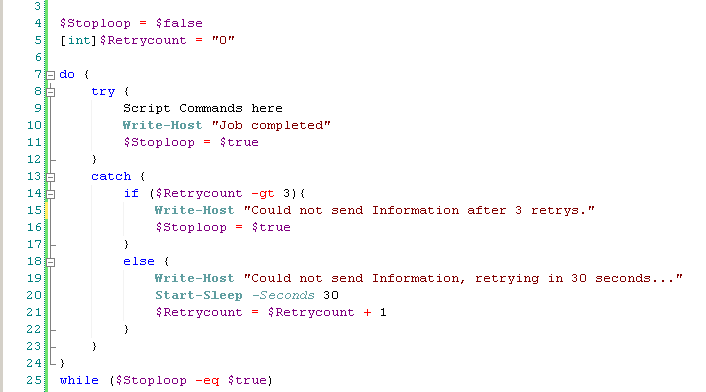
While I was writing a script which communicates with a webserver, I realized that I need some error handling if the server can not anwser a request from my script. For example if the webserver is down or has to much load.

I created a little retry part (Powershell: Simple retry logic) which retries several times. But if the Server is down for several hours or days your script hangs in a retry loop. Obviously this cant be the solution. After a little bit of thinking a decided to write the data, which I was trying to send, down in a XML file. And the next time the script runs it reads the XML file and tries to send the data again.

Thats the story behind my idea for saving data in a XML file.

Creating a XML object

[XML]$FruitList = "<Box>
<Fruit>
<Name>Banana</Name>
<Color>yellow</Color>
</Fruit>
</Box>"

Save a XML object as a XML file

$FruitList.Save("./myfruitlist.xml")

XML:

<Box>
	<Fruit>
		<Name>Banana</Name>
		<Color>yellow</Color>
	</Fruit>
</Box>

Open a saved XML file

[xml]$FruitList = Get-Content ./myfruitlist.xml

Add data to XML object and save it in a XML file

# Copy Object from Banana
[Object]$CopyFruit = FruitList.Box.Fruit | Where-Object {$_.Name -eq "Banana"}
$NewFruit = $CopyFruit.Clone()
# Add Fruit to new Object
$NewFruit.Name = "Apple"
$NewFruit.Color = "green"
# Add Fruit to XML Object
$FruitList.Box.AppendChild($NewFruit)
#Save to XML object ot XML file
$FruitList.Save("./myfruitlist.xml")

XML:

<Box>
	<Fruit>
		<Name>Banana</Name>
		<Color>yellow</Color>
	</Fruit>
	<Fruit>
		<Name>Apple</Name>
		<Color>green</Color>
	</Fruit>
</Box>

Change data from XML Object and save it as XML file

# Change Apple Color
$FruitList.Box.Fruit | Where-Object {$_.Name -eq "Apple"} | ForEach-Object { $_.Color = "red" }
#Save to XML object ot XML file
$FruitList.Save("./myfruitlist.xml")

XML:

<Box>
	<Fruit>
		<Name>Banana</Name>
		<Color>yellow</Color>
	</Fruit>
	<Fruit>
		<Name>Apple</Name>
		<Color>red</Color>
	</Fruit>
</Box>

Remove data from XML Object and save it as XML file

# Remove Banana from Object
$RemoveFruit = $FruitList.Box.Fruit | Where-Object {$_.Name -eq "Banana"}
$FruitList.Box.RemoveChild($RemoveFruit)
#Save to XML object ot XML file
$FruitList.Save("./myfruitlist.xml")

XML:

<Box>
	<Fruit>
		<Name>Apple</Name>
		<Color>green</Color>
	</Fruit>
</Box>

Powershell: Count your Code lines

Powershell Header

After Coding some lines in a lot of different files you wanna know how much lines you have coded. There are two (I am sure there are even more) ways to do that. The first one is to get the content of the files (Get-Content) and count the lines in there.

The other way and the fasterway is with Select-String:

(Get-ChildItem -Include *.ps1 -Recurse | Select-String -pattern .).Count

Powershell: Get Sharepoint 2010 Site Collection Storage Usage

If you need to get the Storage Usage from a Sharepoint 2010 Site Collection, you can do this with Powershell.

Current Storage Used

1. Start SharePoint 2010 Management Shell or Powershell with the Sharepoint Snapin by:

Add-PSSnapin "Microsoft.SharePoint.PowerShell"

2. Create a new Object for a Site Collection:

$MySite = Get-SPSite http://my.sharepoint.com

3. You can now check the members of the $MySite Object:

$MySite | Get-Member (You could also use: Get-SPSite http://mysite.sharepoint.com | Get-Member)

get-spsite http://mysite.sharepoint.com | get-member

4. Now you get an output with a lot of member properties of this Site Collection Object. And you can see there is a member property called Usage, I think thats the right property. Now lets see what we get here:

$MySite.Usage

retruns:

Storage           : 1775819
Bandwidth         : 0
Visits            : 0
Hits              : 0
DiscussionStorage : 0

Ah there is a Storage property, lets use this to only get the used Storage:

$MySite.Usage.Storage

this returns the Storage Space in Bytes. Not really use full, so we get this in Megabytes:

$MySite.Usage.Storage / 1MB

returns:

1.6935....

Powershell: check variable for null

Powershell Header

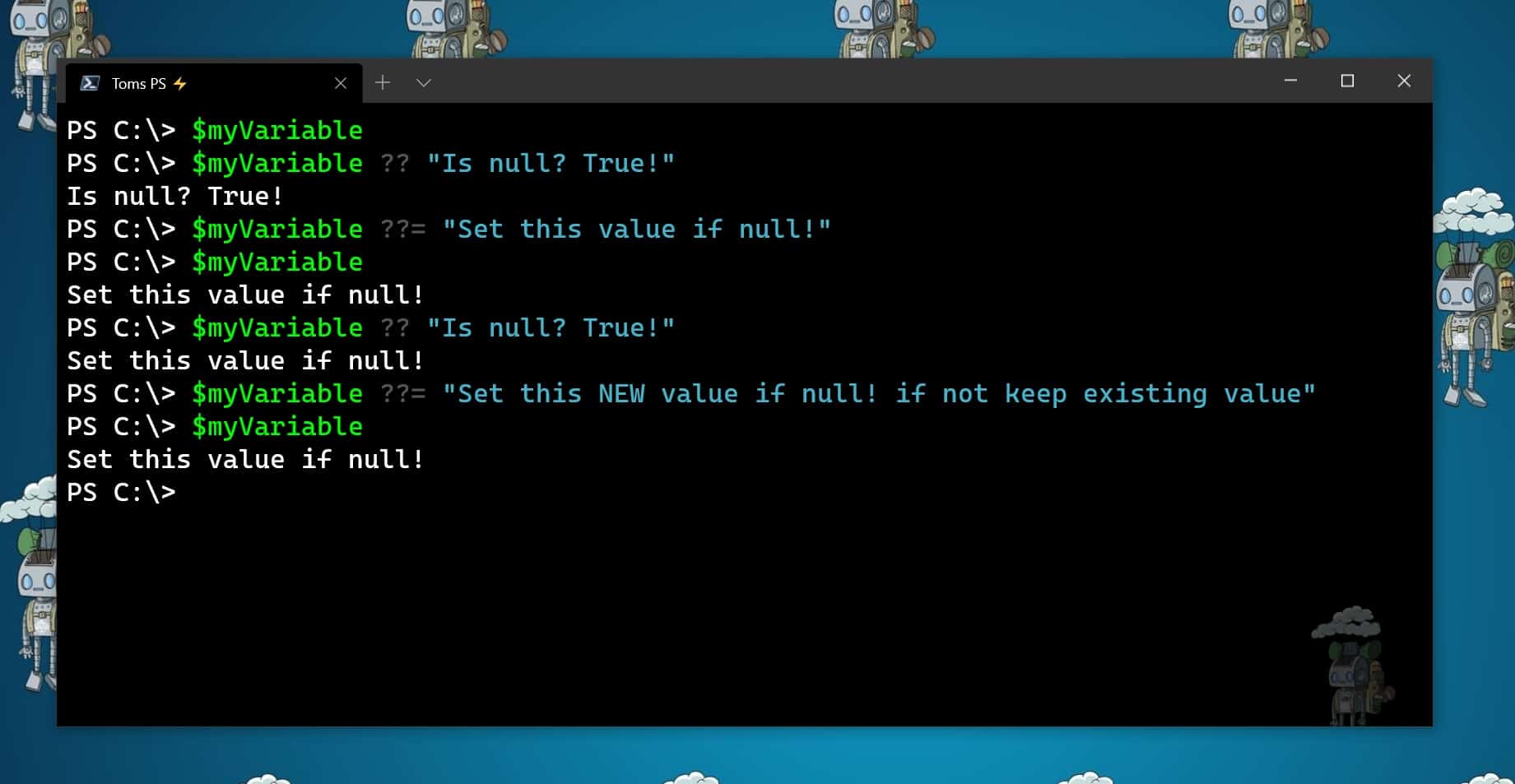
If your working a lot with parameters and inputs you need to check if variables have the right value and are not “null”.

The normal if -eq “$null” doesn’t work:

if ($varibalename -eq $null) { Write-Host "variable is null" }

Now how you can check that (check if $variablename has $null as value):

if (!$variablename) { Write-Host "variable is null" }

And here if you wanna check if $variablename has any value except $null:

if ($variablename) { Write-Host "variable is NOT null" }