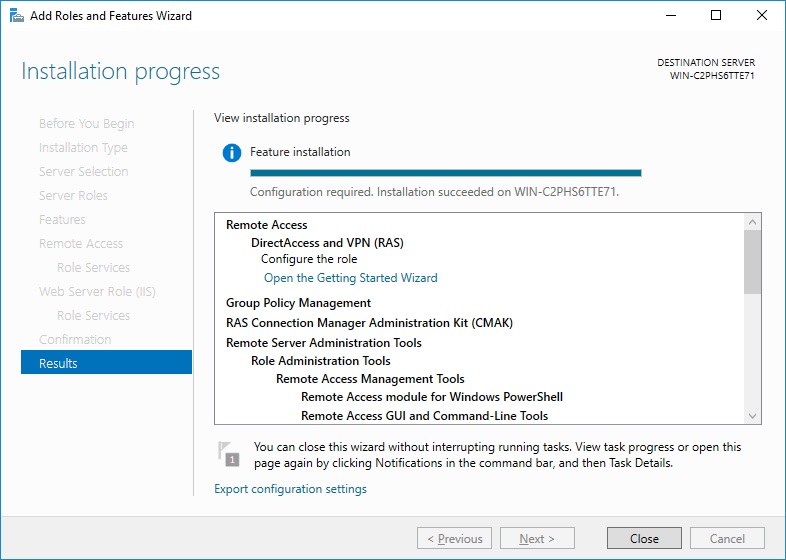
DirectAccess Deployment done

Microsoft DirectAccess

In the last 3 weeks we had do some little Windows Server projects in a Microsoft Workshop at KTSI. Since I was really interessted in Microsoft DirectAccess as an alternative to “legacy” VPN such as PPTP or L2TP, I made a little project out of that and installed DirectAccess in my LAB. And I also created a documentation step by step documentation for LAB and SMB installations of DirectAccess.

I had some respect of the installation of DirectAccess and the requirements of DirectAccess. But to my surprise after the first try everything worked fine. So if you do everything step by step and pay attention to the details you will succeed.

Now to DirectAccess, it’s not just another VPN technology. It can save users and the IT deparments a lot of time. How many hours do you have spent do troubleshoot VPN connection problems? Now with DirectAccess users can work with their notebooks as they were within the company network. You don’t really care about firewalls or connection losses.

But more on DirectAccess later, I will post the step by step guide later this week.

Cisco UCS Hyper-V Cluster – Install Blade Servers – Part 3

After you have created a new Hyper-V 2008 R2 ISO Installation image you can now start to install the Cisco Blade Servers. There are many ways (WDS, Virtual Media) how you can deploy the Hyper-V Image on your Blade Nodes. I will use the Virtual Media to install the Blade Notes in this guide.

  1. Start the KVM Console in the UCS Manager
    Cisco UCS KVM Console
  2. Attach the Hyper-V 2008 R2 Image to the Virtual Media
    Cisco UCS Virtual Media
  3. Now do the standard Hyper-V installation. With the Image we created Hyper-V will have all the drivers you need.
    Hyper-V 2008 R2 Installation
  4. After the Installation is finished and you set the local administrator password. I change the IP Address of the Server and install the latest updates.
    Hyper-V 2008 R2 Updates

Cheatsheet: Configuring a Server Core installation #1

After setting up my new hardware for my LAB, I thought about installing my Hyper-V Servers as Server Core installations. After reading two minutes in some blogs and the Microsoft TechNet I decided to use the Core Editions.

Basically the setup is the same as the none Core Edition or GUI Edition. But after the installation you have to configure the server without a GUI, your only way to do the basic configuration is the command promt. Btw if you close the command prompt, you can easily recover the prompt by pressing CTRL-ALT-DELETE, click Start Task Manager, click New Task and type cmd.exe.

Windows Server 2008 R2 Core

To do the basic configuration of your Windows Server 2008 (R2) Core, you need the following commands:

Checkout the existing Hostname / Computername:

hostame or ipconfig

Change the Computername / Hostname:

netdom renamecomputer <ComputerName> /NewName:<NewComputerName>

Change the Computername / Hostname without writing the old name:

netdom renamecomputer %computername%   /NewName:<NewComputerName>

Show network interfaces:

netsh interface ipv4 show interfaces

Set Static IP Address, Subnet Mask, and Default Gateway (ID is the shown number in the Idx column when you show your network interfaces):

netsh interface ipv4 set address name="<ID>" source=static address=<StaticIP> mask=<SubnetMask> gateway=<DefaultGateway>

Set DNS Server (index= is the priority of the DNS Server):

netsh interface ipv4 add dnsserver name="<ID>" address=<DNSIP>index=1

Join a Domain:

netdom join <ComputerName> /domain:<DomainName> /userd:<UserName> /passwordd:*

Add a Domain User to the local administrator group:

net localgroup administrators /add <DomainName>\<UserName>

Change or set the product key of your server:

slmgr.vbs –ipk<productkey>

Active the server licence:

slmgr.vbs -ato

If activation is successful, no message will return in the command prompt

Configure the firewall:

netsh advfirewall

netsh advfirewall firewall set rule group="Remote Administration" new enable=yes

Enable Remote Desktop:

cscript c:\windows\system32\scregedit.wsf /ar 0

Restart the Computer:

shutdown /r /t 0

Open Task Manager with the command prompt:

taskmgr

List event logs:

wevtutil el

Find something in the event log:

wevtutil qe /f:<text>

List running services:

sc query

or

net start

List running tasks:

tasklist

to active Powershell type:

powershell

For the most of this simple tasks there is also a configuration tool, which makes it very easy to do your first configuration with Windows Server 2008 Core Edition. The Tool is called sconfig, and its very simple, just start the program with the following command:

sconfig.cmd

Now this will open the following configuration utility:

Windows Server Core Sconfig.cmd