How to setup a Virtual Machine with Hyper-V Replica


In Windows Server 2012 Hyper-V Microsoft released a new feature called Hyper-V Replica. I already made a blog post which describes this new feature: Hyper-V Replica – The Game Changer. In this post I cover how you can enable replication of a Virtual Machine in Hyper-V.

First you have to allow replication on the Hyper-V Replica host. You can set up the replication using HTTP or HTTPS and you can also add source Hyper-V hosts.

Enable Hyper-V Replica

After you have enabled replication on the Hyper-V Replica host (target host) you can enable replication on the Virtual Machine on the source Hyper-V host.

Enable VM ReplicationThe Replica Wizard will start. On the first window set the replica target server.

Enable VM Replication Replica Server

The wizard will check if the replication on the target server is enabled and which protocol is available. If you are replicate the Virtual Machine over a WAN network you can also enable compression.

Enable VM Replication Replica Connection Settings

You can select which VHD or VHDX should be replicated. For example you could set the pagefile on a different VHD and remove this VHD from the replication process.

Enable VM Replication Replica VHDs

On the next window you can configure the Recovery History settings. Here you can enable additional recovery points which can be restored. This allows you choose from different points in time, for example if a recovery point is corrupt. It also possible to enable Application-consistent snapshots. This will use the Volume Shadow Copy Service (VSS) to create snapshots of the Virtual Machine.

Enable VM Replication Replica Recovery History Settings

Choose the Initial Replication method. You can choose between three different options, the first one will send the initial copy of the virtual machine over the network without additional work. If the network bandwidth is limited you can also copy the initial copy to a USB disk and import the copy on the target replica server. If the virtual machine already exists, for example with a restore, you can also choose an existing virtual machine.

Enable VM Replication Replica Initial Replication

If you choose to transfer the initial copy with a external media, Hyper-V will create the Virtual Machine on the target replica server and with a right click you can import the virtual machine data (VHD).

Enable VM Replication Target Import Initial ReplicaAfter you have done all the steps you get a summary of your settings.

Enable VM Replication Replica OverviewIf you have choose to replicate the virtual machine over the network the initial replication will start.

Enable VM Replication Source Replication State After the replica is created you can configure the replica virtual machine on the replica host. For example you can configure a test network for the virtual machines. With this solution you can do a test failover in a different network.

Enable VM Replication Target Test Failover Settings

Now if the network on your recovery site is different from the network from your source site and you would have to chance the IP addresses on server you can also do this before a actual failover happens.

Enable VM Replication Target Failover TCP IP SettingsBecause in case of a disaster you want have time to configure each server with a new IP address you should definitely make use of this feature.

I hope this post helps to understand how to set up Hyper-V Replica. If you need more information about Hyper-V Replica I recommend you my blog post: Hyper-V Replica – The Game Changer.

Hyper-V Replica – The Game Changer

Windows Server 2012 RC Logo

In Windows Server 2012 Microsoft introduced a new feature called Hyper-V Replica. In my opinion Hyper-V Replica is a true Game Changer, something like the forward pass in football or the slam dunk in basketball. In my interview with Carsten Rachfahl from hyper-v-server.de I mentioned that I think a lot of customer will choose Hyper-V Replica as Disaster Recovery solution.

What is Hyper-V Replica and how does it work?

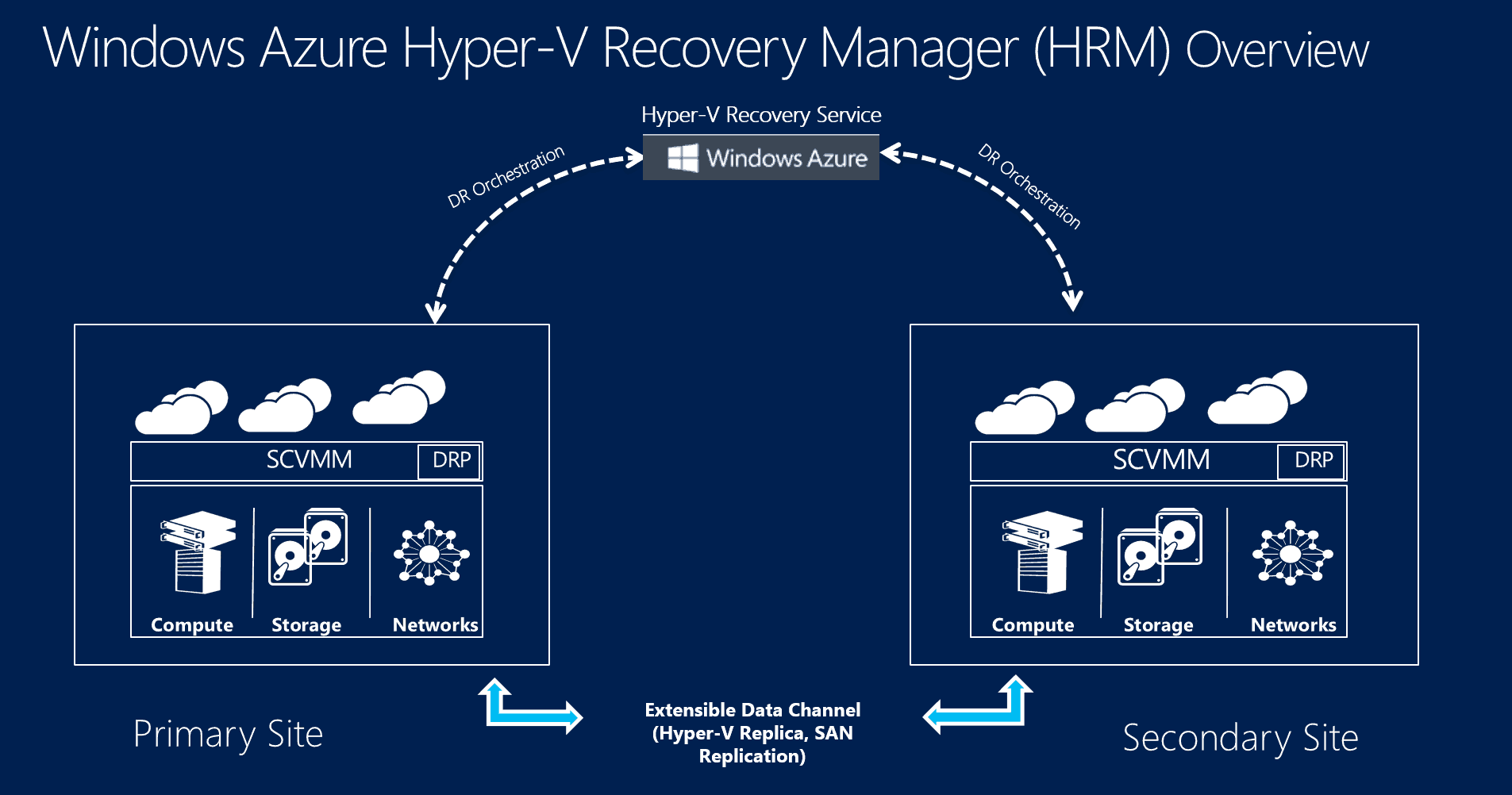
What is Hyper-V Replica and how does it work. With Hyper-V Replica it is possible to replicate Hyper-V Virtual Machines from a Hyper-V host to another Hyper-V host or cluster. The great thing about it is that Hyper-V Replica is optimized for replication over WAN. This allows companies to replica Virtual Machines from a primary site to a secondary site, and in case of a disaster on the primary site, Virtual Machines can be failed over to the secondary site.

Hyper-V Replica

The replication is done per virtual machine, so you can also replicate VMs to two or more different locations.

Hyper-V Replica is an asynchronous replication, Hyper-V Replica will do a initial replication of the Virtual Machine and after that changes will be replicated every 5 to 10 minutes.

How to enable Hyper-V Replica on a single host

To allow the Hyper-V host to send and receive virtual machine replications you have to enable the Hyper-V Replica feature and configure the Windows Firewall. Hyper-V Replica can be enabled via Hyper-V Manager in the Hyper-V settings. You can setup different replication settings such as which hosts can replicate to this server or which port is used for the replication and whether HTTP or HTTPS should be used.

Enable Hyper-V Replica

After you have enabled Hyper-V Replica you have to open the Windows Firewall ports for Hyper-V Replica. You can simply enable the rules in the Windows Firewall settings.

Hyper-V Replica Windows Firewall

You can also enable this firewall rules via Windows PowerShell.


Enable-NetFirewallRule -DisplayName "Hyper-V Replica HTTP Listener (TCP-In)"

How to enable Hyper-V Replica on a Hyper-V Cluster

To allow the Hyper-V Cluster to send and receive virtual machine replications you have to enable the Hyper-V Replica Broker role in the Hyper-V Cluster and configure the Windows Firewall on each host. The Hyper-V Replica Broker role enables the failover cluster to participate in virtual machine replication with Hyper-V Replica. You cannot replicate to a single host which is used in a cluster, you can only replicate to the Hyper-V Replica Broker.

First the Hyper-V Replica Broker cluster role has to be added.

Enable Hyper-V Replica Broker roleThe Hyper-V Replica Broker needs a own IP in the same subnet as the cluster. The Name of the Replica Broker role will be used as target to replicate virtual machines.

Hyper-V Replica Broker role

This can of course also be done via Windows PowerShell.


$Broker = "ReplicaBroker"

Add-ClusterServerRole -Name $Broker –StaticAddress 10.10.77.1

Add-ClusterResource -Name “Virtual Machine Replication Broker” -Type "Virtual Machine Replication Broker" -Group $Broker

Add-ClusterResourceDependency “Virtual Machine Replication Broker” $Broker

Start-ClusterGroup $Broker

After you have added the Hyper-V Replica Broker role in the Cluster you have to enable Hyper-V Replica and set it up like the standalone Hyper-V host.

Hyper-V Replica Broker Cluster role

Hyper-V Replica Broker Cluster role settings

After you have configured the Hyper-V Replica Broker settings you also have to enable the Windows Firewall rules. This Windows PowerShell command will help you to configure the Firewall rule on every node in the cluster.


Get-ClusterNode | ForEach-Object {Invoke-Command -ComputerName $_.Name -ScriptBlock {Enable-NetFirewallRule -DisplayName "Hyper-V Replica HTTP Listener (TCP-In)"}}

How to enable virtual machine replication

After you have enabled Hyper-V Replica on the source Hyper-V host/cluster and destination Hyper-V host/cluster you can setup the virtual machine to replicate. Right click the virtual machine and “Enable Replication”.

Enable Hyper-V Virtual Machine Replication

Specify the Replica server name to use to replicate the virtual machine. If the Replica server is on a failover cluster, specify the name of the Hyper-V Replica Broker as the Replica server.

Enable Hyper-V Virtual Machine Replication Destination

You can specify the connection parameters and set up compression for the transmitted data.

Hyper-V Replica Connection Parameters You can choose which VHDs of the virtual machine should be replicated to the destination.

Hyper-V Replica VHDConfigure the Recovery History, this allows you to choose from different recovery points when you start a failover.

Hyper-V Replica recovery pointsConfigure the Initial Replication Method. You could also move the initial replication copy via external hard drive to the destination.

Hyper-V Replica initial replicationAfter you have started the replication, Hyper-V Replica will start with the initial replication of the virtual machine, and the virtual machine will also be visible on the destination Replica server.

Hyper-V Replica sending initial replication

To do this via Windows PowerShell you could use the following commands


$ReplicaServer = "ReplicaBroker.cloud.win"
$RecoveryPort = 80
$PrimaryVM1 = “SharePoint2013”
$PrimaryServer = "hyperv01.cloud.win

Set-VMReplication -VMName $PrimaryVM1 -ReplicaServerName $ReplicaServer -ReplicaServerPort $RecoveryPort -AuthenticationType Integrated -CompressionEnabled $true -RecoveryHistory 0

Start-VMInitialReplication –VMName $PrimaryVM1


Check Replication State and Replication Health

To check the Replication State and the Replication Health you have a variety of options.

First in the Hyper-V Manager you can see the Replication State of the virtual machine.

Hyper-V Replica replication state and healt Hyper-V Manager

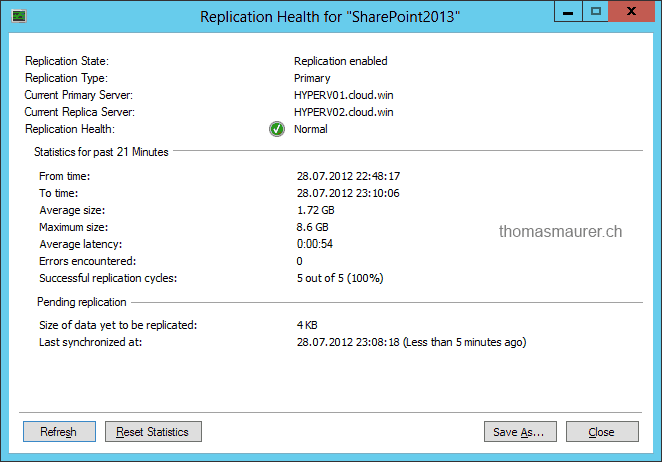
You can also right click on the virtual machine and view the replication health, state and other interesting information.

Hyper-V Replica replication state and healt VM

You can also use Windows PowerShell to get information about the virtual machine replication state and health.


Get-VMReplication

Hyper-V Replica replication state and healt PowerShell

Failover Options

Now after the replication is setup you have different failover options for the virtual machine. This options allow you to do different failover scenarios.

  • Planned Failover
  • Test Failover
  • Failover

Planned Failover

Hyper-V Replica Planned Failover

A Planned Failover is a solution if both sites are still available it is also possible to migrate the virtual machine from on datacenter to another datacenter. A planned failover basically shuts down the source virtual machines, replicates all the latest changes and after all changes are replicated to the recovery site the virtual machines on the recovery site will start with no loss of data.

The primary server will automatic change to the Replica server and the Replica server will change to the primary server.

Test Failover

If you want to test the virtual machine on the recovery site you can use this feature. This will create a copy of the virtual machine on the recovery site which can be used for testing without interrupting the replication. You can also set the copy of the virtual machine to connect to another virtual switch or to be not connected so no IP address conflict will happen.

Hyper-V Replica Test Failover

Failover

Hyper-V Replica Failover Recovery Point

The Failover option will be used on the recovery site during a disaster where the primary site is down. This will start the virtual machine on the recovery site and the administrator will have to choose the latest recovery point. Data between the disaster recovery and the latest recovery point will be lost.


$VM = Get-VM -Name "SharePoint2013"

Start-VMFailover -VM $VM

Hyper-V Replica Failover via PowerShell


There is also a possibility to inject another IP address configuration on the recovery site.

Hyper-V Replica inject Failover IP Address

After you have selected a Recovery Point for the Failover, the other Recovery points are still available as snapshots for this Virtual Machine. if the first Recovery Point is not working correctly you can choose another Recovery Point.

Hyper-V Replica Failover


Failback

Now a lot of disaster recovery solutions are easy to failover but how can you to a failback of your workload? In Hyper-V replica this is pretty easy. After a unplanned Failover the primary server is still the same and the virtual machine is now running on the recovery server. Now to failback a virtual machine with the latest data you reverse the replication so the primary server changes to the recovery server and the recovery server where the virtual machine is running after the failover will be the primary server. Now the virtual machine will be replicated in in the other way. To do failback of the virtual machine back without losing data you can now do a planned failover.

Hyper-V Replica Reverse Replication


$VM = Get-VM -Name "SharePoint2013"

Set-VMReplication -reverse -VMName $VM


Conclusion

I hope this post shows you how great Hyper-V Replica is and how easy to setup it is. If you have any question about Hyper-V Replica you should check out Microsoft TechNet or use the comment function on this post.

Hyper-V 2012 – Hey I Just Met You And This Is Crazy

Windows Server 2012 RC Logo

Okay I admit it, the title is more a reference to a song than a true fact, because my first contact with the latest Hyper-V release was last September.

Last September Microsoft showed the newest release of Hyper-V at the build conference. Back then I wrote a blog post about the new version of Microsoft Hypervisor Hyper-V called “Hyper-V: Version 3 kills them all“.

Now Microsoft released the Windows Server 2012 and Microsoft Hyper-V 2012 Release Candidate last week. They made a lot of changes since September 2011 and I tried to show this in another blog post (What’s new in Windows Server 2012 Release Candidate Hyper-V: Scale). With these changes I decided to upgrade my blog post from September 2011 with the latest changes made with Windows Server 2012 Release Candidate.

Windows Server 2012 the Cloud OS

Windows Server 2012 Management

First let’s start with Windows Server 2012 as the base of Microsoft cloud strategy. Windows Server 2012 is probably the most significant release of the Windows Server platform ever. Microsoft’s focus in Windows Server 2012 was to make it easy for all to build public, private or hybrid cloud solutions. Microsoft has used the experience and learning from their own Cloud services like Hotmail, Messenger, Office 365, Bing, Windows Azure, and Xbox Live. There are a lot of improvements to manageability, security, scalability, extensibility, predictability and reliability which will also improve the possibilities with Hyper-V. The Power of Many, The Simplicity of One – In technical terms Microsoft made a lot of improvements how you can manage a lot of servers and services, Storage, Networking and PowerShell. Of course there is a lot more, but this are the parts I think are the most important. And here are some keywords to the improvements in Windows Server 2012:

  • Storage improvements – SMB 3.0, SMB transparent Failover, data de-duplication, Storage Spaces, online filesystem repairs, 64TB NTFS volumes, ReFS volumes, etc.
  • NIC Teaming
  • NIC Naming and CDN (consistent device naming)
  • PowerShell v3 – You can now just do everything in PowerShell and even more with 23000 PowerShell cmdlets.
  • Server Dashboard – The new Dashboard lets you manage all servers, or even better, all Services from one place.
  • Multi-tenant – everything seems to be made for that
  • Performance Counters
  • IP address management (IPAM)

Hyper-V Host improvements

Windows Server 2012 Hyper-V Manager

The Hyper-V Host gets a lot of improvements in terms of features and scale.

  • up to 320 logical CPUs
  • supports up to 4 TB RAM
  • no more vCPU:pCPU ration limit
  • up to 2048 Virtual CPUs per Virtual Machine

Hyper-V Virtual Machine improvements

Windows Server 2012 Hyper-V Virtual Machine

Microsoft did a lot to extend the existing Virtual Machine hardware to support even high workload Virtual Machines. Most of the time you were talking with VMware consultants, they tried to say that Hyper-V is not made for Enterprise workloads. Now with the release of Hyper-V 2012 scale should not be an argument anymore.

Hyper-V Networking improvements

Windows Server 2012 Hyper-V Networking

Hyper-V got a lot of improvements in terms of networking. Microsoft realized that networking features are really important if you start to create private and public cloud scenarios and now even create a mix of public and private cloud scenarios without creating a lot of work for the IT teams to reconfigure Virtual Machines.

  • QoS and flexible bandwidth allocation
  • Single-root I/O virtualization or SR-IOV (Direct Access to the physical Network adapter)
  • Network Virtualization
  • PVLAN support
  • Dynamic Virtual Machine Queue (D-VMQ)
  • Receive Side Coalescing (RSC)
  • DHCP Guard
  • Router Guard
  • Port mirroring
  • Port ACLs
  • Trunk mode Allows directing traffic from a group of VLANs to a specific VM
  • IPsec Task offload
  • Integrated Network Adapter Teaming
  • Better Network Adapter Naming and Consistent Network Device Naming
  • Hyper-V Extensible Switch (for example Cisco Nexus 1000v)
  • Data Center Bridging (DCB) – eliminates loss due to queue overflow and to be able to allocate bandwidth on links
  • Network Metering

Hyper-V Clustering improvements

Hyper-V gets also a lot of Cluster improvements. Microsoft is working on Cloud solutions which will give great availability to low cost. For example Hyper-V Replica or Shared-Nothing Live Migration, which allows you to move a Virtual Machine from one Hyper-V host to another host over the Ethernet without the need for a shared storage or a Cluster.

  • supporting up to 4000 VMs per cluster
  • supporting up to 64 Cluster nodes
  • improved Cluster Manager Console
  • Application Monitoring – Application health detection inside the virtual machine
  • New Placement policies – Virtual Machine Priority and enhanced placement
  • Storage Live Migration
  • VM Failover Prioritization
  • Cluster Wide Task Scheduling
  • Hyper-V Replica supporting clustering – replicate a Virtual Machine from one Cluster to another Cluster or Standalone Hyper-V Host
  • No need for Block Storage – you can use SMB Shares
  • Support for Storage Spaces
  • Automated Node Draining – like Maintenance mode in SCVMM
  • Cluster Aware Updating (CAU)
  • Cluster Shared Volume Improvements – BitLocker support, a lot of performance improvements, Self-Healing
  • CSV Block Cache
  • CSV 2.0 (No Redirected I/O for Backup
  • CSV 2.0 Block Level I/O redirection
  • CSV enabled volumes now appear as “CSVFS”
  • No Active Directory dependencies
  • Live Migration Queuing
  • Migrate multiple Virtual Machine at the same time
  • Anti-Affinity VM Rules
  • Dynamic Quorum
  • Guest Clustering via ISCSI, SMB or Fibre Channel

Hyper-V Storage improvements

VHDX

A I mentioned earlier Microsoft made a lot of improvements in terms of storage in Windows Server 2012 and Hyper-V can take advantage of those which are quiet impressive. For example with the new features in SMB 3.0 you can now use SMB file shares to store your Virtual Machines.

  • New Virtual Disk format (VHDX supports up to 64 TB Virtual Disks)
  • Offloaded Data Transfer – ODX (Open Diagnostic Data Exchange)
  • Live merging of VHDs and Snapshots
  • RDMA
  • SMB 3.0 – Transparent Failover
  • SMB 3.0 Direct
  • SMB 3.0 Multichannel
  • Native 4 KB sector disks support
  • Data De-duplication
  • Virtual Fibre Channel inside the Virtual Machines
  • VM boot from SAN
  • Storage Spaces (Pool Disks or LUNs)
  • New File system ReFS

Hyper-V Management Improvements

Hyper-V Powershell

As everywhere in Windows Server 2012 PowerShell is the key. And the new Server Manager Dashboard Microsoft enables to create Server Groups to manage multiple servers from a single console.

  • PowerShell cmdlets for Hyper-V
  • PowerShell Workflows – commands and tasks across servers
  • Hyper-V Extensible Switch – lets vendors to create “plugins”.
  • Server Manager Dashboard – lets you manage multiple Hyper-V hosts from a single console.
  • System Center Virtual Machine Manager 2012 SP1 – not a part of Windows Server 2012 but will add great management solutions.
  • Improved VM Import
  • Local Hyper-V Administrator Group
  • Client Hyper-V

Hyper-V Live Migration and Disaster Recovery

Windows Server 2012 Hyper-V Replica

Now I think this is maybe the greatest new feature. You can migrate Virtual Machines from one Hyper-V Host to another without Shared Storage or Cluster configuration. This feature is called Shared-Nothing Live Migration. Microsoft also included a new feature called Hyper-V Replica which includes the option to replicate Virtual Machine to another host which can be hosted in the same datacenter, secondary datacenter or even in the cloud.

  • Improved Live Migration
  • Unlimited Simultaneous live migrations
  • Live Storage Migration
  • Shared-Nothing Live Migration – Live Migration to another Hosts (Not clustered) over Ethernet
  • Hyper-V Replica – Replicated Virtual Machines to another Hyper-V host on-premise or public cloud over LAN or WAN connections.

You can get more information and the download link about Windows Server 2012 Release Candidate and Hyper-V Server 2012 Release Candidate.

The Windows Server Team and especially the Hyper-V Team did a great job, and I am sure Hyper-V will gain significant market share in the future.

Windows Server 8 Hyper-V Virtual Machine Replication

One of the biggest new features in Windows Server 8 Hyper-V is Hyper-V Replica. Hyper-V Replica allows you to replicate Virtual Machines over the network to another Hyper-V Hosts. This is great if you replicate the VM to another datacenter or if you don’t want to create a Hyper-V Cluster and still have the requirement to start the Virtual Machine in 30 minutes on another host.

Windows Server 8 Hyper-V Replica

With the Hyper-V VM Move feature you can even push this and live migrate a Virtual Machine to another host even if you don’t have a cluster. This can be useful if you have a maintenance window on your Hyper-V hosts.

Windows Server 8 Hyper-V Move VM