Enable SSH on ESXi 5 via vSphere Client

In the first post I wrote how you can enable SSH on the ESXi 5.0 host. In this post I show you how you can enable or activate SSH on the ESXi 5.0 hosts via the vSphere Client.

  1. First start the vSphere Client
  2. Select the ESXi host in the configurations tab
  3. Select Security Profile
    Enable SSH on ESXi 5.0 vis vSphere Client
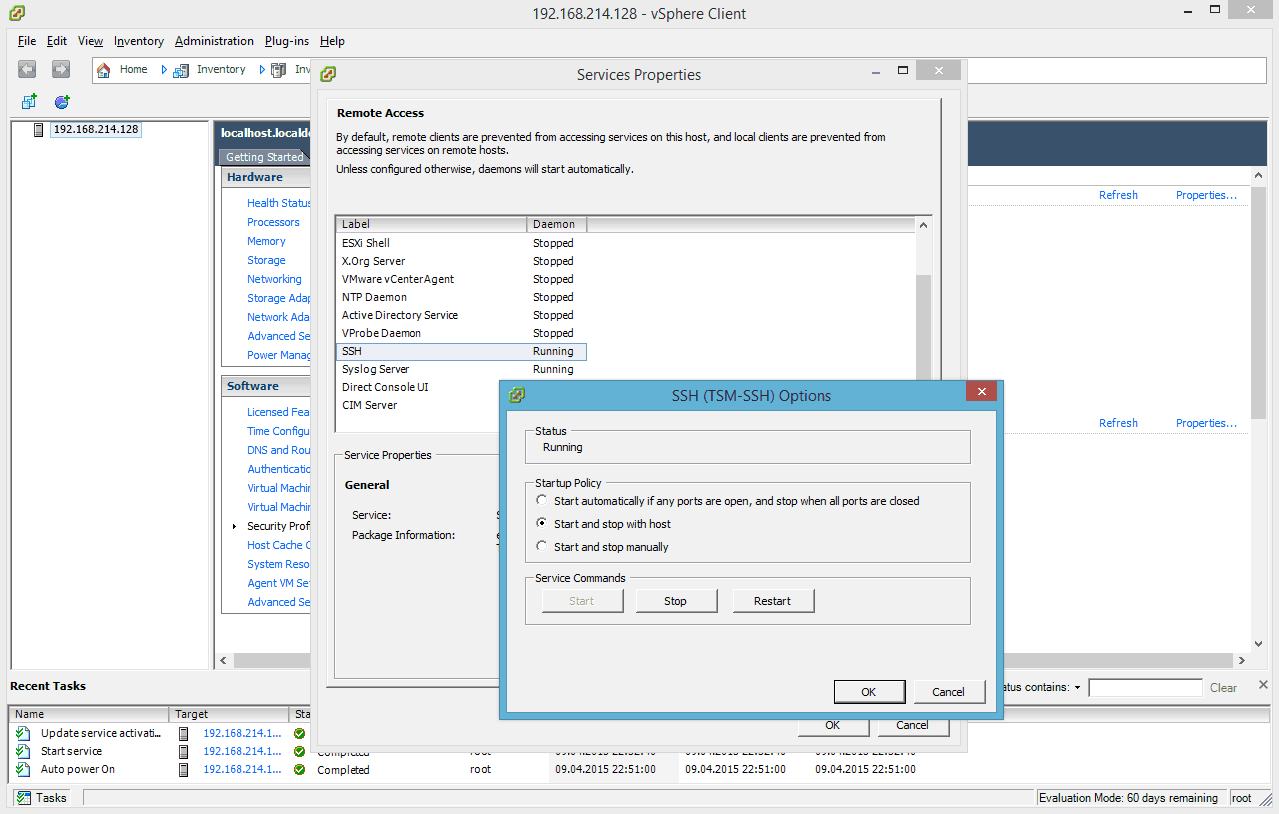
  4. Click on Properties in the upper right corner and you will get the a popup with all the services on this ESXi 5.0 hosts. Select the SSH service and press the Options button.
    Enable SSH on ESXi 5.0 vis vSphere Client
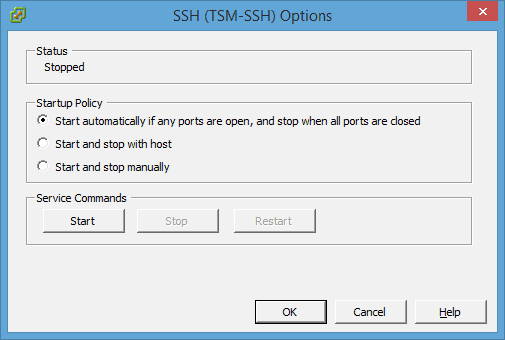
  5. Now you can start the services and set the startup options
    Enable SSH on ESXi 5.0 vis vSphere Client
  6. press okay and you are done..

Activate SSH on ESXi 4.1 via vSphere Client

Some months ago I wrote a post about how to activate SSH on a ESXi 4.1 via console. But you can also activate SSH with the vSphere Client.

  1. Login to the vSphere Client
  2. Click on the configuration tab
    VMware vSphere Client ESXi
  3. Click on Security profile
  4. VMware vSphere Client ESXi Click on Properties
    VMware vSphere Client ESXi
  5. Click on Remote Tech Support (SSH)
    VMware vSphere Client ESXi
  6. Click on Options and choose the startup policy and click start
    VMware vSphere Client ESXi
  7. Now you can verify that the daemon shows as running in the Services Properties window