Remote Disk Management with “RPC server is unavailable” Error

If you have a Windows Server 2008 R2 Core Server or a Hyper-V R2 Server, which is also managed like a Core Server, you are really happy if you can use the Server Manager for this Remote Machine. Basiclly I had the the Remote Setup done. I could connect to the remote Machine with the Server Manager but when I tried to use the Disk Management on a remote Server and I got the following error “RPC server is unavailable”. After checking it I found the solution. The Problem is that the Firewall blocks the remote communication to virtual disk service. So you have to open the Firewall on the Management Machine

  1. First make sure you activated all the Remote Management options on the Remote Machine. I had all done this but its good to check that.
  2. Now you can run the following Command in cmd on the Management Machine to add the a new firewall rule
    netsh advfirewall firewall set rule group="Remote Volume Management" new enable=yes

firewall

How to add a Windows Server 2008 R2 Core as Secondary DNS Server

This shows you how you can add a secondary DNS Server to your Network on a Windows Server 2008 R2 Core.

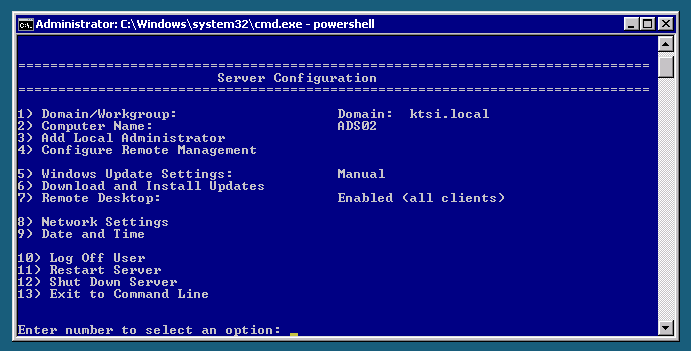
  1. As usual you configure the Windows Server 2008 R2 Core with Sconfig
  2. Now install the DNS Server role on the Windows Server 2008 R2 Core
    Windows Server 2008 R2 Core DNS Serverstart /w ocsetup DNS-Server-Core-Role
  3. On the primary DNS Server open the DNS Server MMC
  4. Right click properties on the DNS zones you wanna transfer to the new core server
  5. Add the new DNS Server in the Name Server Tab. In this case this is server04.corp.pepsi.local
    Windows Server 2008 R2 DNS Server
  6. Allow Zone Transfers to this Server or Server in the Name Servers Tab
    Windows Server 2008 R2 DNS Server

How to add a Windows Server 2008 R2 Core as Secondary Domain Controller (replica)

This is a small How to which shows you how you can add a Windows Server 2008 R2 Core as a Secondary Domain Controller or Replica.

  1. sconfig Windows Server 2008 R2First configure the Core Server, Name, Domain, IP Adresse and more. You can use the command sconfig to run the Server Configuration Utility.
  2. Now you can go back to the Command Promt.
  3. Now you have to possibilities to install a Domain Controller. First you run dcpromo with a unattend file you have created and copied on the server, or you run dcpromo with some parameters. I decided to run dcpromo with the necessary parameters because I just need a simple replica.
  4. Now you can run the command on the Command Promt
    Dcpromo Windows Server 2008 R2 Core Dcpromo /unattend /replicaOrnewDomain:replica /replicaDomainDNSName:corp.pepsi.local /ConfirmGC:yes /username:corp’administrator /Password:* /safeModeAdminPassword:PepsiPassword
  5. After that the Server will run the installer and reboot.
    Windows Server 2008 R2 Core DCPROMO
  6. A replication connection was created
    Windows Server 2008 R2 AD Replication

If you need more Information about Active Directory Creation on a Windows Server 2008 Core Server you can checkout the Microsoft KB947034.

HowTo: Install Roles and Features Windows Server 2008 R2 Core (Shell)

This Guide should help you to install Roles and Features on Windows Server 2008 R2 per shell or on a Windows Server 2008 R2 Core Server.

Under Windows Server 2008 you could install Roles and Features with the command OCSETUP. Since we use Windows Server 2008 R2 Microsoft used the tool called DISM (Deployment Image Servicing and Management tool).

For checking availible Server roles type:

Dism /online /get-features /format:table

To enable a Feature or a Role, in this case the DNS Server Role, you just type:

Dism /online /enable-feature /featurename:DNS-Server-Core-Role

Cheatsheet: How to install HP Support Pack on a Server Core installation #3

This is a HowTo step-by-step guide to install the HP Support Pack on a Windows Server 2008 R2 Core installation or Hyper-v Core installation.

  1. Download the latest HP ProLiant Support Pack for Windows Server 2008 R2
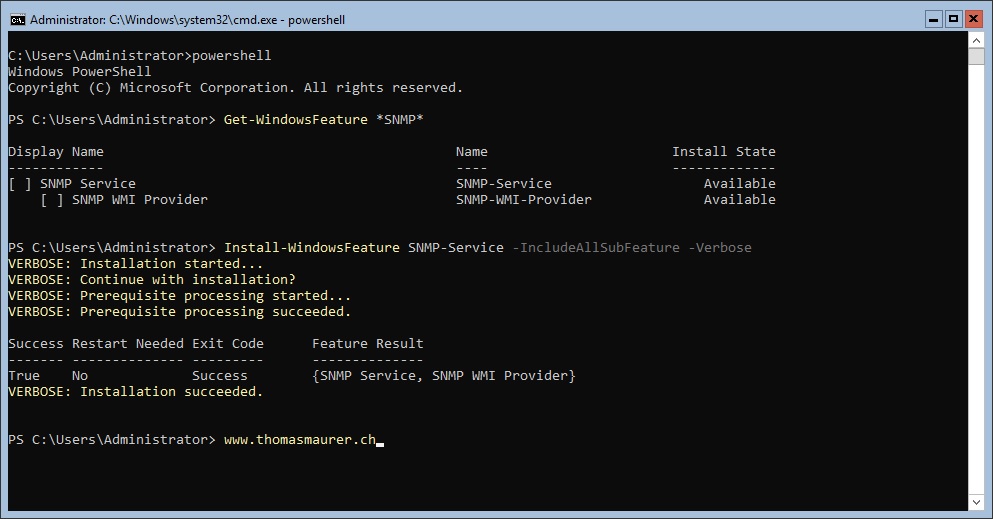
  2. Eable SNMP on Windows Server 2008 R2 Core by typing start /w ocsetup SNMP-SC
  3. Extract the HP ProLiant Support Pack on a Management Machine to C:\Supportpack
    Extract HP ProLiant Support Pack
  4. Connect to the Remote Windows Server Core for example \\hyperv01\c$
    Connect to Core Server
  5. Create the folder C:\hp on the Remote Core Server
  6. Copy the files from C:\supportpack to \\hyperv01\c$\hp
    Copy HP ProLiant Support Pack
  7. On the Core Server execute C:\hp\hpsum.exe
    execute hpsum.exe
  8. Install the HP Supportpack as usual
    HP Smart Update ManagerHP Smart Update ManagerHP Smart Update ManagerHP Smart Update Manager
  9. Reboot the Server

Cheatsheet: Add roles and features to a Server Core installation #2

This are some commands to add roles and features to a Windows Server 2008 R2 Core installation.

You also can enable Remote MMC and Remote Server Manager to simply connect from a management server to the core server and add roles with GUI. This may only work within a domain environment. You can enable remote management pretty easy with the sconfig.cmd. Find out more about configuring Windows Server 2008 R2 Core installations here.

List available server roles and features:

oclist

Install, uninstall and configure Active Directory Domain Service role:

dcpromo

Help for dcpromo:

PS C:\> dcpromo /?

Command line parameters include:

/unattend[:filename]
Used to specify the unattend operation mode or supply an unattended install script file.

/adv
Enables advanced user options.

/uninstallBinaries
Used to uninstall Active Directory Domain Services binaries.

/?[:{Promotion | CreateDcAccount | UseExistingAccount | Demotion}]

/?:Promotion, /?:CreateDCAccount, /?:UseExistingAccount, and /?:Demotion
will display unattend parameters applicable to the specified task. /CreateDCAccount and /UseExistingAccount:Attach are mutually exclusive.

/CreateDCAccount
Creates an RODC account.

/UseExistingAccount:Attach
Attaches the server to an RODC account.

/forceRemoval
Forcefully uninstalls Active Directory Domain Services on this domain controller. The account for the domain controller will not be deleted in the directory, and changes that have occurred on this domain controller since it last replicated with a partner will be lost.

/?
Will display this help.

Unattend parameters can also be specified on the command-line. For example:

dcpromo.exe /ReplicaOrNewDomain:Replica

Press any key to quit ...

Install a role or feature its basically always the same:

start /w ocsetup <roleorfeature>

start /w ocsetup DNS-Server-Core-Role

Uninstall a role or feature:

start /w ocsetup <roleorfeature> /uninstall

start /w ocsetup DNS-Server-Core-Role /uninstall

Install SNMP feature:

start /w ocsetup SNMP-SC

Install Microsoft Hyper-v role:

start /w ocsetup Microsoft-Hyper-V