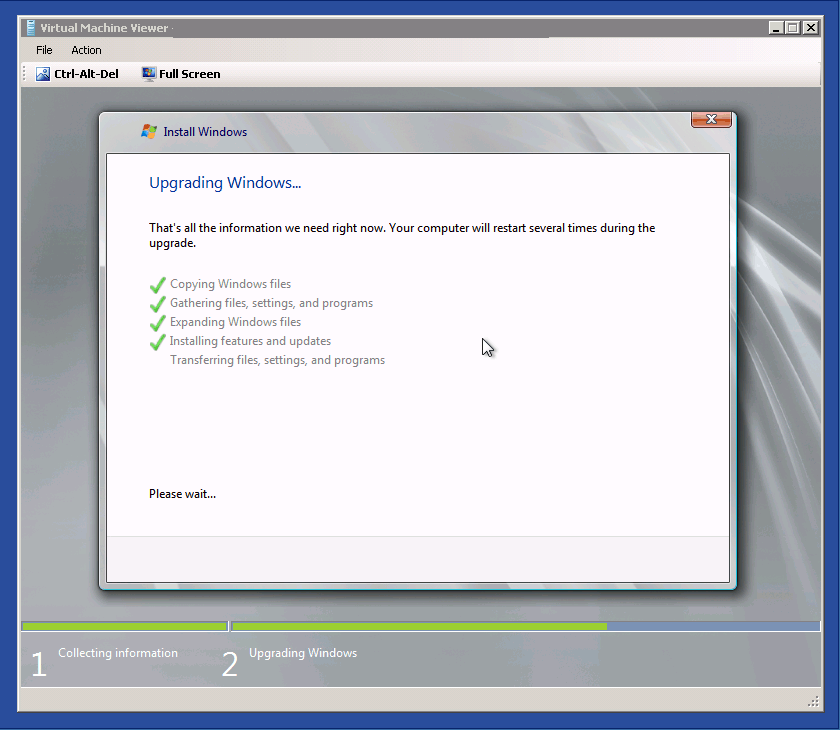
I’m not really a big fan of In-place Windows Upgrades, specially in the Server Environment. But we had a Server with a small application running Windows Server 2008 so we decided to in-place upgrade this Server to Windows Server 2008 R2. Now guess what it worked. Basically if the Hardware and all applications are compatible with Windows Server 2008 R2 you can try to upgrade.
Tag Archives: windows server 2008
Remote Disk Management with “RPC server is unavailable” Error
If you have a Windows Server 2008 R2 Core Server or a Hyper-V R2 Server, which is also managed like a Core Server, you are really happy if you can use the Server Manager for this Remote Machine. Basiclly I had the the Remote Setup done. I could connect to the remote Machine with the Server Manager but when I tried to use the Disk Management on a remote Server and I got the following error “RPC server is unavailable”. After checking it I found the solution. The Problem is that the Firewall blocks the remote communication to virtual disk service. So you have to open the Firewall on the Management Machine
- First make sure you activated all the Remote Management options on the Remote Machine. I had all done this but its good to check that.
- Now you can run the following Command in cmd on the Management Machine to add the a new firewall rule
netsh advfirewall firewall set rule group="Remote Volume Management" new enable=yes
Create an OS Image in Windows Deployment Services (Capture Image)
Here I will show you how you can simple create a new Image in WDS (Windows Deployment Services). You can use this to create own Images for your Servers or PCs or update existing Images.
- Add Capture Images to your WDS

- Update your Computer or VM with the latest Software.

- Use Sysprep to generalize the Machine. You can find sysprep.exe in C:\Windows\System32\sysprep

- After the Reboot boot into PXE and boot the Windows Capture Image

- Now you can use the Image Capture Wizard

- Choose which volume you want to capture if you have just one partion in your installed Image the Volume would be D:\ (C: is the booted Windows PE from the Windows Deployment Service)

- Now you have to choose the name of the WIM file and the location, before you can upload it to the WDS Server you have to save it on a local partion. After that you can choose your WDS Server and the Image Group you want to upload the image after the Volume is captured.

- Now the capturing process will start

- After the capturing process is finished and the image is uploaded you can find the Image in the Image group on your WDS Server


- Now you can Rollout this new Image
How to add a Windows Server 2008 R2 Core as Secondary Domain Controller (replica)
This is a small How to which shows you how you can add a Windows Server 2008 R2 Core as a Secondary Domain Controller or Replica.
-
First configure the Core Server, Name, Domain, IP Adresse and more. You can use the command sconfig to run the Server Configuration Utility. - Now you can go back to the Command Promt.
- Now you have to possibilities to install a Domain Controller. First you run dcpromo with a unattend file you have created and copied on the server, or you run dcpromo with some parameters. I decided to run dcpromo with the necessary parameters because I just need a simple replica.
- Now you can run the command on the Command Promt
Dcpromo /unattend /replicaOrnewDomain:replica /replicaDomainDNSName:corp.pepsi.local /ConfirmGC:yes /username:corp’administrator /Password:* /safeModeAdminPassword:PepsiPassword - After that the Server will run the installer and reboot.

- A replication connection was created

If you need more Information about Active Directory Creation on a Windows Server 2008 Core Server you can checkout the Microsoft KB947034.
Installing Windows Server 2008 R2 Server with 3ware 9650SE Raidcontroller
If you need to install Microsoft Windows Server 2008 R2 on a Server with a 3ware 9650SE Raidcontroller, you can’t just install it on this machine, you can’t even install it with adding the driver during the installation process.
- First Update the Raid Controller Firmware by downloading the Codeset ISO from the 3ware Download page UPDATED (Version 9.5.1 or higher).
- Burn the ISO file and boot this CD
- Update the Firmware
- Reboot with the Windows Server 2008 R2 DVD
- During the Boot (right after “Press any key to boot from CD/DVD…”) of the CD press F8 and choose “Disable Driver Signature Enforcement”
- Now you can add the Raid Controller Driver (Version 9.5.1 or higher) via USB Stick, Floppy, CD or DVD.
IMPORTANT: You can not add the Driver without an updated Firmware - After you have installed your Windows Server 2008 R2 you can download the latest Drivers and Firmware form here (Version 10.2). I could not found any Codeset ISO with Version 10.2, thats why you have to update first to 9.5.1 (or 9.5.3).
This needs to be done for all Windows Server 2008 R2 Server and Windows Server 2008 Editions.
Windows Server 2008: Allow multiple Remote Desktop sessions per user
In Windows Server 2003 you could have multiple Remote Desktop session with the same user. In Windows Server 2008 this is not possible by default. If you login with the same user account the first session will be taken over by second session.
But you can allow multiple Remote Desktop sessions per user by changing a registry key.
- Start regedit
- Check out the follwoing registry key
HKEY_LOCAL_MACHINE\System\CurrentControlSet\Control\TerminalServer - If the fSingleSessionPerUser value doesn’t exist, create a new DWORD value named fSingleSessionPerUser
- Open the fSingleSessionPerUser value. The possible values for this setting are as follows:
0×0 Allow multiple sessions per user
0×1 Force each user to a single session - save this
Found this on remotedesktoprdp.com
Swiss Technet Event
Today I had the chance to visit Microsoft Switzerland. I visited one of the presentations called “Windows 7 SP1 and Windows Server 2008 R2 SP1 – What’s new?”. Speaker of the session was Markus Erlacher (Microsoft IT Consultant). As always Microsoft does a great job by host events like this.
I really recommend you to visit one of the next events (you can find them on the swiss TechNet Homepage). The will host this session “Windows 7 SP1 and Windows Server 2008 R2 SP1 – What’s new?” again in november.
So what is new in Windows 7 SP1 and Windows Server 2008 R2 SP1? Basically there are alot of hotfixes and two main things in Windows Server 2008 R2.