System Center 2012 SP1 – Virtual Machine Manager support for VMware vSphere ESX Hosts

System Center Logo

As System Center 2012 SP1 was released, it officially supported VMware vSphere 4.1 and 5.1, there was no support for vSphere 5.0 in SCVMM 2012 SP1. Now since a lot of customer have requested this feature, Microsoft added VMware vSphere 5.0 to the supported list of vSphere versions. For those who didn’t know that, to manage VMware ESX Hosts you need a version of vCenter. Some months ago I made a blog post about how you can add your VMware infrastructure to Virtual Machine Manager.

Virtual Machine Manager now supports the following versions of VMware vSphere:

vCenter Server:

For System Center 2012 – Virtual Machine Manager:

  • VMware vCenter Server 4.1

For VMM in System Center 2012 SP1:

  • VMware vCenter Server 4.1
  • VMware vCenter Server 5.0
  • VMware vCenter Server 5.1

Virtual machine hosts and host clusters that run any of the following versions of VMware:

For System Center 2012 – Virtual Machine Manager:

  • ESXi 4.1
  • ESX 4.1
  • ESXi 3.5
  • ESX 3.5

For VMM in System Center 2012 SP1:

  • ESXi 5.0
  • ESXi 5.1
  • ESXi 4.1
  • ESX 4.1

Get more information here: System Requirements: VMware ESX Hosts and here: System Requirements for System Center 2012 SP1.


Convert VMware vSphere Virtual Machines to Microsoft Hyper-V

Convert to Hyper-V Virtual Machine

On October 1st Microsoft released their Microsoft Virtual Machine Converter Solution Accelerator which includes Microsoft Virtual Machine Converter Solution Accelerator and the Microsoft Virtual Machine Converter Plug-in for VMware vSphere Client. This solution accelerator kit enables to covert Virtual Machines from VMware vSphere to Microsoft Hyper-V. I also tested the release candidate of Microsoft Virtual Machine Converter Solution Accelerator in July.

Some more information about the Microsoft Virtual Machine Converter features:

  • Converts and deploys virtual machines from VMware hosts to Hyper-V hosts including Hyper-V on Windows Server 2012. As part of the machine conversion MVMC converts the virtual disks attached to the source virtual machine. It also migrates configuration such as memory, virtual processor and so on from the source virtual machine to the converted virtual machine deployed on Hyper-V. It adds virtual network interface cards (NICs) to the converted virtual machine on Hyper-V.
  • Converts VMware virtual disks to Hyper-V based virtual hard disks (VHDs).
  • Supports conversion of virtual machines from VMware vSphere 4.1 and 5.0 hosts to Hyper-V.
    • Note   MVMC also supports conversion of virtual machines from VMware vSphere 4.0 if the host is managed by vCenter 4.1 or vCenter 5.0. You have to connect to vCenter 4.1 or 5.0 through MVMC to convert virtual machines on vSphere 4.0.
  • Offers fully scriptable command-line interfaces for performing virtual machine and disk conversions that integrates well with data center automation workflows and Windows PowerShell scripts.
  • Has a wizard-driven GUI, making it simple to perform virtual machine conversion.
  • Uninstalls VMware tools prior to conversion to provide a clean way to migrate VMware-based virtual machines to Hyper-V.
  • Supports Windows Server guest operating system conversion, including Windows Server 2008 R2, Windows Server 2008 and Windows Server 2003 SP2.
  • Enables conversion of Windows client versions including Windows 7.
  • Installs integration services on the converted virtual machine if the guest operating system is Windows Server 2003 SP2.

First you have to install the vSphere Client, the Microsoft Virtual Machine Converter Solution Accelerator and optional the Microsoft Virtual Machine Converter Plug-in for VMware vSphere Client. The Microsoft Virtual Machine Converter Plug-in for VMware vSphere Client allows you to convert a Virtual Machine directly from the VMware vSphere Client.

Here you can download the Microsoft Virtual Machine Converter Solution Accelerator.

To convert a Virtual Machine you have two options. First you can open the Microsoft Virtual Machine Converter. You can connect to your stand-alone ESX host or your vSphere vCenter server.

Microsoft Virtual Machine Converter Source

After you have connected to your vSphere environment, the Virtual Machine Converter will scan for Virtual Machines which can be converted, and you can select the VM you want to convert to Hyper-V.

Microsoft Virtual Machine Converter Source VMs

The second way is by using the Virtual Machine Converter Plug-in from VMware vSphere Client. You can right click on the Virtual Machine you want to convert and select Convert to Hyper-V virtual machine and this will launch the Virtual Machine Converter.

VMware vSphere Client Convert to Hyper-V virtual machine

In both cases you have to connect now to the guest in the virtual machine.

Microsoft Virtual Machine Converter Source Connect

Select a Workspace where the virtual machine disk will be converted.

Microsoft Virtual Machine Converter Workspace

Configure the destination Hyper-V host.

Microsoft Virtual Machine Converter Desination Hyper-V host

After that you will get a summary and you can start the conversion.

Microsoft Virtual Machine Converter summary

The Virtual Machine Converter does also offers fully scriptable command-line interfaces for performing virtual machine and disk conversions that integrates well with data center automation workflows and Windows PowerShell scripts.

for example:

MVMC.exe /SourceHost:esx01 /SourceHostUser:MVMCAdmin /SourceHostPwd:Passw0rd /GuestVM:test03.cloud.win /TargetHost:hyperv02.cloud.win /TargetVHDPath:\\hyperv02\D$\Test03


Quick: Windows Server 2012 Hyper-V vs VMware vSphere 5.1

Windows Server 2012 Logo

Some months ago I wrote a lot of post about Hyper-V vs VMware vSphere. At this time I compared Windows Server 2012 Hyper-V Release Candidate with VMware vSphere 5.0. Since then a lot has changed Microsoft released the final version of Windows Server 2012 and VMware showed vSphere 5.1. I don’t have time to update every post I made but this should cover an overview about the numbers in both versions. This is mostly only about scale and a lot of customers will not hit any limit in both products, but still I think it is interesting to see how they compare.

There are a lot of other important arguments to use one or the other product, but I won’t cover this in this blog post. The data is from the Microsoft paper: Competitive_Advantages_of_Windows_Server_2012_Hyper-V_over_VMware_vSphere_5.1.pdf. In this PDF you can find more information about the advantages of Windows Server 2012 Hyper-V.

Scale

System Resource Windows Server 2012 Hyper-V VMware vSphere Hypervisor 5.1 VMware vSphere 5.1 Enterprise Plus
Host Logical Processors 320 160 160
Physical Memory 4 TB 32 GB 2 TB
Virtual CPUs per Host 2048 2048 2048
VM Virtual CPUs per VM 64 8 64
Memory per VM 1 TB 32 GB 1 TB
Maximum Virtual Disk 64 TB 2 TB 2 TB
Active VMs per Host 1024 512 512
Cluster Maximum Nodes 64 N/A 32
Maximum VMs 8000 N/A 3000


Storage

Capability Windows Server 2012 Hyper-V VMware vSphere Hypervisor 5.1 VMware vSphere 5.1 Enterprise Plus
Virtual Fiber Channel Yes Yes Yes
3rd Party Multipathing (MPIO) Yes No Yes (VAMP)
Native 4-KB Disk Support Yes No No
Maximum Virtual Disk Size 64TB VHDX 2TB VMDK 2TB VMDK
Maximum Pass Through Disk Size 265TB+ 64TB 64TB
Offloaded Data Transfer Yes No Yes (VAAI)
Storage Encryption Yes No No


Networking

Capability Windows Server 2012 Hyper-V VMware vSphere Hypervisor 5.1 VMware vSphere 5.1 Enterprise Plus
Extensible Switch Yes No Replaceable
Available Partner Extensions 4 No 2
PVLAN Support Yes No Yes
ARP/ND Spoofing Protection Yes No vCNS/Partner
DHCP Snooping Protection Yes No vCNS/Partner
Virtual Port ACLs Yes No vCNS/Partner
Trunk Mode to Virtual Machines Yes No No
Port Monitoring Yes Per Port Group Yes
Port Mirroring Yes Per Port Group Yes
Dynamic Virtual Machine Queue Yes NetQueue NetQueue
IPsec Task Offload Yes No No
SR-IOV Yes Yes (No Live Migration support) Yes (No Live Migration support)
Network Virtualization Yes No VXLAN
Quality of Service Yes No Yes
Data Center Bridging (DCB) Yes Yes Yes
Virtual Machine Live Migration Yes No Yes
1GigE Simultaneous Live Migrations Unlimited N/A 4
10GigE Simultaneous Live Migrations Unlimited N/A 8
Live Storage Migration Yes No Yes
Shared-Nothing Live Migration Yes No Yes


High Availability & Resiliency

Windows Server 2012 Hyper-V VMware vSphere Hypervisor 5.1 VMware vSphere 5.1 Enterprise Plus
Nodes per Cluster 64 N/A 32
VMs per Cluster 8000 N/A 3000
Max Size Guest Cluster (iSCSI) 64 Nodes 0 16
Max Size Guest Cluster (Fiber) 64 Nodes 5 5
Max Size Guest Cluster (File Based) 64 Nodes 0 0
Guest Clustering with Live Migration Support Yes N/A No
Guest Clustering with Dynamic Memory Support Yes No No
Incremental Backups Yes No Yes
VM Replication Yes No Yes
NIC Teaming Yes Yes Yes
Integrated High Availability Yes No Yes
Guest OS Application Monitoring Yes N/A No
Cluster-Aware Updating Yes N/A Yes
Failover Prioritization Yes N/A Yes
Affinity & Anti-Affinity Rules Yes N/A Yes
Free? Yes Yes No

Activate SSH on VMware ESXi 5.1

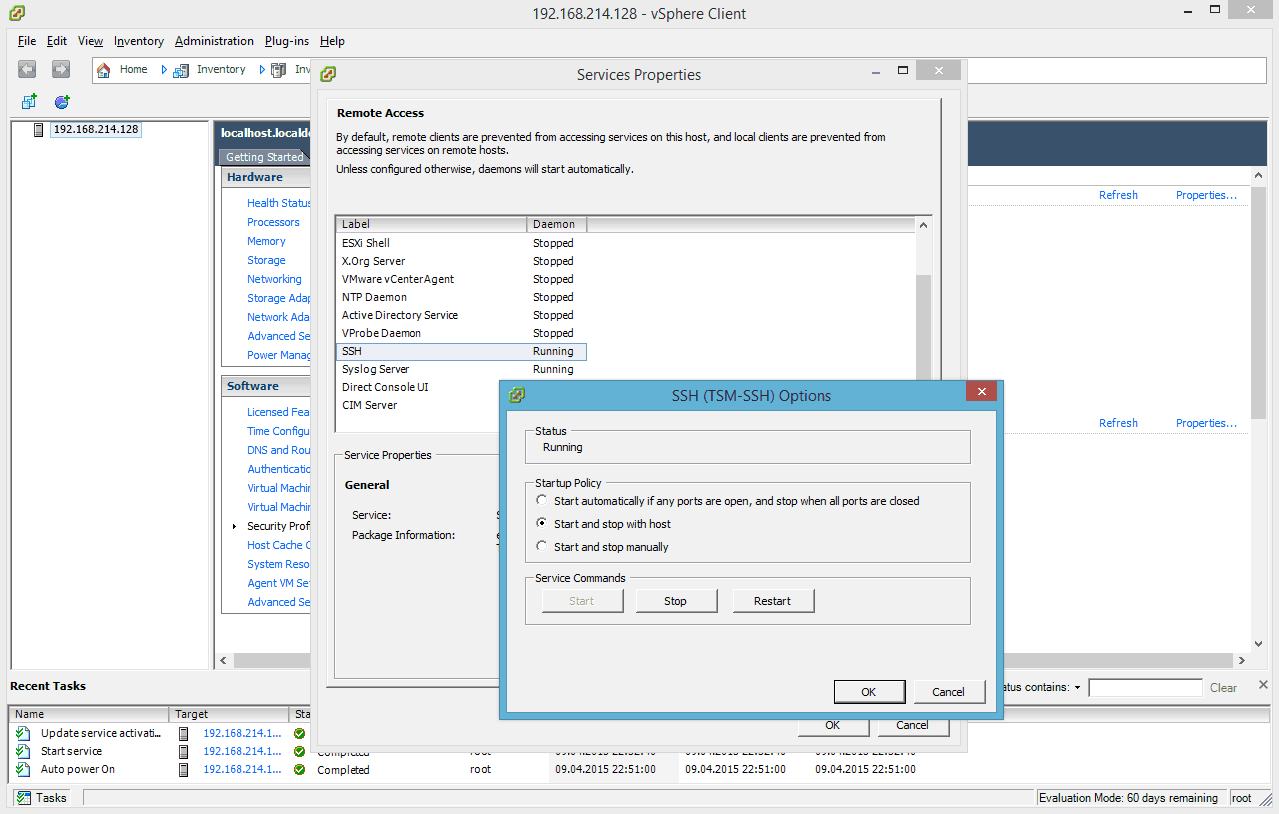
I already wrote a blog post how you can enable SSH on VMware ESXi 5.0 and VMware ESXi 4.1. As before enabling SSH on VMware ESXi 5.1 or VMware vSphere Hypervisor 5.1 is pretty easy.

  1. On the start screen press F2 for “Customize System”
    VMware ESXi 5.1 startscreen
  2. Login with the local password, and on the settings page select and enter Troubleshooting Options
    VMware ESXi 5.1 Settings
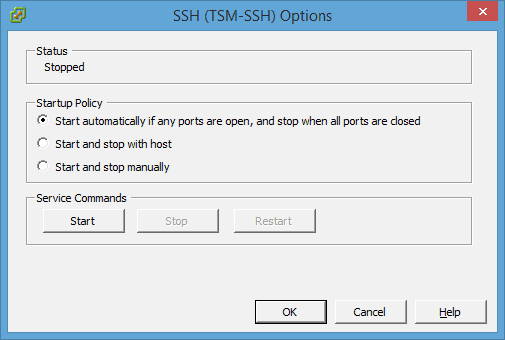
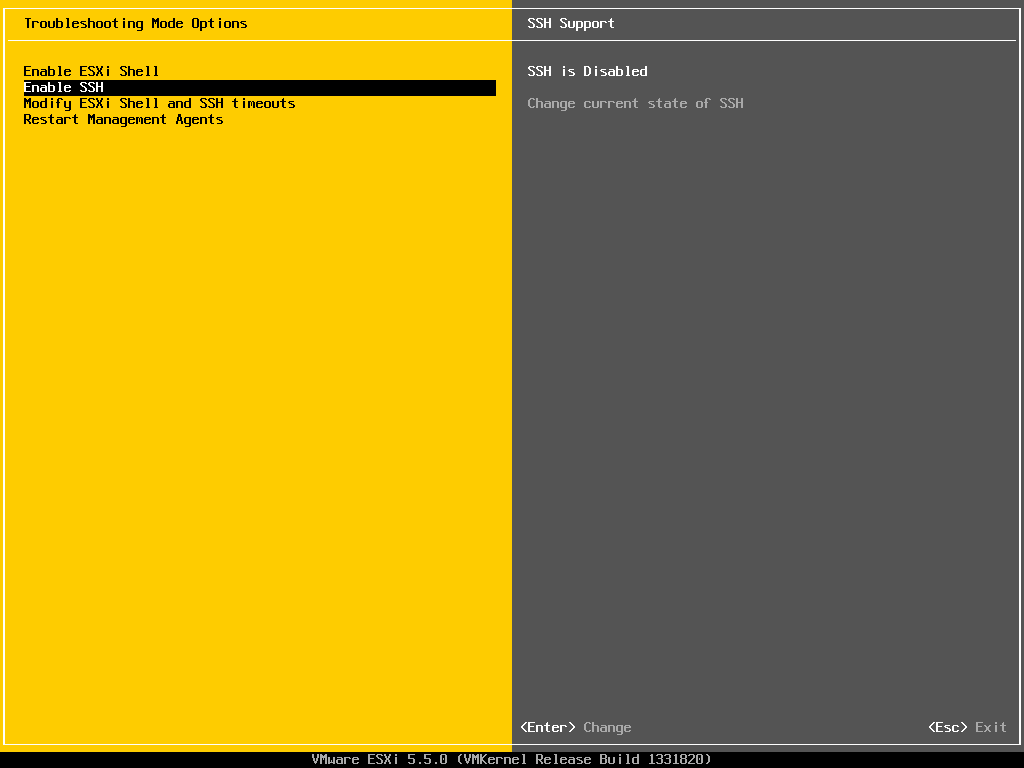
  3. Click on Enable SSH to activate SSH on your VMware ESXi 5.1 host
    VMware ESXi 5.1 enable SSH

Windows Server 2012 Hyper-V – Welcome to the Post-VMware Era!

Windows Server 2012

Today is the day Microsoft official releases Windows Server 2012 and Microsoft is doing a virtual launch event. Windows Server 2012 is a huge step forward for Microsoft virtualization technology Hyper-V.

I the past year I wrote a lot of blog post about the new features in Windows Server 2012 and Hyper-V. I also did some comparing between VMware vSphere 5 and Windows Server 2012 Hyper-V.

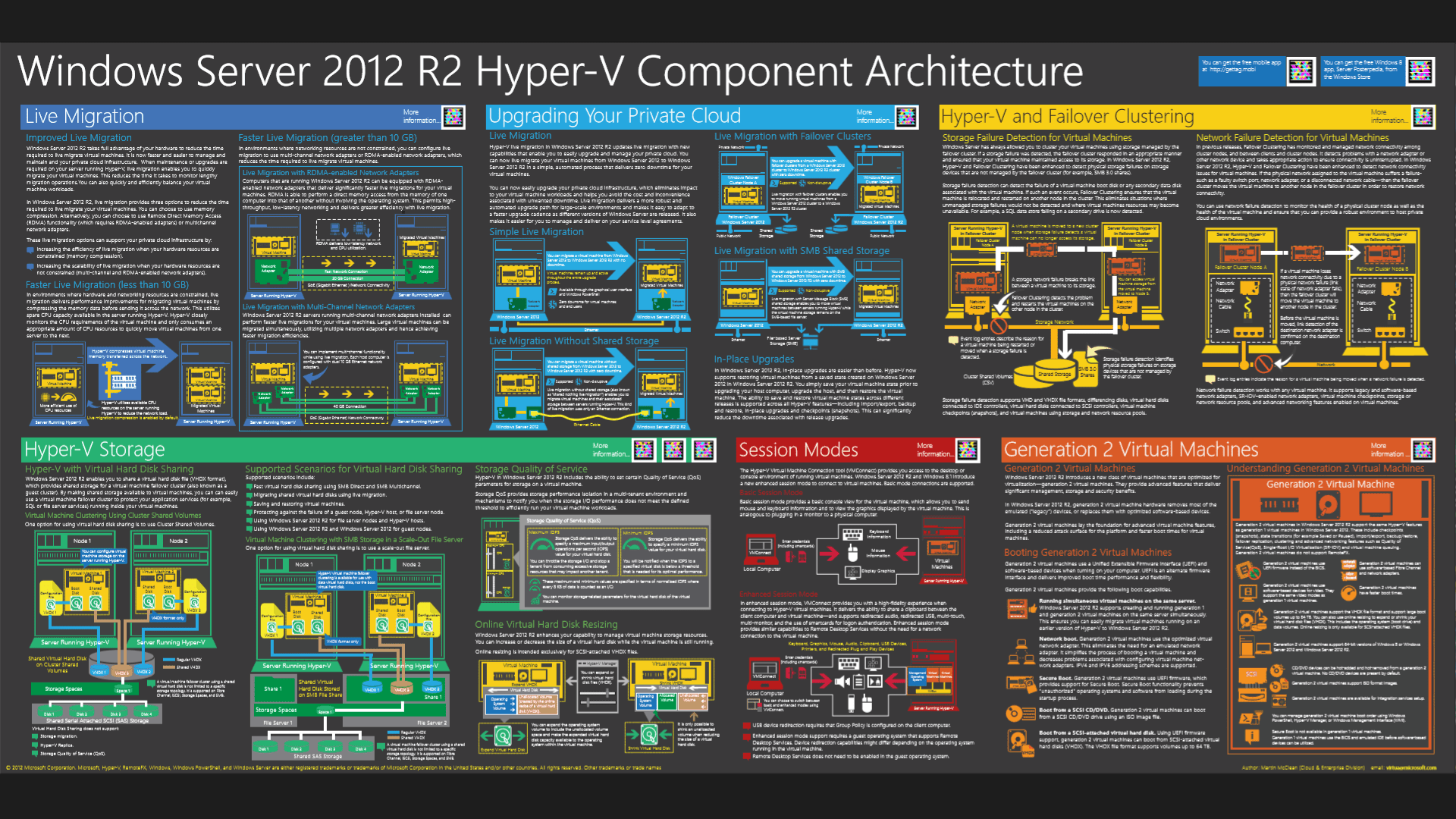
First to get an overview about the new feature in Windows Server 2012 Hyper-V you should check out my blog post: Hyper-V 2012 – Hey I Just Met You And This Is Crazy

Windows Server 2012 Hyper-V Features

You can find some advanced blog posts about new technologies, which cover for example Hyper-V Replica, Converged Fabric and Cluster-Aware Updating here:

Hyper-V vs. VMware

If you are a VMware vSphere user at the moment, you should checkout my blog post series about Hyper-V vs. VMware.

Gartner Hyper-V

Hyper-V and Windows PowerShell

If you are deploying Windows Server 2012 in your environment have a look at PowerShell. Windows PowerShell v3 which is included in Windows Server 2012 and Windows 8 is also a great release. I recommend reading the following posts:

Hyper-V and System Center

To manage Hyper-V Microsoft offers System Center 2012 and with the release of Service Pack 1 Microsoft will support the new features in Windows Server 2012.

Interview about the new feature in Windows Server 2012 Hyper-V

In July I met with Carsten Rachfahl who is a MVP for Virtual Machine and the owner of hyper-v-server.de. Carsten was visiting Switzerland and he also took the time to do some interviews and I had the chance to speak with him.

In the interview (in german) we talked about the new release of Windows Server 2012 Hyper-V which is included in Windows Server 2012:

Next Events

Downloads

Credits for the blog post title go to Michael Faden from Microsoft Switzerland.

Microsoft Virtual Machine Converter Plug-in for VMware vSphere Client Beta

Hyper-V R2 SP1

Microsoft justed released the Microsoft Virtual Machine Converter Plug-in for VMware vSphere Client Beta on Microsoft Connect.

The beta of the Microsoft Virtual Machine Converter Plug-in for VMware vSphere Client v1.0 is now available for download.

The MVMC Plug-in for VMware vSphere Client Beta:

This plug-in extends vSphere Client to facilitate conversions from a virtual machine context menu and without changing configurations on the source VMware host. For more details about which guest operating systems are supported, see the Microsoft Virtual Machine Converter documentation.

Microsoft Virtual Machine Converter Release Candidate

Microsoft Virtual Machine Converter

Back in April Microsoft announced the beta version of the Microsoft Virtual Machine Converter Solution Accelerator. The Microsoft Virtual Machine Converter allows you to migrate your VMware vSphere Virtual Machines to your brand new Microsoft Hyper-V environment.

Today the Microsoft Virtual Machine Converter Release Candidate is available for testing. The best thing at the RC is the support of Windows Server 2012 Hyper-V and Microsoft Hyper-V Server 2012, but there are also other new capabilities.

New in the Release Candidate

In addition to the capabilities that were delivered as part of the beta release, the MVMC Release Candidate:

  • Converts and deploys virtual machines from VMware hosts to Hyper-V hosts running:
  • Windows Server 2012 Release Candidate
  • Microsoft Hyper-V Server 2012 Release Candidate
  • Adds virtual network interface cards (NICs) to the converted virtual machine on Hyper-V
  • Configures dynamic memory on the converted virtual machine
  • Supports migration of virtual machines that are hosted on a vSphere cluster
  • Supports migration of virtual machines to a Hyper-V host that is part of a failover cluster
  • Enables Microsoft partners to cobrand the tool so that it incorporates their logos

Check it out on Microsoft Connect: https://connect.microsoft.com/site14/MVMC