Cisco UCS C200 M2 – Cisco Integrated Management Controller (CIMC)


Cisco-new-logo-should-be2-e1303030685744

The first things I tried with the new Cisco UCS C200 M2 servers was the CIMC (Cisco Integrated Management Controller). CIMC is the remote out-of-band management solution (IPMI) provided with Cisco servers, it’s basically the same like HP iLO or Dell DRAC.

One of the biggest advantages is that CIMC is included for free, so there is no extra license you need for extra features like KVM or stuff like that.

After working some hours with the CIMC I was really happy, no problems at all everything worked as expected. From the design it’s like the Cisco UCS Manager but better ;-) . I think it is much easier to use and much faster (it’s not Java).

Keyfeatures

  • Web based front-end
  • KVM and Virtual media
  • Change BIOS Settings
  • Active Directory connector
  • SNMP
  • IPMI (Very interesting with the Bare-metal deployment in SCVMM 2012)
  • SSH
  • Health Monitoring

CIMC01

Continue reading

Enable SSH on ESXi 5 via vSphere Client

In the first post I wrote how you can enable SSH on the ESXi 5.0 host. In this post I show you how you can enable or activate SSH on the ESXi 5.0 hosts via the vSphere Client.

  1. First start the vSphere Client
  2. Select the ESXi host in the configurations tab
  3. Select Security Profile
    Enable SSH on ESXi 5.0 vis vSphere Client
  4. Click on Properties in the upper right corner and you will get the a popup with all the services on this ESXi 5.0 hosts. Select the SSH service and press the Options button.
    Enable SSH on ESXi 5.0 vis vSphere Client
  5. Now you can start the services and set the startup options
    Enable SSH on ESXi 5.0 vis vSphere Client
  6. press okay and you are done..

Activate SSH on VMware ESXi 5.0

As in VMware ESXi 4.1 you can enable or activate SSH on VMware ESXi 5.0 very simple. VMware ESXi 5.0 is also known as VMware vSphere Hypervisor.

  1. On the start screen press F2 for “Customize System”
    VMware ESXi 5.0 enable SSH
  2. Login with the local password
    VMware ESXi 5.0 enable SSH
  3. Select and enter Troubleshooting Options
    VMware ESXi 5.0 enable SSH
  4. Click on Enable SSH to activate SSH on your VMware ESXi 5.0 host
    VMware ESXi 5.0 enable SSH
  5. After you have pressed the ENTER key you will now see that SSH is enabled
    VMware ESXi 5.0 activate SSH

Quick Powershell Remoting Guide

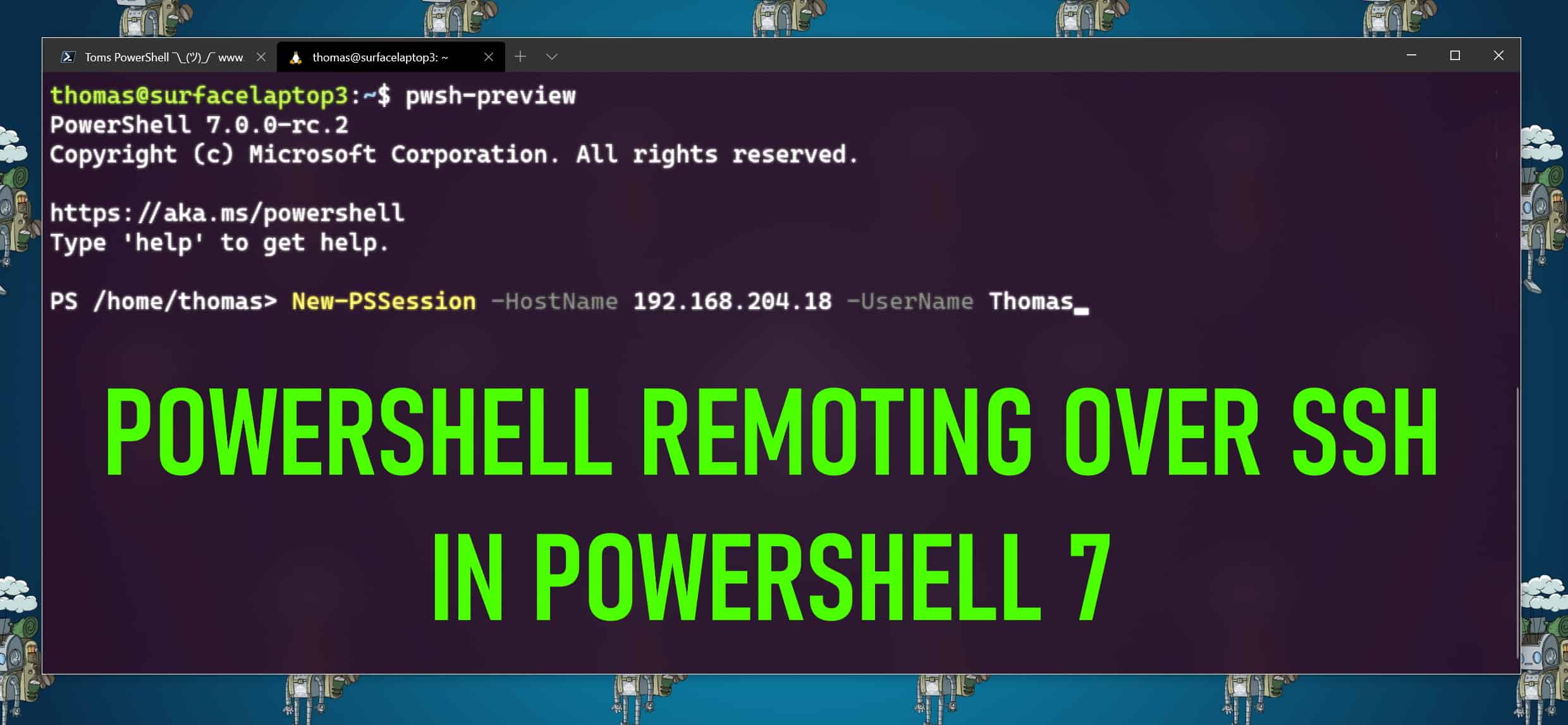
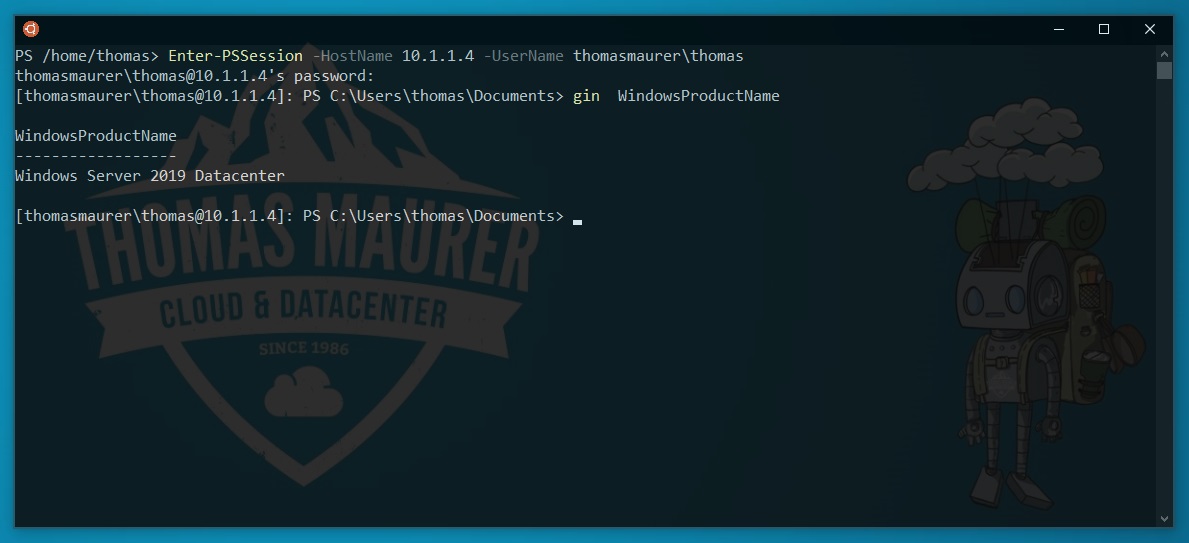
Powershell HeaderThis is small guide which allows you to create Remote Powershell Sessions (like SSH). It allows you to create connection to Host which have Powershell Version 2.

  • Allow Powershell Remoting on the Remotehost
  • Add Trusted Hosts on the Localcomputer
  • Create a new Remotesession
  • Leave a Powershell Remotesession
  • Close a Powershell Remotesession
  • Send a command to a Remotehost

Allow Powershell Remoting on the Remotehost

Run Powershell 2.0 on the Remotehost and run the following Cmdlet.

Enable-PSRemoting

This command starts the WinRM service if it’s not allready started and sets the startup type to automatic. Adds firewall exceptions for WS-Management communications and creates a listener to accept requests.

Add Trusted Hosts on the Localcomputer

On the Local Computer run Powershell and run the following Cmdlet. This allows you to connect to any host. It also starts WinRM if its not already started.

Set-Item WSMan:\localhost\Client\TrustedHosts *

After that you may have to restart the WinRM service

Restart-Service winrm -Force

Create a new Powershell Remotesession

There are two ways to create a new PS Remotesession.

New-PSSession -ComputerName Server01

With Get-PSSession you can list all active sessions. Now you can enter a active Session with Enter-PSSession and the ID

Enter-PSSession 2

A quicker way to do that, you can simply use Enter-PSSession to create a new Session and directly connect to this Session.

Enter-PSSession -ComputerName Server02

Leave a Powershell Remotesession

To leave a Powershell Remotesession you can simply use the Exit-PSSession

Exit-PSSession

Close a Powershell Remotesession

To close a Powershell Remotesession you can list all  active Sessions with Get-PSSessions and close them with Remove-PSSession.

Get-PSSession | Remove-PSSession

Send a command to a Remotehost

To run a command on a Remotehost you can use the -ComputerName parameter.

Get-Service -ComputerName Server02
Get-Service -ComputerName Server02 | Where-Object {$_.Name -eq "BITS"}

With this little snippet you can run commands on multiple Hosts


$Servers = @("Server01", "Server02")

foreach ($Server in $Servers) {

Write-Host "Server: " $server

Get-Service -ComputerName $server | Where-Object {$_.Name -eq "BITS"}

}

Activate SSH on ESXi 4.1 via vSphere Client

Some months ago I wrote a post about how to activate SSH on a ESXi 4.1 via console. But you can also activate SSH with the vSphere Client.

  1. Login to the vSphere Client
  2. Click on the configuration tab
    VMware vSphere Client ESXi
  3. Click on Security profile
  4. VMware vSphere Client ESXi Click on Properties
    VMware vSphere Client ESXi
  5. Click on Remote Tech Support (SSH)
    VMware vSphere Client ESXi
  6. Click on Options and choose the startup policy and click start
    VMware vSphere Client ESXi
  7. Now you can verify that the daemon shows as running in the Services Properties window

Activated SSH on ESXi 4.1

In VMware ESXi 4.0 you needed a small a trick to activated SSH on your Host. In VMware ESXi 4.1 its very easy to activate SSH.

  1. Press F2 to Customize System Settings
  2. VMware ESXi 4.1 Navigate to Troubleshooting Options
    VMware ESXi 4.1 Troubleshooting Options
  3. Now you can enable Remote Tech Support (SSH)
    VMware ESXi 4.1 enable SSHVMware ESXi 4.1 enable SSH

And by the way, installing ESXi in VMware Fusion on my Mac is really awesome for presentation and testing.

Here is a link how you do this with VMware ESXi 4.0