Windows Server 2012 Hyper-V – Welcome to the Post-VMware Era!

Windows Server 2012

Today is the day Microsoft official releases Windows Server 2012 and Microsoft is doing a virtual launch event. Windows Server 2012 is a huge step forward for Microsoft virtualization technology Hyper-V.

I the past year I wrote a lot of blog post about the new features in Windows Server 2012 and Hyper-V. I also did some comparing between VMware vSphere 5 and Windows Server 2012 Hyper-V.

First to get an overview about the new feature in Windows Server 2012 Hyper-V you should check out my blog post: Hyper-V 2012 – Hey I Just Met You And This Is Crazy

Windows Server 2012 Hyper-V Features

You can find some advanced blog posts about new technologies, which cover for example Hyper-V Replica, Converged Fabric and Cluster-Aware Updating here:

Hyper-V vs. VMware

If you are a VMware vSphere user at the moment, you should checkout my blog post series about Hyper-V vs. VMware.

Gartner Hyper-V

Hyper-V and Windows PowerShell

If you are deploying Windows Server 2012 in your environment have a look at PowerShell. Windows PowerShell v3 which is included in Windows Server 2012 and Windows 8 is also a great release. I recommend reading the following posts:

Hyper-V and System Center

To manage Hyper-V Microsoft offers System Center 2012 and with the release of Service Pack 1 Microsoft will support the new features in Windows Server 2012.

Interview about the new feature in Windows Server 2012 Hyper-V

In July I met with Carsten Rachfahl who is a MVP for Virtual Machine and the owner of hyper-v-server.de. Carsten was visiting Switzerland and he also took the time to do some interviews and I had the chance to speak with him.

In the interview (in german) we talked about the new release of Windows Server 2012 Hyper-V which is included in Windows Server 2012:

Next Events

Downloads

Credits for the blog post title go to Michael Faden from Microsoft Switzerland.

Windows Server 2012 Hyper-V Component Architecture Poster and Companion References

Microsoft released a updated version of the Windows Server 2012 Hyper-V Component Architecture Poster.
Windows Server 2012 Hyper-V Component Architecture Poster
Windows Server 2012 Hyper-V Component Architecture Poster provides a visual reference for understanding key Hyper-V technologies in Windows Server 2012 and focuses on Hyper-V Replica, networking, virtual machine mobility (live migration), storage, failover clustering, and scalability.

You can download it from the Microsoft Download Center: Windows Server 2012 Hyper-V Component Architecture Poster and Companion References

via Maarten Wijsman from Hyper-V.nu.

Interview about new Windows Server 2012 Hyper-V Features

Windows Server 2012 RC Logo

Last week I met with Carsten Rachfahl who is a MVP for Virtual Machine and the owner of hyper-v-server.de. Carsten was visiting Switzerland and he also took the time to do some interviews and I had the chance to speak with him.

In the interview (in german) we talked about the new release of Hyper-V which is included in Windows Server 2012.

  • 01:55 – Hyper-V Replica
  • 03:10 – Hyper-V Design
  • 03:35 – SMB for Hyper-V
  • 05:50 – Hyper-V Converged Fabric
  • 07:41 – Shared Nothing Live Migration
  • 09:40 – Hyper-V for Hoster
  • 11:04 – CSV Cache
  • 12:28 – Hyper-V Converged Fabric
  • 13:45 – Hyper-V and PowerShell

You can watch the interview in better resolution on it-cast.de.

If you are interested in my sessions about Hyper-V 2012 and other great Private Cloud session covering Windows Server 2012 and System Center 2012 checkout the Geekmania 2012 website.

Hyper-V Replica – The Game Changer

Windows Server 2012 RC Logo

In Windows Server 2012 Microsoft introduced a new feature called Hyper-V Replica. In my opinion Hyper-V Replica is a true Game Changer, something like the forward pass in football or the slam dunk in basketball. In my interview with Carsten Rachfahl from hyper-v-server.de I mentioned that I think a lot of customer will choose Hyper-V Replica as Disaster Recovery solution.

What is Hyper-V Replica and how does it work?

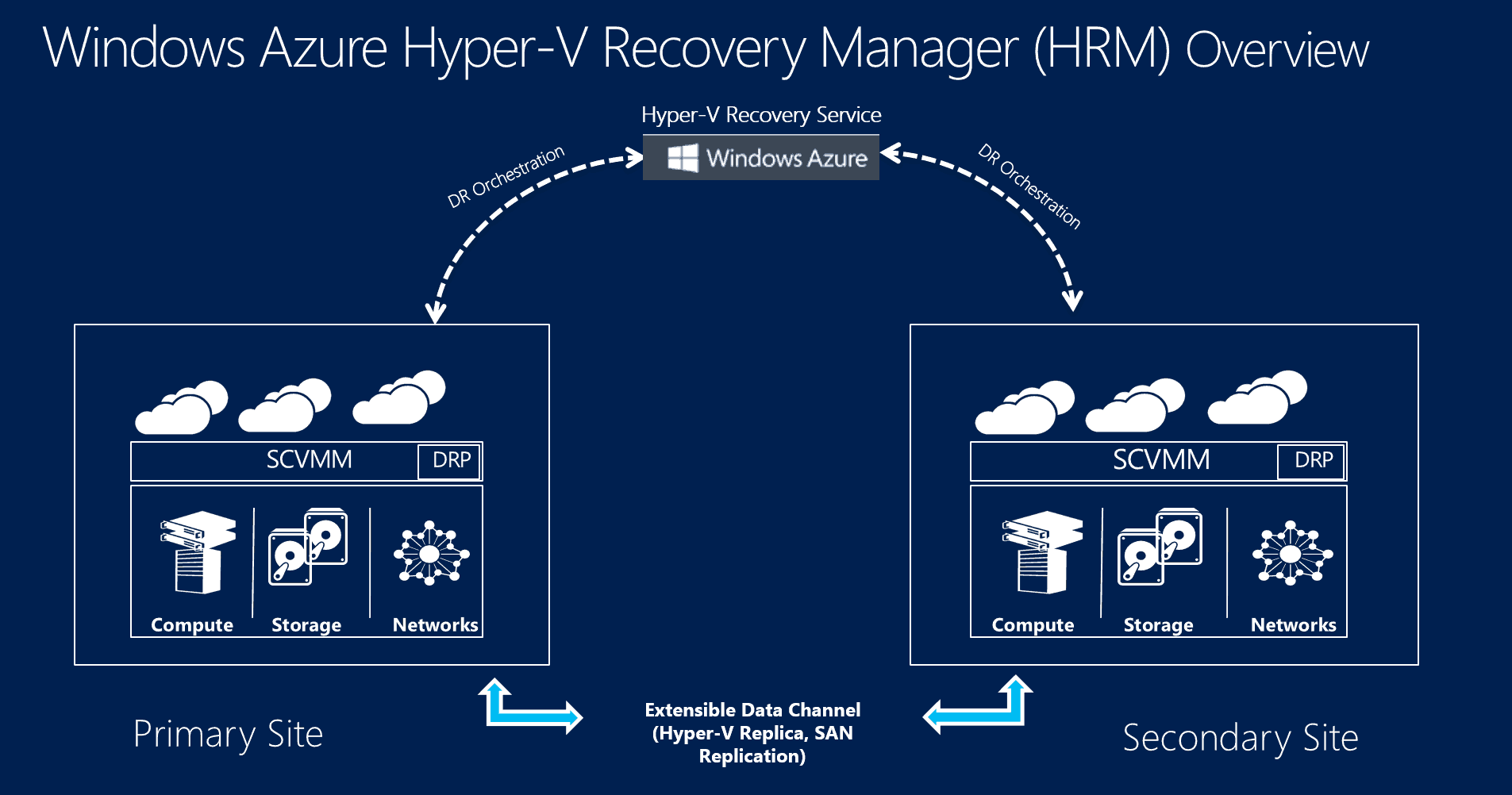
What is Hyper-V Replica and how does it work. With Hyper-V Replica it is possible to replicate Hyper-V Virtual Machines from a Hyper-V host to another Hyper-V host or cluster. The great thing about it is that Hyper-V Replica is optimized for replication over WAN. This allows companies to replica Virtual Machines from a primary site to a secondary site, and in case of a disaster on the primary site, Virtual Machines can be failed over to the secondary site.

Hyper-V Replica

The replication is done per virtual machine, so you can also replicate VMs to two or more different locations.

Hyper-V Replica is an asynchronous replication, Hyper-V Replica will do a initial replication of the Virtual Machine and after that changes will be replicated every 5 to 10 minutes.

How to enable Hyper-V Replica on a single host

To allow the Hyper-V host to send and receive virtual machine replications you have to enable the Hyper-V Replica feature and configure the Windows Firewall. Hyper-V Replica can be enabled via Hyper-V Manager in the Hyper-V settings. You can setup different replication settings such as which hosts can replicate to this server or which port is used for the replication and whether HTTP or HTTPS should be used.

Enable Hyper-V Replica

After you have enabled Hyper-V Replica you have to open the Windows Firewall ports for Hyper-V Replica. You can simply enable the rules in the Windows Firewall settings.

Hyper-V Replica Windows Firewall

You can also enable this firewall rules via Windows PowerShell.


Enable-NetFirewallRule -DisplayName "Hyper-V Replica HTTP Listener (TCP-In)"

How to enable Hyper-V Replica on a Hyper-V Cluster

To allow the Hyper-V Cluster to send and receive virtual machine replications you have to enable the Hyper-V Replica Broker role in the Hyper-V Cluster and configure the Windows Firewall on each host. The Hyper-V Replica Broker role enables the failover cluster to participate in virtual machine replication with Hyper-V Replica. You cannot replicate to a single host which is used in a cluster, you can only replicate to the Hyper-V Replica Broker.

First the Hyper-V Replica Broker cluster role has to be added.

Enable Hyper-V Replica Broker roleThe Hyper-V Replica Broker needs a own IP in the same subnet as the cluster. The Name of the Replica Broker role will be used as target to replicate virtual machines.

Hyper-V Replica Broker role

This can of course also be done via Windows PowerShell.


$Broker = "ReplicaBroker"

Add-ClusterServerRole -Name $Broker –StaticAddress 10.10.77.1

Add-ClusterResource -Name “Virtual Machine Replication Broker” -Type "Virtual Machine Replication Broker" -Group $Broker

Add-ClusterResourceDependency “Virtual Machine Replication Broker” $Broker

Start-ClusterGroup $Broker

After you have added the Hyper-V Replica Broker role in the Cluster you have to enable Hyper-V Replica and set it up like the standalone Hyper-V host.

Hyper-V Replica Broker Cluster role

Hyper-V Replica Broker Cluster role settings

After you have configured the Hyper-V Replica Broker settings you also have to enable the Windows Firewall rules. This Windows PowerShell command will help you to configure the Firewall rule on every node in the cluster.


Get-ClusterNode | ForEach-Object {Invoke-Command -ComputerName $_.Name -ScriptBlock {Enable-NetFirewallRule -DisplayName "Hyper-V Replica HTTP Listener (TCP-In)"}}

How to enable virtual machine replication

After you have enabled Hyper-V Replica on the source Hyper-V host/cluster and destination Hyper-V host/cluster you can setup the virtual machine to replicate. Right click the virtual machine and “Enable Replication”.

Enable Hyper-V Virtual Machine Replication

Specify the Replica server name to use to replicate the virtual machine. If the Replica server is on a failover cluster, specify the name of the Hyper-V Replica Broker as the Replica server.

Enable Hyper-V Virtual Machine Replication Destination

You can specify the connection parameters and set up compression for the transmitted data.

Hyper-V Replica Connection Parameters You can choose which VHDs of the virtual machine should be replicated to the destination.

Hyper-V Replica VHDConfigure the Recovery History, this allows you to choose from different recovery points when you start a failover.

Hyper-V Replica recovery pointsConfigure the Initial Replication Method. You could also move the initial replication copy via external hard drive to the destination.

Hyper-V Replica initial replicationAfter you have started the replication, Hyper-V Replica will start with the initial replication of the virtual machine, and the virtual machine will also be visible on the destination Replica server.

Hyper-V Replica sending initial replication

To do this via Windows PowerShell you could use the following commands


$ReplicaServer = "ReplicaBroker.cloud.win"
$RecoveryPort = 80
$PrimaryVM1 = “SharePoint2013”
$PrimaryServer = "hyperv01.cloud.win

Set-VMReplication -VMName $PrimaryVM1 -ReplicaServerName $ReplicaServer -ReplicaServerPort $RecoveryPort -AuthenticationType Integrated -CompressionEnabled $true -RecoveryHistory 0

Start-VMInitialReplication –VMName $PrimaryVM1


Check Replication State and Replication Health

To check the Replication State and the Replication Health you have a variety of options.

First in the Hyper-V Manager you can see the Replication State of the virtual machine.

Hyper-V Replica replication state and healt Hyper-V Manager

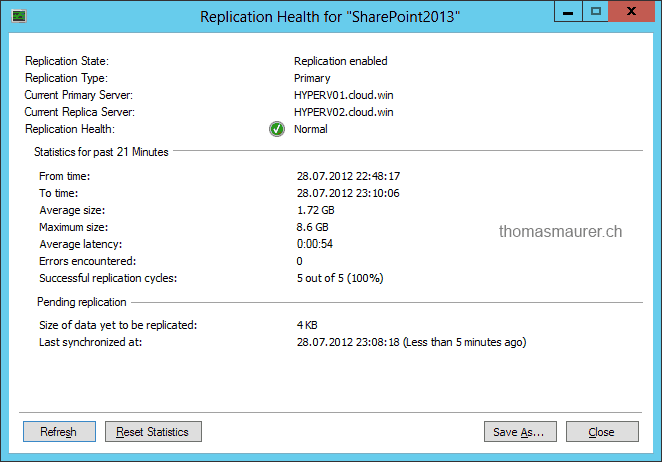
You can also right click on the virtual machine and view the replication health, state and other interesting information.

Hyper-V Replica replication state and healt VM

You can also use Windows PowerShell to get information about the virtual machine replication state and health.


Get-VMReplication

Hyper-V Replica replication state and healt PowerShell

Failover Options

Now after the replication is setup you have different failover options for the virtual machine. This options allow you to do different failover scenarios.

  • Planned Failover
  • Test Failover
  • Failover

Planned Failover

Hyper-V Replica Planned Failover

A Planned Failover is a solution if both sites are still available it is also possible to migrate the virtual machine from on datacenter to another datacenter. A planned failover basically shuts down the source virtual machines, replicates all the latest changes and after all changes are replicated to the recovery site the virtual machines on the recovery site will start with no loss of data.

The primary server will automatic change to the Replica server and the Replica server will change to the primary server.

Test Failover

If you want to test the virtual machine on the recovery site you can use this feature. This will create a copy of the virtual machine on the recovery site which can be used for testing without interrupting the replication. You can also set the copy of the virtual machine to connect to another virtual switch or to be not connected so no IP address conflict will happen.

Hyper-V Replica Test Failover

Failover

Hyper-V Replica Failover Recovery Point

The Failover option will be used on the recovery site during a disaster where the primary site is down. This will start the virtual machine on the recovery site and the administrator will have to choose the latest recovery point. Data between the disaster recovery and the latest recovery point will be lost.


$VM = Get-VM -Name "SharePoint2013"

Start-VMFailover -VM $VM

Hyper-V Replica Failover via PowerShell


There is also a possibility to inject another IP address configuration on the recovery site.

Hyper-V Replica inject Failover IP Address

After you have selected a Recovery Point for the Failover, the other Recovery points are still available as snapshots for this Virtual Machine. if the first Recovery Point is not working correctly you can choose another Recovery Point.

Hyper-V Replica Failover


Failback

Now a lot of disaster recovery solutions are easy to failover but how can you to a failback of your workload? In Hyper-V replica this is pretty easy. After a unplanned Failover the primary server is still the same and the virtual machine is now running on the recovery server. Now to failback a virtual machine with the latest data you reverse the replication so the primary server changes to the recovery server and the recovery server where the virtual machine is running after the failover will be the primary server. Now the virtual machine will be replicated in in the other way. To do failback of the virtual machine back without losing data you can now do a planned failover.

Hyper-V Replica Reverse Replication


$VM = Get-VM -Name "SharePoint2013"

Set-VMReplication -reverse -VMName $VM


Conclusion

I hope this post shows you how great Hyper-V Replica is and how easy to setup it is. If you have any question about Hyper-V Replica you should check out Microsoft TechNet or use the comment function on this post.

d-on-d – Datacenter On Demand

d-on-d

This week I could present some of the new features in Windows Server 8 Hyper-V on an event organized by Microsoft Switzerland in a very cool location. I am talking about D-ON-D (Datacenter on demand) which is run by Kybernetika.

D-ON-D offers you to rent servers and rooms for events, workshops, test project or demos.

If you want to know more about what D-ON-D offers check out the websites:

How to add a Windows Server 2008 R2 Core as Secondary Domain Controller (replica)

This is a small How to which shows you how you can add a Windows Server 2008 R2 Core as a Secondary Domain Controller or Replica.

  1. sconfig Windows Server 2008 R2First configure the Core Server, Name, Domain, IP Adresse and more. You can use the command sconfig to run the Server Configuration Utility.
  2. Now you can go back to the Command Promt.
  3. Now you have to possibilities to install a Domain Controller. First you run dcpromo with a unattend file you have created and copied on the server, or you run dcpromo with some parameters. I decided to run dcpromo with the necessary parameters because I just need a simple replica.
  4. Now you can run the command on the Command Promt
    Dcpromo Windows Server 2008 R2 Core Dcpromo /unattend /replicaOrnewDomain:replica /replicaDomainDNSName:corp.pepsi.local /ConfirmGC:yes /username:corp’administrator /Password:* /safeModeAdminPassword:PepsiPassword
  5. After that the Server will run the installer and reboot.
    Windows Server 2008 R2 Core DCPROMO
  6. A replication connection was created
    Windows Server 2008 R2 AD Replication

If you need more Information about Active Directory Creation on a Windows Server 2008 Core Server you can checkout the Microsoft KB947034.