Commands for Windows Server Core & Hyper-V Core Server

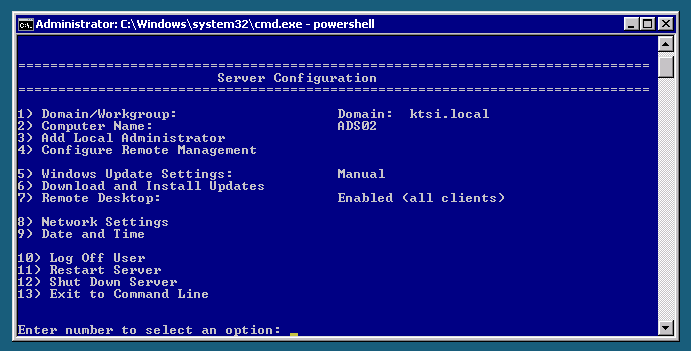
For some KTSI projects I have been working a lot with Windows Server Core or Hyper-V Server. Now I had to do a lot of automation, so I made this little connection of commands. If you configure the server manually you can do the most important things with the sconfig utility.

Windows Server Core

Networking

Set Hostname

netdom renamecomputer %COMPUTERNAME% /NewName:<NewComputerName> 

Join Domain

netdom join %COMPUTERNAME% /domain:<DomainName> /userd:<UserName> /passwordd:*

Remove Domain

netdom remove

Rename Network Interface

netsh interface set interface name=”old name” newname=”new name”

Configure IP Address

netsh interface ipv4 set address name=”<Interface Name>” source=static address=<IPAddress> mask=<SubnetMask> gateway=<DefaultGateway>

Configure DNS Servers

netsh interface ipv4 add dnsserver name=”<Interface Name>” address=<DNS Server IP> index=1

Disable Firewall (not recommended)

netsh advfirewall set allprofiles state off


Remoting

Enable PowerShell Remoting

Enable-PSRemoting

Enable Remotedesktop

netsh advfirewall firewall set rule group=”remote desktop” new enable=yes

Enable Remote Administration

advfirewall firewall set rule group=”Remote Administration” new enable=yes

Enable Remote Firewall Administration

netsh advfirewall firewall set rule group=”Windows Firewall Remote Management” new enable=yes

Enable ICMP (Ping)

netsh firewall set icmpsetting 8

Enable Remote Disk Management

netsh advfirewall firewall set rule group=”Remote Volume Management” new enable=yes


Licensing

Enter License key

slmgr.vbs -ipk XXXXX-XXXXX-XXXXX-XXXXX-XXXXX

Activate Windows

slmgr.vbs -ato


Windows Update

Enable automatic updates

cscript C:'Windows'System32'Scregedit.wsf /au 4

Disable automatic updates

cscript C:'Windows'System32'Scregedit.wsf /au 1


Roles & Features

Get availibale features & roles

Dism /online /get-features /format:table

Enable feature & roles

Dism /online /enable-feature /featurename:<featurename>


Basics

Change Administrator password

net user administrator *

Restart Computer

shutdown /r /t 0

Logoff

logoff

More information about Server Core: TechNet

Cisco UCS Hyper-V Cluster – Important Updates for the Hyper-V Cluster – Part 9

Since we have installed our Microsoft Hyper-V Cluster on the Cisco UCS, Microsoft released some patches for Hyper-V, Windows and Clustering.

There are two really important Updates which I would recommend for Hyper-V Clusters.

  • The first is Service Pack 1 for Windows Server 2008 R2 and Hyper-V Server 2008 R2. Service Pack 1 brings a lot of Hotfixes for Hyper-V, Failover Cluster Feature and other Microsoft Server features. And it brings also a two new features called Dynamic Memory and RemoteFX.
  • The second one is a hotfix for Servers with Intel Westmere or Sandy Bridge and has a large amount of physical memory. Most of the Cisco UCS Blades will meet this configuration. You can get more information on this Hyper-V hotfix here.

This two updates will bring you a much better experience with your Hyper-V Cluster. It will improve performance, stability and it will add new features.

Windows Server 2008 R2 Hyper-V Licensing Overview

hyper-v

This is a little Overview how you can license Windows Server 2008 R2 in a Hyper-V Environment. One of the biggest advantages  of Hyper-V over VMware are the included Guest OS Licenses. For example if you buy a Windows Server 2008 R2 Datacenter license (of each CPU of your physical Server) you can deploy unlimited Windows Server 2008 R2 Datacenter Virtual Machines on this Host.

This Overview should help you understand how this works.

License License models Physical Virtual
Windows Server 2008 R2 Foundation Server License 1 0
Windows Server 2008 R2 Standard Server + CAL
Processor or SAL
1 1
Windows Server 2008 R2 Enterprise Server + CAL
Processor or SAL
1 4
Windows Server 2008 R2 Datacenter Processor + CAL 1 unlimited
Windows Server 2008 R2 for Itanium-Based Systems Processor + CAL 1 unlimited
Windows Web Server 2008 R2 Server License 1 0 (or 1)
Hyper-V Server 2008 R2 Free 1 0


If you need more infos you can find this here.

Cisco UCS Hyper-V Cluster – Create Hyper-V Cluster – Part 6

After you have installed your Hyper-V Nodes and enabled the Failover Cluster Feature you can now start two create the Hyper-V Server 2008 R2 Cluster.

This is not really difficult but you have two know about some important things.

  • The Failover Cluster Configuration Wizard will validate your Cluster configuration. If you have created a Hyper-V 2008 R2 Image with the latest drivers from Cisco your totally fine in the drivers check.
  • All SAN Disks have to be offline on the Hyper-V Hosts. Otherwise the Configuration Wizard can not validate the Cluster Disks.
  • As usual you need a clean Active Directory and a clean and working DNS Zone.
  • If you use Hyper-V Server Hosts you will get a warning in the network configuration because the standard firewall rule will not allow ICMP traffic (ping) to answer.
  • On the Cisco UCS you will also get a Warning which says your Cluster Network is maybe not redundant. This is because we added only one Management Network adapter for the Hyper-V hosts and with normal Hardware this is a single point of failure. But with on the UCS Hardware the Network adapter is virtual and the network connections are redundant in the background, so we can ignore this.

Now basically the setup of the Hyper-V Cluster is the same on the Cisco UCS as on every other Hardware.

  1. First start the Failover Cluster Manager, if you use the Hyper-V 2008 R2 Core Server you need the Failover Cluster Manager console on another Windows Server 2008 R2 or Windows 7 client. If you need this on a Windows 7 computer you can download the Remote Server Administration Tools for Windows 7.
  2. Now you first click validate the Configuration or on Create a Failover Cluster (this will also validate the Cluster Configuration)
    Microsoft Hyper-V 2008 R2 Failover Cluster
  3. Select your Hyper-V Host Servers
    Microsoft Hyper-V 2008 R2 Failover Cluster
  4. Run all tests
    Microsoft Hyper-V 2008 R2 Failover Cluster
  5. Now the Failover Cluster Configuration Wizard will validate your configuration.
    Microsoft Hyper-V 2008 R2 Failover Cluster
  6. After the validation you will get a report about the Configuration. Remember you with the Cisco UCS Solution and Hyper-V Server 2008 R2 you can get two warnings. The first about ICMP and the second because you have only one network adapter.
    Microsoft Hyper-V 2008 R2 Failover Cluster
  7. If you get no other warnings or errors you can now start to create the Failover Cluster. Add your Hyper-V Hosts.
    Microsoft Hyper-V 2008 R2 Failover Cluster
  8. Create the Access Point for the Failover Cluster (Clustername and IP Address)
    Microsoft Hyper-V 2008 R2 Failover Cluster
  9. Confirm the Configuration
    Microsoft Hyper-V 2008 R2 Failover Cluster
  10. And now the Wizard will create your Hyper-V Failover Cluster
    Microsoft Hyper-V 2008 R2 Failover Cluster
  11. After you have done this you simply have to add a Quorum Disk and activate Cluster Shared Volumes


Install HP Support Pack on Hyper-V R2 Core Server

If you are using Microsoft Hyper-V R2 Core Server, installing the HP Support Pack is a little different. This post should show you how this is done.

  1. Download the latest HP Support Pack for Windows Server 2008 R2 and extract that on your Management Server or PC.
  2. Now copy the extracted folder to the Hyper-V Core Server. In my case i copied in the C:\ root of the Core Server via the administrative network share. If you have easy physical access to the server, you could also use a USB stick or something like that.
    Copy HP Support Pack to Core Server
  3. Now connect to the Core Server and use the cmd.exe to navigate to the folder with the HP Support Pack
    Hyper-V Core Server HP Support Pack
  4. Run the “hpsum.exe” to start the HP Smart Update Manager
    hpsum.exe
  5. When the HP Smart Update Manager is started you can use it like on a Full Server installation of Windows Server 2008
    HP Smart Update Manager on Hyper-V Core ServerHP Smart Update Manager on Hyper-V Core ServerHP Smart Update Manager on Hyper-V Core Server

You could also try to run the HP Smart Update Manager on another machine and use the remote connection feature.

Powershell for System Center Virtual Machine Manager and Hyper-V

Microsoft System Center Virtual Machine Manager 2008 R2

This little HowTo shows you how can you get tasks on System Center Virtual Machine Manager done, by using Windows Powershell.

Load Powershell Snapin for Virtual Machine Manager:

Add-PSSnapin Microsoft.SystemCenter.VirtualMachineManager

Create Virtual Machine:

# Config
# ------------------------------------
# Job Config
$JobGroup = "0000001" # This is used to group command by a job
$SCMVVMServer = "SCVVMServer01" # Name of the SCVMM Server (could also be localhost)

# Network Config
$VirtualNetwork = "External" # Name of the Network you want the VM to connect
$VLanEnable = $true # eable VLANs
$VLANID = "1023" # VLAN ID

# VMM Config
$Domain = "Contoso"
$Owner = "Ownerusername" # Owner User
$Description = "This is a Server" # Choose a Description
$VMName = "server05" # Name of the VM
$VMHost = "hyperv02" # Name of the existing VM Host
$VMPath = "C:\ProgramData\Microsoft\Windows\Hyper-V"

# Virtual Machine Config
$VMOperatingSystem = "64-bit edition of Windows Server 2008 R2 Standard"
$CPU = "1.20 GHz Athlon MP" # CPU
$VMDiskSize = "40960" # Disk Size in MB
$CPUCount = "1"
$MemoryMB = "1024" # Memory Size in MB
$ExpectedCPUUtilization = "20"
$DiskIO = "0"
$CPUMax = "100"
$CPUReserve = "0"
$NetworkUtilization = "0"
$RelativeWeight = "100"
$HighlyAvailable = $false
$NumLock = $false
$BootOrder = "CD", "IdeHardDrive", "PxeBoot", "Floppy"
$LimitCPUFunctionality = $false
$LimitCPUForMigration = $false

# Setup Process
# ------------------------------------
Set-VirtualFloppyDrive -RunAsynchronously -VMMServer $SCVMMServer -NoMedia -JobGroup $JobGroup
Set-VirtualCOMPort -NoAttach -VMMServer $SCVMMServer -GuestPort 1 -JobGroup $JobGroup
Set-VirtualCOMPort -NoAttach -VMMServer $SCVMMServer -GuestPort 2 -JobGroup $JobGroup
New-VirtualNetworkAdapter -VMMServer $SCVMMServer -JobGroup $JobGroup -PhysicalAddressType Dynamic -VirtualNetwork $VirtualNetwork -VLanEnabled $VLanEnable -VLANID $VLANID -MACAddressesSpoofingEnabled $false
$CPUType = Get-CPUType -VMMServer $SCVMMServer | where {$_.Name -eq $CPU}
New-HardwareProfile -VMMServer $SCVMMServer -Owner ($Domain + "\" + $Owner) -CPUType $CPUType -Name ("Profile" + $JobGroup) -CPUCount $CPUCount -MemoryMB $MemoryMB -ExpectedCPUUtilization $ExpectedCPUUtilization -DiskIO $DiskIO -CPUMax $CPUMax -CPUReserve $CPUReserve -NetworkUtilization $NetworkUtilization -RelativeWeight $RelativeWeight -HighlyAvailable $HighlyAvailable -NumLock $XMLTask.Feature.NumLock -BootOrder $BootOrder -LimitCPUFunctionality $LimitCPUFunctionality -LimitCPUForMigration $LimitCPUForMigration -JobGroup $JobGroup
New-VirtualDiskDrive -VMMServer $SCVMMServer -IDE -Bus 0 -LUN 0 -JobGroup $JobGroup -Size $VMDiskSize -Dynamic -Filename ($VMName + "_disk_1")
$VMHost = Get-VMHost -VMMServer $SCVMMServer | where {$_.Name -eq $VMHost}
$HardwareProfile = Get-HardwareProfile -VMMServer $SCVMMServer | where {$_.Name -eq ("Profile" + $JobGroup)}
$OperatingSystem = Get-OperatingSystem -VMMServer $SCVMMServer | where {$_.Name -eq $VMOperatingSystem}

# Create VM
# ------------------------------------
New-VM -VMMServer $SCVMMServer -Name $VMName -Description $Description -Owner ($Domain + "\" + $Owner) -VMHost $VMHost -Path $VMPath -HardwareProfile $HardwareProfile -JobGroup $JobGroup -RunAsynchronously -OperatingSystem $OperatingSystem -RunAsSystem -StartAction NeverAutoTurnOnVM -StopAction SaveVM

Delete (Remove) Virtual Machine:

# Config
# ------------------------------------
$VMName = "server05" # Name of the VM

# Setup Process
# ------------------------------------
$SelectedVM = Get-VM -Name $VMName

# Remove/Delete VM
# ------------------------------------
Remove-VM -VM $SelectedVM

Suspend Virtual Machine:

# Config
# ------------------------------------
$VMName = "server05" # Name of the VM

# Setup Process
# ------------------------------------
$SelectedVM = Get-VM -Name $VMName

# Suspend VM
# ------------------------------------
Suspend-VM -VM $SelectedVM

Resume Virtual Machine:

# Config
# ------------------------------------
$VMName = "server05" # Name of the VM

# Setup Process
# ------------------------------------
$SelectedVM = Get-VM -Name $VMName

# Resume VM
# ------------------------------------
Resume-VM -VM $SelectedVM

Stop Virtual Machine / Turn off Virtual Machine:

# Config
# ------------------------------------
$VMName = "server05" # Name of the VM

# Setup Process
# ------------------------------------
$SelectedVM = Get-VM -Name $VMName

# Stop / Turn off VM
# ------------------------------------
Stop-VM -VM $SelectedVM

Start Virtual Machine:

# Config
# ------------------------------------
$VMName = "server05" # Name of the VM

# Setup Process
# ------------------------------------
$SelectedVM = Get-VM -Name $VMName

# Start VM
# ------------------------------------
Start-VM -VM $SelectedVM

This is a reference how you can do some thing with Powershell in the Virtual Machine Manager. You can do a lot more, like error handling, creating virtual machines from a xml config file etc…