Enable SSH on ESXi 5 via vSphere Client

In the first post I wrote how you can enable SSH on the ESXi 5.0 host. In this post I show you how you can enable or activate SSH on the ESXi 5.0 hosts via the vSphere Client.

  1. First start the vSphere Client
  2. Select the ESXi host in the configurations tab
  3. Select Security Profile
    Enable SSH on ESXi 5.0 vis vSphere Client
  4. Click on Properties in the upper right corner and you will get the a popup with all the services on this ESXi 5.0 hosts. Select the SSH service and press the Options button.
    Enable SSH on ESXi 5.0 vis vSphere Client
  5. Now you can start the services and set the startup options
    Enable SSH on ESXi 5.0 vis vSphere Client
  6. press okay and you are done..

Activate SSH on VMware ESXi 5.0

As in VMware ESXi 4.1 you can enable or activate SSH on VMware ESXi 5.0 very simple. VMware ESXi 5.0 is also known as VMware vSphere Hypervisor.

  1. On the start screen press F2 for “Customize System”
    VMware ESXi 5.0 enable SSH
  2. Login with the local password
    VMware ESXi 5.0 enable SSH
  3. Select and enter Troubleshooting Options
    VMware ESXi 5.0 enable SSH
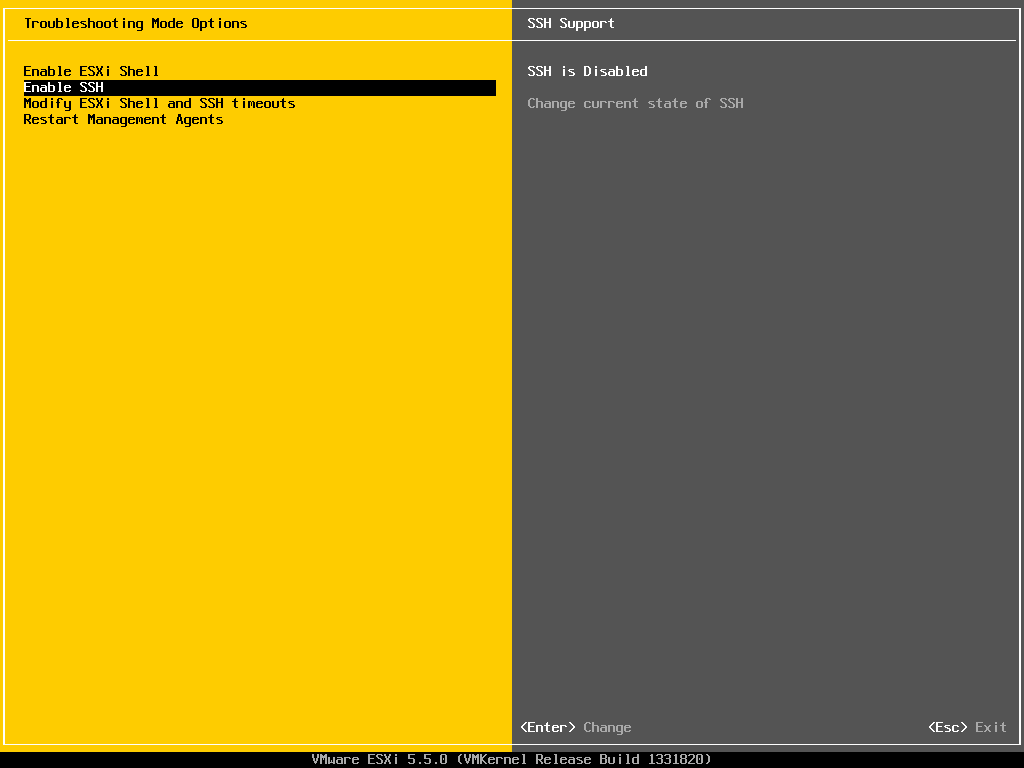
  4. Click on Enable SSH to activate SSH on your VMware ESXi 5.0 host
    VMware ESXi 5.0 enable SSH
  5. After you have pressed the ENTER key you will now see that SSH is enabled
    VMware ESXi 5.0 activate SSH