Virtual Machine Backup and Recovery: Five Critical Decisions – Video

Virtual Machine Backup and Recovery

A few weeks ago I worked with Symantec on a whitepaper called Virtual Machine Backup and Recovery: Five Critical Decisions. After we finished we also had a Youtube Live Stream where we talked about the content of this whitepaper.

You can now watch this video on Youtube:

Virtual Machine Backup and Recovery: Five Critical Decisions

Virtual Machine Backup and Recovery

Together with Symantec, Mahmoud Magdy (Microsoft MVP for Exchange Server) and Mikko Nykyri (VMware vExpert) we produced a whitepaper called “Virtual Machine Backup and Recovery: Five Critical Decisions”. This whitepaper covers an overview about virtualization and the challenges which come with the new workloads in terms of backup and recovery.

Because of the outstanding economy, flexibility, and service levels it offers, virtualization is  transforming data centers at breakneck speed: by 2016, an estimated 80 percent of the world’s x86 servers will be virtual machines (VMs).1 But the speed of this transformation, along with  the high resource utilization, ease of cloning,  moving workloads, and other ways virtualization  works its magic, raise challenges for “traditional” IT services and the teams that deliver them. Nowhere is the complexity that virtualization creates for traditional IT services more apparent than in backup and recovery, which participants in a recent Symantec survey ranked among their least-successful IT initiatives. This paper addresses five critical decisions organizations  must make when building a backup and recovery plan to:

  • Maintain protection, visibility, and control of applications  and data.
  • Maximize utilization of established infrastructure,  processes, staff, and budget.
  • Use virtualization to improve backup and recovery processes.
  • Create an efficient, scalable, future-prepared backup and recovery environment.

Each issue is presented first in general terms that apply across IT environments, and then add comments for specific platforms, applications, or industries based on our individual experience as VMware® vExperts and Microsoft® MVPs.

You can download the whitepaper here: Symantec Virtual Machine Backup and Recovery: Five Critical Decisions

Make also sure you checkout the Google Hangout event on Fri, May 10, 7:00 PM – 8:00 PM.

Join a panel of virtualization experts including Microsoft MVPs Mahmoud Magdy & Thomas Mauer and VMware vExpert Mikko Nykyri as they discuss the white paper they co-authored and offer their thoughts on the most important things to consider for a virtualized server environment.


Using Windows Azure Backup Vault (Preview)

Windows Azure Logo

Microsoft just announced the preview of Windows Azure Recovery Services which at the moment include Windows Azure Backup and Windows Azure Hyper-V Recovery Manager.

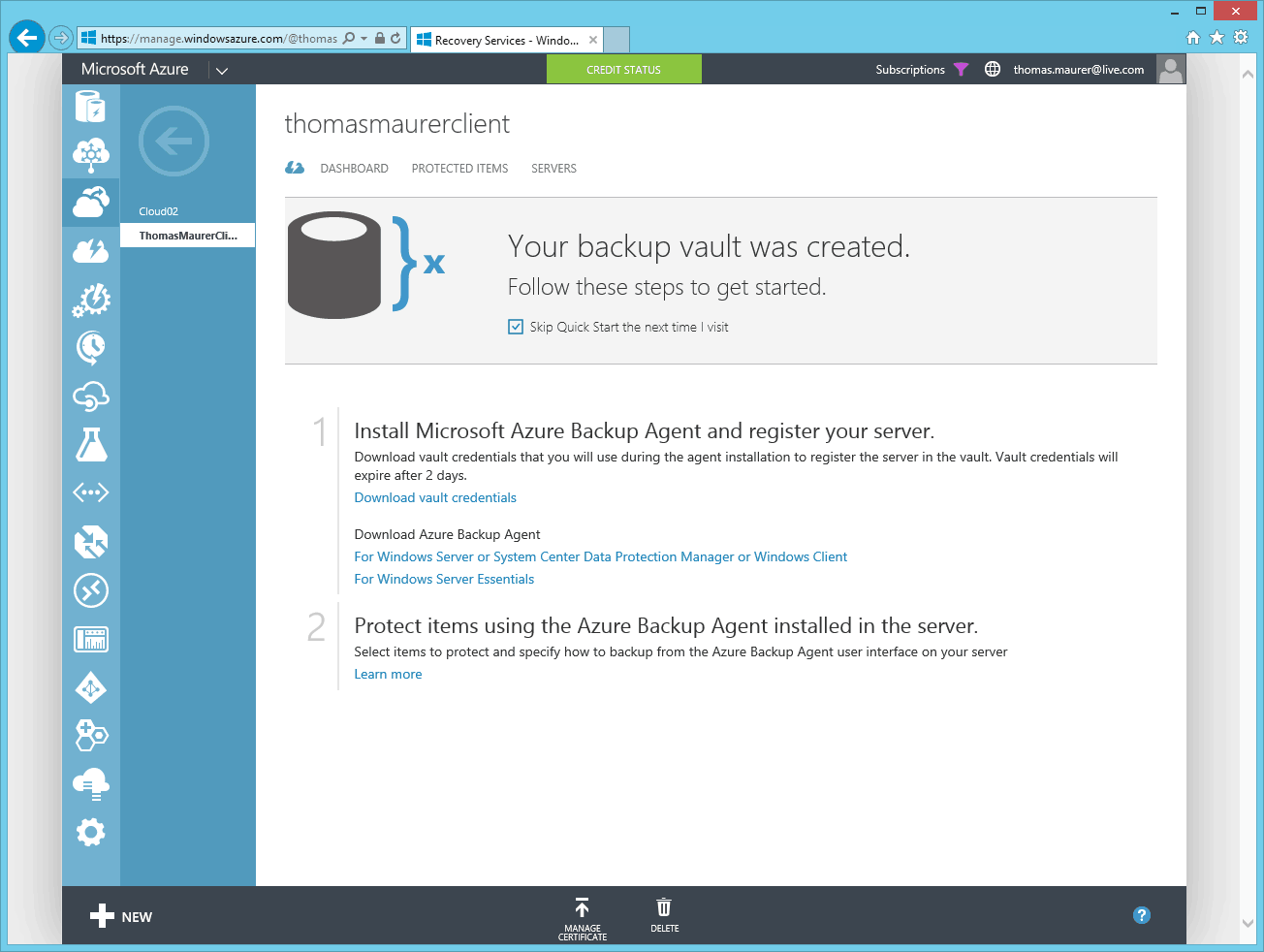
To use Windows Azure Backup you first have to enable the preview in your Azure Portal. After that you can create a new Backup Vault where you can store your data.

Windows Azure Recovery Services Backup Vault

After that you have to add a certificate to the Backup Vault. You can do this using this guy here: Upload certificates to the vault

The easiest way to do this for testing with the preview version is to create a self-signed certificate on the host you will register for the Windows Azure Online Backup.

  1. Download  Certificate Creation Tool (makecert.exe) from the TechNet Gallery or MakeCert is available as part of the Windows SDK,  which you can download  from http://go.microsoft.com/fwlink/p/?linkid=84091.
  2. Open an elevated command prompt (with Administrator privileges) and navigate to the location where makecert.exe is stored. Then type:
    makecert.exe -r -pe -n CN=<certName> -ss my -sr localmachine -eku 1.3.6.1.5.5.7.3.2  -e 12/12/2015  -len 2048 <CertificateName>.cer
    The certificate will be created and stored in the same location.
  3. In the vault, click Manage Certificate to upload the .cer file, that contains the public key.

Windows Azure Online Backup Vault Certificate

After that you can upload the certificate to Windows Azure by using the Windows Azure Portal.

Windows Azure Online Backup Vault Management

After you have successfully uploaded the certificate you can now download the Windows Azure Online Backup agent. Make sure you pick the right one, you can download one for Windows Server 2012 and System Center 2012 SP1 – Data Protection Manager or an agent for Windows Server 2012 Essentials. The Agent for Windows Server 2012 is around 18MB.

Windows Azure Online Backup Agent Download Install the agent on the server you want to use for Windows Azure Backup. After the agent is installed on your system you can open the Windows Azure Backup Console and register your server. Here you have to select the created certificate and the Backup Vault you have created in the Windows Azure Portal.

Windows Azure Online Backup Register Server

After you finally registered your server you can now schedule a backup. At the moment you can do the following configuration settings in the preview.

  • Select folders and exclude file types
  • You can define backup times (at the moment maximum 3 times per day)
  • Choose the retention rate from 7, 15 or 30 days.

Windows Azure Backup Console

In the Windows Azure Portal you can see the Azure Backup Dashboard with more information about your servers and files.

Windows Azure Online Backup Dashboard


Windows Azure Recovery Services: Backup & Hyper-V Recovery Manager (Preview)

Windows Azure Logo

Microsoft just released Windows Azure Recovery Services (Preview) for the features like Backup and Hyper-V Recovery Manager.

Windows Azure Backup (Preview) – This is your offsite backup to cloud solutions, which integrates in Windows Server 2012, Windows Server 2012 Essentials, or System Center 2012 Data Protection Manager. These tools provide similar experiences configuring, monitoring, and recovering backups whether to local disk or Windows Azure storage. After data is backed up to the cloud, authorized users can easily recover backups to any server.

Windows Azure Hyper-V Recovery Manager (Preview) – This allows you to easily failover private clouds to a secondary datacenter- This feature integrates in System Center 2012 Virtual Machine Manager and uses the Windows Server 2012 Hyper-V Replica technology to replicate your private cloud. It helps you to orchestrate datacenter failovers or recovery of virtual machines. The solution offers also the same features as Hyper-V replica but in a much bigger scale.

Windows Azure Hyper-V Recovery Manager

You can get more information here: Windows Azure Recovery Services

Altaro gives away 50 free PC backup licenses to all Microsoft Hyper-V administrators

Altaro Software, a fast-growing developer of backup solutions for Microsoft Hyper-V, today announced that it is giving every Microsoft Hyper-V administrator 50 free licenses of Oops!Backup, their desktop backup solution.

“Following the success of our Hyper-V Backup solution this year, we wanted to give something back to the Hyper-V community during the holiday season” commented David Vella, CEO of Altaro. “Hyper-V admins can give out these licenses to their colleagues, friends and family, for use at work or at home.”

Oops!Backup is a popular desktop backup solution that allows users to preview & restore versions of their files from different points in time.

Any network administrator who uses Microsoft Hyper-V is eligible for the free license keys, they simply need to visit the Altaro website, send in a screenshot of their Hyper-V Manager and expect an email with their respective keys.

Altaro first to support Windows Server 2012 with release of Hyper-V Backup v3.5

Altaro Windows Server 2012 Hyper-V Backup

Some weeks ago I cloud run a early beta version of Altaro Hyper-V Backup 3.5 and I think it’s a pretty cool solution. Now just one day after the release of Windows Server 2012 Altaro releases the final Hyper-V Backup v3.5 which supports Windows Server 2012 Hyper-V.

Check out my review blog post: Altaro launching Hyper-V Backup 3.5 Beta with Windows Server 2012 support.

Press Release:

Altaro Software, a fast-growing developer of backup solutions for Microsoft Hyper-V, today announced the release of Altaro Hyper-V Backup v3.5, becoming the first Hyper-V Backup solution provider to fully support Windows Server 2012, including support for CSV, Volume Shadow Copies of SMB 3.0 and more.

“Windows Server 2012 and the new release of Hyper-V have already been well received by the market and we believe this will lead to a rapid increase in Microsoft’s share of the Virtualization space.” commented David Vella, CEO of Altaro. “We’re proud to be the first in the Hyper-V backup space to support Windows Server 2012.”


‘The new version 3.5 of Altaro Hyper-V Backup is just a breeze to install and operate, the ease and speed of backup & recovery in a Windows Server 2012 cluster is just amazing” commented Hans Vredevoort from Hyper-V.nu. “This is a superbly working backup product!’

The new release also includes support for backing up and restoring of VMs located on network paths, a new Metro-inspired interface and various tweaks and updates to improve performance.

For more information, including download links check out http://www.altaro.com/hyper-v-backup/

Altaro launching Hyper-V Backup 3.5 Beta with Windows Server 2012 support

Altaro Logo


Today Altaro is launching the public beta of Altaro Hyper-V Backup 3.5 with a contest where you can win a free Nexus 7 tablets. Altaro Hyper-V Backup is a powerful Hyper-V aware backup solution that easily backs up Microsoft Hyper-V Virtual Machines. With the next version Altaro will start supporting Windows Server 2012 Hyper-V.

I had the chance to already test the new Hyper-V Backup 3.5 beta, and if you are interested in a simple and fast Hyper-V backup solution, you should definitely have a look at Altaro solution.

altaro hyper-v backup

First of all Altro Hyper-V Backup is very easy to setup. The installation takes about 2 minutes, the installer need to be run on the Hyper-V server or one of the cluster hosts. The installer does automatically detect cluster installations.

Altaro Hyper-V Backup Cluster Installation

After the installation you have to do some very simple configuration steps. First you have to add a backup destination, this can be a folder on a local drive, a USB drive or a network share. Next you have to select which Virtual Machines should be protected by Altaro Hyper-V Backup and the last one is to configure the backup schedule for the Virtual Machines. And yes that’s how simple this solution is.

I did some test backup of virtual machines which I use in my lab and I was really surprise by the performance. One of my test Virtual Machines was a Windows Server 2012 server hosted on a Windows Server 2012 Hyper-V hosts and the size was something like 8.25 GB and the backup initial backup was done in around 3 minutes.

Altaro Hyper-V Backup Speed

One of the most important parts of a backup solution is how you can restore you backups. In my lab I backed up and restored some Virtual Machines and everything worked as expected. But there are some great restore features. For example Altaro Hyper-V Backup does not only backup your current VM, it does also allow you to backup snapshots. This is great if you run a lab environment for testing or for software packaging where your snapshots are a very important part.

Another great thing is the option to restore backups from other Altaro backups. For example if you lose your Altaro Hyper-V Backup server during a disaster or a hardware failure. You can easily setup a new server with Altaro Hyper-V Backup and select your previous backups and restore them.

Altaro Hyper-V Backup features

Altaro Hyper-V Backup is not just a simple backup to for Hyper-V Virtual Machines it also has some cool extra features.

  • ReverseDelta – Transfers only changes at the block level, whilst performing on-the-fly deduplication. This is great to save a lot of space while backup up Virtual Machines which are using the same operating systems.
  • Exchange & MS SQL VM backups – Commits databases in VMs that host Exchange, MS SQL or other applications compatible with the Hyper-V VSS Writer, which offer application consistent backups.
  • Backs up Hyper-V Snapshots – If your VMs have snapshots than you can back up the snapshots as well.
  •  Live Backups of Linux VMs – Back up crash consistent Linux VMs without shutting down the machine.
  • File Level Restore – Mount backed up VHDs and restore files without having to restore a whole Virtual Machine.
  • Restore to different Hyper-V host – Restore an individual or a group of VMs to a different Hyper-V Host.
  • FireDrill Restore Tests – Build a plan to make sure that in case of disaster you’re fully covered.
  • Backup Drive Swap Rotation- Drive Swap functionality allows the customer to rotate backups drives on a daily basis.

What’s new in Altaro Hyper-V Backup 3.5

  • Windows Server 2012 Support, including support for VHDX files.
  • Windows Server 2012: support for backup and restore of VMs located on network paths.
  • Windows Server 2012: support for Volume Shadow Copies of SMB3.0 network paths.
  • Windows Server 2012: support for CSV3.0 and scale-out CSV file shares.
  • New and improved Metro-Style User Interface.

Overall Altaro is an easy, fast and effective Hyper-V Backup solution with a lot of extras. If you want to try the new Altaro Hyper-V Backup checkout the contest page. Altaro are giving away two Nexus 7’s to a couple of lucky testers of their Windows Server 2012 Backup for Hyper-V Beta.